Table of Contents >> Show >> Hide
- What Does a Flashing White Light on a PS4 Controller Mean?
- Before You Start: Perform a 60-Second Check
- Quick Fix 1: Reconnect With a Data-Capable USB Cable
- Quick Fix 2: Reset the DualShock 4 and Power-Cycle the Console
- Quick Fix 3: Remove Bluetooth Conflicts and Re-Pair the Controller
- How to Tell Which Component Is Failing
- Frequently Asked Questions
- Real-World Troubleshooting Experiences: What Usually Solves It
- Experience 1: The “Working” Cable That Was Not Really Working
- Experience 2: The Controller Had Quietly Switched Loyalties
- Experience 3: A Nearly Empty Battery Created Misleading Symptoms
- Experience 4: The Reset Worked Only After a Full Console Shutdown
- Experience 5: Testing Another Controller Revealed the Real Culprit
- Conclusion
You press the PS button, ready to jump back into your game, and your PS4 controller responds with a blinking white lightand absolutely nothing else. No login screen. No control. Just a tiny plastic lighthouse signaling distress from the couch.
The good news is that a flashing white PS4 controller usually does not mean the controller is permanently dead. In most cases, the DualShock 4 has power but cannot complete its connection to the PlayStation 4. The cause may be a lost pairing, weak battery, charge-only USB cable, Bluetooth interference, frozen console connection, or damaged charging port.
This guide explains what the white light means, walks through three quick fixes in the best order, and helps you determine whether the problem is the controller, cable, battery, USB port, or console.
What Does a Flashing White Light on a PS4 Controller Mean?
The DualShock 4 normally uses its light bar for player colors and game effects. A rapidly flashing white light usually means something else: the controller has powered on and is searching for a connection, but the pairing attempt is not completing. Think of it as knocking on the PS4’s door without getting an answer.
The interruption often follows use with a PC, phone, another console, or a fully drained battery. It can also come from a charge-only cable, Bluetooth interference, a frozen connection, or damage to a USB port. Sony’s pairing process calls for connecting the controller to the console by USB and pressing the PS button, and Sony notes that a DualShock 4 can be paired with only one console at a time.
Before You Start: Perform a 60-Second Check
Confirm that the PS4 is fully on, connect the controller directly to a front USB port, and inspect the cable and micro-USB socket for looseness or debris. If the battery may be empty, leave it connected for 20 to 30 minutes. Most importantly, do not assume a cable is suitable merely because the light comes on: some micro-USB cables provide power but lack the data lines needed for pairing.
Quick Fix 1: Reconnect With a Data-Capable USB Cable
This is the best first move because it addresses a drained battery, lost pairing, and bad cable at the same time.
1. Shut Down the PS4 Completely
Use the physical power button and wait until every console light is off. Do not leave it in Rest Mode.
2. Connect a Known-Good Micro-USB Data Cable
Plug the DualShock 4 directly into a front USB port. Use the original cable or one that has successfully transferred files between a phone and computer. A cable that only charges cannot complete the pairing handshake.
3. Turn On the Console and Press the PS Button
Start the PS4 with its physical power button, then press the controller’s PS button. A successful connection changes the blinking white light to a steady player color.
4. Test the Second USB Port and Allow Charging Time
If it still flashes, try the other front port and leave the controller connected for 30 to 60 minutes. Repair sources consistently recommend testing both power and data because faulty cables, dirty connectors, damaged ports, and aging batteries can produce similar symptoms.
Quick Fix 2: Reset the DualShock 4 and Power-Cycle the Console
If a proper USB cable does not restore the connection, clear the controller’s stored connection state and restart the console’s hardware connection.
Step 1: Turn Off and Unplug the PS4
Power the console down completely. Unplug its power cord for about 30 seconds. This is more thorough than simply selecting Restart because it clears temporary power and connection states.
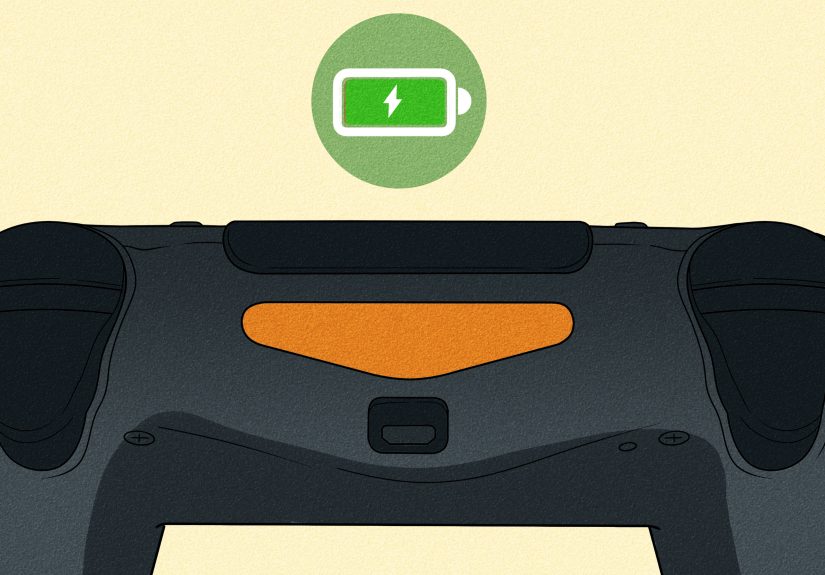
Step 2: Locate the Controller Reset Button
Turn the DualShock 4 over. Near the L2 shoulder button, you will find a tiny recessed hole. The reset switch is inside it.
Step 3: Hold the Reset Button for at Least Five Seconds
Insert a straightened paper clip, SIM-eject tool, or similarly thin blunt object. Press gently until you feel the small button click, then hold it for at least five seconds. Avoid using excessive force; this is electronics repair, not a medieval siege.
Step 4: Reconnect by USB
Plug the PS4 back in and connect the reset controller using a known-good data cable. Turn on the console with its physical power button, then press the PS button on the controller.
Sony specifically recommends this reset procedure for DualShock 4 problems: shut down and unplug the PS4, hold the recessed controller reset button for at least five seconds, reconnect with the official USB cable, and press the PS button.
Optional: Try Safe Mode
If the controller still will not connect during normal startup, turn the PS4 off. Press and hold the console’s power button until you hear a second beep, which usually occurs about seven seconds after the first. Connect the controller by USB and press the PS button.
If the controller works in Safe Mode, the cable and basic controller hardware are probably functional. Start with the least destructive option, Restart PS4. Do not initialize the console merely to fix a controller connection; initialization can erase data and should be a last resort after backups and deeper diagnosis.
Quick Fix 3: Remove Bluetooth Conflicts and Re-Pair the Controller
A DualShock 4 can remember only one active console pairing at a time. If you recently connected it to a laptop, phone, tablet, another PlayStation, or Bluetooth adapter, it may be searching for that device instead of your PS4.
Disconnect Nearby Devices
Turn off Bluetooth temporarily on nearby phones, tablets, computers, and streaming devices that previously used the controller. If possible, remove “Wireless Controller” from those devices’ saved Bluetooth lists. Bring the controller within a few feet of the PS4 and try the wired pairing process again.
Pair Wirelessly With a Second Working Controller
If you have another controller that already works, use it to open:
Settings > Devices > Bluetooth Devices
On the problem controller, press and hold the SHARE button and the PS button until the light bar flashes. Select Wireless Controller from the PS4’s Bluetooth device list.
The SHARE-plus-PS combination is the standard Bluetooth pairing method for a DualShock 4. It is useful when the USB path is unreliable, although the wired method remains the better first test because it also checks charging and data communication.
Reduce Wireless Interference
Temporarily move wireless headsets, routers, hubs, and other busy wireless devices away from the console. Bluetooth shares crowded radio space with many household devices. Interference is not the most common cause, but it becomes more likely when the controller connects only at very close range or disconnects repeatedly.
How to Tell Which Component Is Failing
The Controller Works Only While Plugged In
Charge it fully. If it shuts off immediately after the cable is removed, the internal battery may no longer hold a charge. If it stays powered but loses control, suspect the wireless connection instead.
The Controller Charges but Will Not Pair
Test a known data-capable cable, both PS4 USB ports, and the rear reset button. A charge-only cable is the leading suspect when the light comes on but pairing never completes.
The Cable Feels Loose
A worn micro-USB socket can interrupt both power and data. If the light changes when the plug moves, stop bending the connector and consider professional port repair.
No Controller Connects
When multiple controllers and cables fail, the PS4 may have a USB, Bluetooth, or system software problem. Power-cycle the console and test Safe Mode before considering more invasive repairs.
Frequently Asked Questions
Why Is My PS4 Controller Flashing White and Not Connecting?
It is usually trying and failing to complete pairing. Common causes include lost synchronization, low charge, a power-only USB cable, another remembered Bluetooth device, interference, or damaged hardware.
Why Does It Flash Once and Turn Off?
The battery may be empty or failing. Charge it for at least 30 minutes, test another data cable, and perform the rear-button reset.
Does Resetting a DualShock 4 Erase Games or Saves?
No. The controller reset clears its connection state; it does not delete console games, saved data, trophies, or PlayStation Network information.
When Should I Repair or Replace It?
Consider repair after it fails with multiple known-good data cables, both PS4 USB ports, a full reset, and another console or computer. A loose port, swelling, overheating, or liquid damage also calls for professional service. Potential hardware causes include a defective battery, charging cable, charging port, or internal controller fault.
Real-World Troubleshooting Experiences: What Usually Solves It
Troubleshooting a flashing white PS4 controller is less about finding one magical button combination and more about testing the connection chain in a sensible order. The most useful real-world lesson is to begin with the cheapest, simplest variable and move toward hardware only after the easy causes are eliminated.
Experience 1: The “Working” Cable That Was Not Really Working
A common scenario begins with a controller that lights up when connected, convincing the owner that the cable must be fine. After several resets, restarts, and increasingly judgmental stares at the console, a different micro-USB cable fixes the problem immediately. The first cable could deliver power, but its data wires were missing or damaged.
The practical takeaway is simple: before opening the controller or shopping for a replacement, test a cable that has successfully transferred photos or files between another device and a computer. It is one of the fastest ways to avoid an unnecessary repair.
Experience 2: The Controller Had Quietly Switched Loyalties
Another frequent pattern appears after someone uses the DualShock 4 for a PC game, mobile game, Remote Play setup, or another console. Later, the controller flashes white beside the PS4 but refuses to respond. Nothing is physically broken; it is still paired elsewhere.
Turning off Bluetooth on the other device, forgetting “Wireless Controller,” resetting the DualShock 4, and reconnecting it to the PS4 by USB normally restores order. The controller was not defectiveit was simply in a long-distance relationship with a laptop.
Experience 3: A Nearly Empty Battery Created Misleading Symptoms
A deeply discharged controller can show a brief light but fail to stay connected. Owners may interpret any light as proof that the battery is healthy. In reality, LEDs require far less energy than the controller’s wireless radio, vibration motors, speaker, and processor.
Leaving the controller attached to the powered PS4 for 30 to 60 minutes before pressing the PS button can make the difference. If it works only while connected or dies immediately after being unplugged, however, the battery may be worn out rather than merely empty.
Experience 4: The Reset Worked Only After a Full Console Shutdown
Some users reset the controller repeatedly while the PS4 remains running or suspended. The controller clears its state, but the console continues holding onto a bad connection session. A complete shutdown, brief unplug, controller reset, and wired re-pair gives both sides a clean start.
This sequence is especially useful after a power interruption, failed system wake-up, or sudden disconnection. It is also safer than jumping directly to database rebuilding or console initialization.
Experience 5: Testing Another Controller Revealed the Real Culprit
When available, a second DualShock 4 is the best diagnostic shortcut. If the second controller pairs through the same cable and USB port, the original controller probably has a battery, charging-port, or internal board problem. If neither controller pairs, attention should shift toward the cable, console USB ports, Bluetooth hardware, or PS4 system state.
The broader lesson is not to replace parts based on one symptom. Flashing white describes what the controller is doing, not why it is doing it. A short sequence of controlled testsknown-good cable, alternate port, reset, power cycle, second device, and second controllerusually identifies the weak link without guesswork.
Conclusion
When a PS4 controller flashes white, start with the connection rather than assuming the controller is dead. Use a data-capable micro-USB cable to charge and re-pair it, reset the controller while the console is fully powered down, and remove conflicts from other Bluetooth devices. Those three quick fixes resolve the majority of cases.
If the DualShock 4 still flashes white after multiple cables, both USB ports, a hard reset, Safe Mode, and testing on another device, the issue is likely physical. The internal battery, micro-USB charging board, Bluetooth hardware, or console ports may need repair.
Note: Stop using a controller that becomes unusually hot, smells burnt, shows battery swelling, or has liquid damage. Have it inspected by a qualified repair technician.