Table of Contents >> Show >> Hide
- What Is an ACCDE File?
- What Are ACCDE Files Used For?
- How to Open an ACCDE File
- Can You Open an ACCDE File Without Access?
- How to Create an ACCDE File
- Can You Convert an ACCDE File Back to ACCDB?
- Is an ACCDE File Secure?
- ACCDE Files and Split Databases
- Common Problems When Opening ACCDE Files
- How to Tell If a File Is Really an ACCDE File
- Best Practices for Working with ACCDE Files
- Real-World Experience with ACCDE Files
- Conclusion
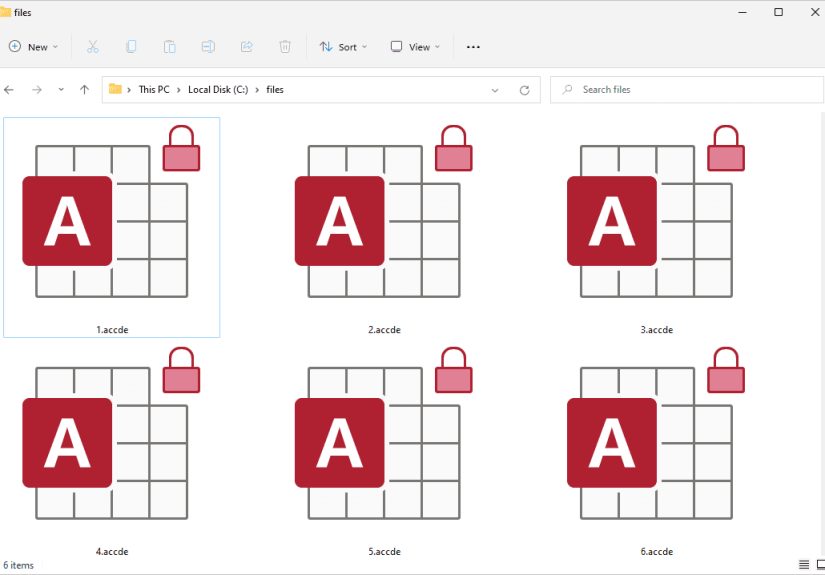
If you have ever received a file ending in .accde and immediately wondered whether your computer was about to launch a database, a spaceship, or a mild office panic attack, you are not alone. An ACCDE file is not a random tech gremlin. It is a Microsoft Access file designed for running a database application while keeping the behind-the-scenes design and VBA code locked away from curious hands.
In plain English, an ACCDE file is a compiled, execute-only version of a Microsoft Access database. It usually starts life as an ACCDB file, which is the standard Access database format used in modern versions of Microsoft Access. When the database creator converts that ACCDB file into an ACCDE file, Access compiles the VBA code and removes the editable source code. The result is a database users can operate but not easily redesign.
Think of it like ordering food at a restaurant. The ACCDE file lets you enjoy the meal, but it does not hand you the chef’s recipe notebook, the spice inventory, and the secret sauce formula. For many business database apps, that is exactly the point.
What Is an ACCDE File?
An ACCDE file is a Microsoft Access execute-only database file. It is commonly used to distribute Access applications to employees, clients, departments, or other users who need to work with forms, reports, queries, and data entry screens without changing the design of the application.
The file extension .accde stands for an Access database that has been saved in a compiled format. It is closely related to the .accdb format, but with one major difference: the editable VBA source code is no longer available inside the ACCDE file. Users can still open the application, enter data, run reports, click buttons, and use the interface the developer created. What they cannot normally do is jump into the design and start rearranging forms like they are redecorating a tiny digital living room.
ACCDE vs. ACCDB: What Is the Difference?
The easiest way to understand the difference is this:
ACCDB is the working database file. It is the editable version used by the developer or database owner. It can contain tables, forms, reports, macros, modules, and VBA code. If you need to make design changes, fix code, add new buttons, or modify forms, the ACCDB file is the one you want.
ACCDE is the distribution version. It is compiled, more locked down, and better suited for users who simply need to run the database application. It helps protect the developer’s work and reduces the chance that someone accidentally breaks a form, deletes a module, or turns a carefully built business tool into a digital soup sandwich.
An ACCDE file may still connect to live tables, especially in a split database setup. In many professional Access applications, the data lives in a separate back-end database, while the ACCDE file acts as the front-end application that users open on their own computers.
What Are ACCDE Files Used For?
ACCDE files are most often used when a Microsoft Access database has become more than a simple file. It may be a full application with navigation menus, data-entry forms, automated reports, search tools, and custom VBA code. At that point, the developer may not want every user to have full design access.
Common uses include:
- Distributing an Access app to employees
- Protecting VBA code from viewing or editing
- Preventing accidental changes to forms and reports
- Running a front-end database connected to a shared back-end
- Providing a controlled interface for data entry and reporting
- Deploying Access applications with Microsoft Access Runtime
For example, a small company might use an Access database to manage work orders. The developer keeps the original ACCDB file, makes improvements there, and sends employees an ACCDE file. Employees can open customer forms, update job statuses, and print reports, but they cannot wander into the VBA editor and accidentally remove the code that makes the “Print Invoice” button work. That button has a job, and frankly, it deserves job security.
How to Open an ACCDE File
The simplest way to open an ACCDE file is with Microsoft Access. If Access is installed on your Windows computer, you can usually double-click the file and it will open like a regular Access application.
Method 1: Open It with Microsoft Access
To open an ACCDE file with the full version of Microsoft Access:
- Locate the ACCDE file on your computer.
- Double-click the file.
- If prompted, choose Microsoft Access as the program to open it.
- Enable trusted content only if you know the file came from a safe source.
- Use the forms, menus, and reports provided by the database application.
If double-clicking does not work, open Microsoft Access first, choose File, then Open, and browse to the ACCDE file. This can help when Windows has not assigned the correct default app for the file extension.
Method 2: Open It with Microsoft 365 Access Runtime
If you do not have the full version of Microsoft Access, you may still be able to open and run the file with Microsoft 365 Access Runtime. Access Runtime is a free Microsoft download that allows users to run Access applications without installing the full design version of Access.
Runtime mode is made for users, not developers. It removes or hides many design features, such as the Navigation Pane, Design View, Layout View, and default Ribbon tools. This is useful when the goal is to let someone use the database rather than renovate it from the foundation up.
When installing Access Runtime, pay attention to whether you need the 32-bit or 64-bit version. This matters because Access databases with compiled code, references, ActiveX controls, or Windows API calls can behave differently depending on Office bitness. In business environments, mismatched versions are a classic source of mysterious errors, right up there with “it worked yesterday” and “nobody changed anything.”
Can You Open an ACCDE File Without Access?
Not in the same meaningful way. An ACCDE file is an Access database application, not a universal document like a PDF or a plain text file. You generally need Microsoft Access or Microsoft Access Runtime to run it properly.
Some third-party database viewers may be able to inspect parts of Access database files, but they usually cannot run the full application experience. If the ACCDE file contains forms, macros, custom code, linked tables, reports, and startup logic, a simple viewer will not replace Access. At best, it may show some table data. At worst, it will stare back at you like you asked a toaster to host a webinar.
If someone sends you an ACCDE file for work, school, or a client project, ask whether they expect you to use Microsoft Access, Access Runtime, or a specific shortcut. Many Access applications are deployed with instructions, a trusted folder location, and sometimes a separate back-end database connection.
How to Create an ACCDE File
If you are the database developer, you create an ACCDE file from an ACCDB file in Microsoft Access. The original ACCDB remains your editable master copy, while the ACCDE becomes the distributed version.
Basic Steps to Make an ACCDE File
- Open the ACCDB database in Microsoft Access.
- Make sure the database is trusted and saved in a reliable location.
- Compile your VBA code and fix any errors.
- Click File.
- Choose Save As.
- Select Make ACCDE.
- Click Save As and choose where to save the new file.
Before creating the ACCDE file, it is smart to make a backup of the original ACCDB. Actually, make two backups if the database is important. Backups are like umbrellas: boring when you do not need them, heroic when the sky opens.
Why Access May Fail to Create an ACCDE File
Sometimes Microsoft Access refuses to create the ACCDE file. The error message may be vague, which is software’s charming way of saying, “Good luck, detective.” Common causes include VBA compile errors, broken references, missing libraries, empty event procedures, corruption, untrusted locations, network path problems, or compatibility issues between Access versions.
Before trying again, open the VBA editor, compile the project, resolve highlighted errors, check references, compact and repair the database, and try saving the file from a local folder rather than a cloud-synced or network location. Also confirm that the database opens normally as an ACCDB before you ask Access to produce the locked-down ACCDE version.
Can You Convert an ACCDE File Back to ACCDB?
In normal use, no. You should not expect to convert an ACCDE file back into a fully editable ACCDB file with all original VBA source code restored. The ACCDE process is designed to remove editable source code. That is the entire security-friendly point.
This is why the original ACCDB file is so important. If you created the ACCDE file and later need to change a form, update code, redesign reports, or add features, you should go back to the original ACCDB file, make the changes there, and create a fresh ACCDE file for users.
If you only have the ACCDE file and not the original ACCDB, your options are limited. You may still be able to use the application and access data through its interface, but editing the underlying design and VBA code is intentionally restricted.
Is an ACCDE File Secure?
An ACCDE file offers useful protection, but it should not be confused with total database security. It helps hide VBA source code and prevents normal design changes to forms, reports, and modules. That makes it excellent for protecting application logic and reducing accidental damage.
However, an ACCDE file does not automatically encrypt every piece of data, replace good permissions, or protect a poorly configured back-end database. If the file connects to external data sources, those sources still need proper security. If the database lives on a shared network folder, file permissions still matter. If sensitive data is involved, use appropriate authentication, encryption, backups, and access controls.
In other words, ACCDE is a seat belt, not a tank. Very useful. Not magic.
ACCDE Files and Split Databases
Many serious Access applications use a split database design. In this setup, the back-end database stores the tables and data, while the front-end database contains forms, reports, queries, macros, and application logic. Each user gets a local copy of the front end, while everyone connects to the shared back-end data.
This is where ACCDE files shine. A developer can keep the editable ACCDB front end, create an ACCDE version, and distribute that ACCDE to users. Users work through the polished interface, while the actual shared data remains in the back end.
A split design can improve performance, reduce design conflicts, and make updates easier. When the developer changes the interface, they can send out a new ACCDE front end without replacing the back-end data. That is much cleaner than passing around one giant database file and hoping nobody opens it from three desks at once while Karen from accounting runs the year-end report.
Common Problems When Opening ACCDE Files
The File Opens in the Wrong Version of Access
If multiple versions of Access or Access Runtime are installed, Windows may open the ACCDE file with the wrong version. A shortcut with the correct Access executable path can help. In managed environments, IT may need to control which version is used.
The Database Shows a Security Warning
Access may block active content if the file is not in a trusted location. Only trust a database if you know where it came from. For business apps, placing the front-end file in a trusted folder can prevent repeated warnings and allow VBA code to run as intended.
The File Says “Unrecognized Database Format”
This error can happen when Access versions are incompatible, the file was created with a newer build, the file is damaged, or an update is required. Try opening it with the intended Access version, installing updates, and asking the file creator to regenerate the ACCDE from the original ACCDB.
Buttons or Forms Do Not Work
If buttons, combo boxes, startup forms, or reports do not behave correctly, the issue may involve disabled VBA, missing references, broken links to back-end tables, missing permissions, or code that depends on a specific folder path. The file itself may open, but the application still needs its environment to be set up correctly.
How to Tell If a File Is Really an ACCDE File
First, check the file extension. In Windows, you may need to enable file extensions in File Explorer to see the full name. A file called Inventory.accde is likely an Access execute-only database. A file called Inventory.accde.txt is not the same thing, and Windows may be hiding the real extension.
Also be careful with look-alike extensions. ACCDE is related to Access formats such as ACCDB, ACCDR, and ACCDT, but it is not the same as unrelated extensions that merely look similar. If Access cannot open the file, confirm the extension and ask the sender what software created it.
Best Practices for Working with ACCDE Files
If you are a user, keep the ACCDE file in the folder recommended by the developer or IT team. Do not rename it unless instructed. Do not move it away from related files if the application depends on a specific folder structure. If you see a security warning, confirm the source before enabling content.
If you are a developer, keep a clean master ACCDB file, document your deployment steps, compile the database before making the ACCDE, and test the finished ACCDE on a machine similar to your users’ computers. If your users run both 32-bit and 64-bit Office environments, test carefully and consider separate deployment packages when needed.
For shared databases, strongly consider splitting the database and distributing an ACCDE front end. This gives users a more stable experience and helps protect your design work. Keep version numbers in the file name or inside an About screen so users and support staff know which build they are running.
Real-World Experience with ACCDE Files
In everyday office life, ACCDE files tend to appear when an Access database grows from “quick little tool” into “please do not break this because payroll depends on it.” That evolution is common. Someone builds a simple tracker, adds a few forms, creates a report, adds buttons, writes VBA, and suddenly the database has become a small business application wearing sensible shoes.
One practical lesson is that the ACCDE file should be treated like a finished product, not a development workspace. Users should open it, do their work, and close it. Developers should not try to make changes directly inside the ACCDE. The proper workflow is to edit the ACCDB master, test it, compile it, create a new ACCDE, and then distribute that new version.
Another real-world lesson is that deployment details matter more than people expect. A perfectly good ACCDE file can act broken if it cannot find the back-end database, if the user lacks folder permissions, if Access blocks content, or if the wrong runtime version opens the file. The database may be innocent; the environment may be the troublemaker. This is why experienced Access developers usually provide a shortcut, a trusted install folder, and clear setup instructions.
Version control is also important. Without it, users may run different copies of the front-end file, each with slightly different forms or reports. That creates support confusion fast. A simple version label on the main menu, such as “Work Orders App v2.4,” can save a lot of detective work. When a user reports an issue, the first question becomes easy: “Which version are you using?” This is much better than asking, “Is it the one I emailed last Tuesday, or the one Bob renamed FINAL-final-newest-actually-final.accde?”
Testing on user-like machines is another habit worth building. Developers often create ACCDE files on a computer with full Access, all references installed, trusted locations configured, and admin permissions. Then the file goes to a user with Access Runtime, stricter permissions, a different Office bitness, and a network drive mapped differently. Surprise: the application behaves differently. Testing in a realistic environment catches these problems before the help desk phone begins its dramatic solo performance.
Finally, ACCDE files work best when everyone understands their purpose. They are not meant to be mysterious vaults. They are practical distribution files for Microsoft Access applications. They protect the design, simplify the user experience, and help keep business tools stable. When paired with backups, a clean ACCDB master, a split database structure, and thoughtful deployment, ACCDE files can be surprisingly dependable. Not glamorous, maybebut databases rarely walk the red carpet. They just keep the office running, which is arguably more impressive.
Conclusion
An ACCDE file is a compiled Microsoft Access database file used to run an Access application while protecting its VBA code and design elements. You can open it with Microsoft Access or Microsoft Access Runtime, but you generally cannot convert it back into a fully editable ACCDB file. For developers, it is a smart way to distribute front-end database applications. For users, it is simply the file you open to get work done without accidentally turning the database into modern art.
The golden rule is simple: keep the original ACCDB file safe, distribute the ACCDE file to users, and test the application in the same kind of environment where it will actually run. Do that, and the humble ACCDE file becomes a reliable little workhorse instead of a mysterious icon sitting on someone’s desktop, judging them silently.