Table of Contents >> Show >> Hide
- What Are Superscript and Subscript in Word?
- Why You Might Need Superscript or Subscript
- How to Create Superscript and Subscript in MS Word: 8 Steps
- Step 1: Open Your Document and Type the Main Text
- Step 2: Highlight the Character or Characters You Want to Change
- Step 3: Go to the Home Tab in the Ribbon
- Step 4: Click the Superscript or Subscript Button
- Step 5: Turn the Formatting Off Before You Keep Typing
- Step 6: Use Keyboard Shortcuts for Faster Formatting
- Step 7: Use the Font Dialog Box for More Control
- Step 8: Use Symbols or Equation Tools for Technical Work
- Practical Examples of Superscript and Subscript in Word
- How to Remove Superscript or Subscript
- Common Problems and How to Fix Them
- Tips for Word on Windows, Mac, and the Web
- When to Use Basic Formatting vs. Equation Tools
- Final Thoughts
- Real-World Experiences With Superscript and Subscript in Word
- SEO Tags
If you have ever stared at a chemistry formula, a footnote number, or a math expression in Microsoft Word and thought, “Why does that tiny 2 look so professional while mine looks like it got lost on the keyboard?” welcome to the club. Superscript and subscript are two of those small formatting features that make a huge difference. They are tiny, yes, but they carry a lot of academic, scientific, technical, and editorial weight.
Whether you are writing H2O, x2, 1st, or a footnote reference that makes your document look like it graduated with honors, knowing how to create superscript and subscript in MS Word is a skill worth having. The good news is that Word makes the process pretty easy once you know where the buttons live. The even better news is that there are several ways to do it, so you can choose the method that fits your workflow instead of wrestling with the ribbon like it owes you money.
In this guide, you will learn exactly how to use superscript and subscript in Word in eight clear steps, plus when to use them, common mistakes to avoid, practical examples, and real-world experiences that make the feature much less mysterious. If you use Word for school, business, science, reports, manuals, or plain old neat-looking documents, this guide will save you time and frustration.
What Are Superscript and Subscript in Word?
Superscript is text that appears slightly above the normal line of text. It is commonly used for exponents, ordinal indicators, footnote markers, trademarks, and references. Think of examples like x3, 4th, or ™.
Subscript is text that appears slightly below the baseline. It is often used in chemical formulas, variables, labels, and technical writing. Think H2O, CO2, or variable names like a1.
These formatting options do not just make your document prettier. They make it clearer. A normal “H2O” and a proper “H2O” are not the same visually, and in many contexts, that difference matters.
Why You Might Need Superscript or Subscript
Most people first meet superscript in math class and subscript in science class, but these features show up all over the place. Students use them in essays and lab reports. Teachers use them in handouts. Engineers use them in formulas. Business users use them in product notes and legal references. Writers use superscript for footnotes and special marks. Even casual users run into them when typing dates like 21st or product names with registered marks.
In other words, this is not some obscure formatting trick for document nerds only. It is a practical feature that helps your writing look polished, accurate, and easier to read.
How to Create Superscript and Subscript in MS Word: 8 Steps
Step 1: Open Your Document and Type the Main Text
Start by opening Microsoft Word and typing the word, number, or phrase you want to format. For example, if you want to write x squared, type x2 first. If you want to write water properly, type H2O. Do not worry about the tiny formatting yet. Just get the base text into the document.
This sounds obvious, but it matters because Word formats superscript and subscript best when the regular text is already there and you only change the characters that need special positioning.
Step 2: Highlight the Character or Characters You Want to Change
Next, select only the part that needs to move up or down. In x2, that usually means highlighting the “2.” In H2O, highlight the “2.” In a footnote marker, highlight the small number you want to raise above the line.
This is the step many people rush through, and that is how entire words accidentally become superscript. Word is obedient to a fault. If you highlight too much text, it will happily shrink and lift all of it like an overenthusiastic assistant.
Step 3: Go to the Home Tab in the Ribbon
Once your text is selected, click the Home tab at the top of Word if you are not already there. In the Font group, you will see two familiar little heroes: the Superscript button, usually shown as x2, and the Subscript button, usually shown as x2.
These two buttons are the fastest visual route for most users, especially if you are learning the feature for the first time.
Step 4: Click the Superscript or Subscript Button
Now click the button that matches what you need. Choose Superscript if you want the selected text to sit above the line. Choose Subscript if you want it below the line.
That is it. Seriously. The selected text should immediately change position and size. Your plain x2 becomes x2. Your ordinary H2O becomes H2O. You may now pause briefly to admire your competence.
Step 5: Turn the Formatting Off Before You Keep Typing
This is the sneaky step that saves many people from confusion. After you create a superscript or subscript, Word may continue using that formatting for anything you type next if the setting remains active. If you plan to go back to normal text, click the same button again to turn it off, or click back into regular text before you continue.
For example, when typing x2 + y2 = z2, this is helpful. When writing “the meeting is at 2 p.m.” and ending up with “p.m.” floating halfway to the ceiling, it is less charming.
Step 6: Use Keyboard Shortcuts for Faster Formatting
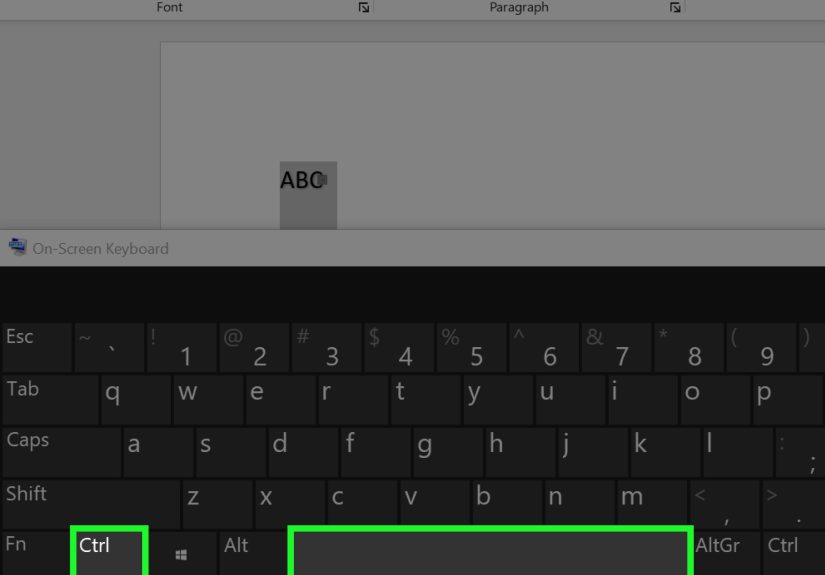
If you use superscript and subscript often, keyboard shortcuts are a huge time saver. On Windows, superscript is commonly applied with Ctrl + Shift + =, while subscript is commonly applied with Ctrl + =. Depending on keyboard layout, the superscript shortcut may feel like “Ctrl + Shift + Plus.”
On Mac, shortcut behavior can vary by Word version and keyboard layout, so if the shortcut feels uncooperative, the Home tab buttons are usually the most reliable fallback. The big idea is simple: shortcuts are great for speed, but the ribbon buttons are great for certainty.
Step 7: Use the Font Dialog Box for More Control
If you want a more detailed route, especially when formatting several characters carefully, open the Font dialog box. You can do this by clicking the tiny launcher arrow in the bottom-right corner of the Font group on the Home tab. In the dialog box, check either Superscript or Subscript, then click OK.
This method is handy when you prefer a traditional settings window or when you want a little more control over the appearance of the text. It is also useful when you are troubleshooting and want to be absolutely sure the correct formatting option is selected.
Step 8: Use Symbols or Equation Tools for Technical Work
If you are working with scientific notation, mathematical structures, or special characters, plain text formatting is not always the best option. Word also lets you insert ready-made superscript and subscript symbols through Insert > Symbol > More Symbols. You can also use the Equation tools for more complex expressions.
For example, a simple exponent like x2 works beautifully with normal superscript formatting. But if you are building a full equation, fraction, matrix, or stacked expression, the Equation feature is often cleaner and more accurate. In short, use basic formatting for simple cases and equation tools for heavy-duty math.
Practical Examples of Superscript and Subscript in Word
Math
Superscript is commonly used for exponents such as 52, 106, or area measurements like ft2. If you are writing algebra, geometry, or physics content, this feature comes up constantly.
Science and Chemistry
Subscript appears in chemical compounds such as H2O, CO2, CH4, and O2. Without subscript, formulas look sloppy and can even become confusing.
Footnotes and References
Superscript is often used for citation markers and note numbers. A sentence might end with a small raised number that points to a note at the bottom of the page. It is tiny, but it tells readers exactly where to look.
Ordinals and Trademarks
Sometimes Word automatically formats ordinals like 1st, 2nd, and 3rd. Superscript is also common for marks such as ™ and occasionally ® depending on the symbol and font behavior.
How to Remove Superscript or Subscript
If you change your mind, removing the formatting is easy. Highlight the superscripted or subscripted text and click the same button again to toggle it off. You can also use the Font dialog box and uncheck the formatting.
Another useful reset trick is to select the text and remove manual character formatting. That is especially handy when Word seems to cling dramatically to a formatting choice you made three minutes ago and now regret deeply.
Common Problems and How to Fix Them
The Whole Word Turned Tiny
This usually happens because too much text was selected. Undo the action, highlight only the character you want, and apply the format again.
Word Keeps Typing in Superscript
The formatting toggle is probably still active. Click the superscript or subscript button again to turn it off before continuing.
The Shortcut Does Not Work
Keyboard layouts vary, especially on laptops and Mac keyboards. If the shortcut does not behave as expected, use the Home tab or Font dialog box instead. That is often faster than fighting your hardware.
Ordinals Keep Auto-Formatting
If Word keeps turning 1st, 2nd, and 3rd into superscript automatically and you do not want that, adjust the AutoCorrect or AutoFormat settings for ordinal numbers. This is especially useful in documents where consistency matters more than automatic styling.
My Equation Looks Strange
If you are typing full equations, switch to Word’s Equation tools instead of manually applying superscript and subscript everywhere. It usually produces a cleaner result and reduces formatting headaches.
Tips for Word on Windows, Mac, and the Web
On Windows, the ribbon buttons and keyboard shortcuts are usually the most straightforward. On Mac, the same ribbon buttons are easy to find, but keyboard shortcuts may vary slightly by version and layout. On Word for the web, you can still format superscript and subscript, although the command may appear under additional font options depending on your screen size.
The best advice is simple: if you cannot remember a shortcut, trust the Home tab. Word has kept those buttons front and center for a reason.
When to Use Basic Formatting vs. Equation Tools
Here is the easy rule. Use basic superscript and subscript formatting when you need one or two raised or lowered characters in normal text. Great examples include x2, H2O, footnote markers, or product labels.
Use Equation tools when your content becomes structurally mathematical, such as fractions, integrals, matrices, stacked symbols, or multi-part formulas. Word’s equation features were designed for that job, and they save you from manually nudging tiny characters into place like a document mechanic.
Final Thoughts
Learning how to create superscript and subscript in MS Word is one of those small skills that pays off again and again. It improves readability, boosts professionalism, and helps your writing match the expectations of academic, technical, and business documents. Better yet, Word gives you multiple ways to do it, so you are never stuck with a single method.
If you only remember one thing, remember this: select the character, go to the Home tab, and click x2 or x2. That one move solves most situations. From there, shortcuts, font settings, symbols, and equation tools give you more control whenever you need it.
Tiny text. Big upgrade. Not bad for a feature that looks like it barely takes up any space.
Real-World Experiences With Superscript and Subscript in Word
One of the most common real-life experiences people have with superscript and subscript in Word is discovering the feature in a rush. It usually happens five minutes before an assignment is due, ten minutes before a report goes to a manager, or right when someone realizes that “CO2” in a polished document looks a little too casual. The first instinct is often to search for a magical button, and thankfully, Word actually has one.
Students tend to use superscript first for footnotes and exponents. At first, many of them manually shrink the font and move it by guesswork, which is the document-editing equivalent of trying to cut a pizza with a ruler. Once they find the real superscript feature, everything becomes faster and cleaner. The same thing happens in science classes when people stop typing “H2SO4” like a plain text robot and finally format the numbers correctly.
Writers and editors often run into superscript when working with references, endnotes, and special marks. In long documents, consistency matters a lot. A document with correctly formatted superscript note markers looks polished and intentional. A document with random full-size numbers pretending to be notes looks like it got dressed in the dark. That difference may seem small, but readers notice it.
Business users usually appreciate superscript and subscript once they start creating product sheets, technical instructions, or training materials. A phrase like “m2” is understandable, but “m2” is clearer and more professional. In presentations, proposals, and manuals, those details help the document feel finished rather than merely typed.
Another common experience is forgetting to turn the formatting off. Almost everyone does this at least once. You apply superscript to a single number, feel victorious, keep typing, and suddenly the next three words are hovering awkwardly above the sentence like they are trying to escape. The good news is that this mistake is easy to fix, and after it happens once or twice, most people develop the habit of toggling the feature off immediately.
Mac users also often mention that shortcut behavior can feel slightly different from what they expected, especially on compact keyboards. In real use, that means many people end up relying on the ribbon buttons more than shortcuts. And honestly, that is fine. Speed matters, but reliability matters more. Clicking the correct button once is better than trying five shortcut combinations and accidentally inventing a new keyboard ritual.
Over time, people who use Word regularly start to see superscript and subscript not as fancy extras, but as basic tools. They become part of the normal workflow for formulas, labels, references, and technical writing. Once you get used to using them properly, it becomes surprisingly hard to look at plain “x2” or “H2O” without wanting to fix it immediately. That is when you know the feature has officially become part of your Word survival kit.