Table of Contents >> Show >> Hide
- Why Is Discord Not Picking Up Your Mic?
- Quick Fixes to Try First
- Check Discord Voice & Video Settings
- Fix Microphone Permissions on Windows
- Fix Microphone Permissions on Mac
- Fix Discord Mic Problems in Chrome or Browser
- Fix Discord Mic Issues on Android and iPhone
- Advanced Discord Microphone Troubleshooting
- How to Test Whether the Problem Is Discord or Your Mic
- Best Settings for Clear Discord Mic Audio
- Common Discord Mic Problems and What They Usually Mean
- Personal Experience: What Usually Fixes Discord Mic Problems Fast
- Conclusion
Your squad is waiting. The raid is starting. The meeting is already awkward. You speak into Discord with the confidence of a podcast hostand nothing happens. No green ring. No audio. No one hears your brilliant joke about lag. If Discord is not picking up your mic, the problem can come from several places: Discord settings, operating system permissions, browser permissions, driver issues, hardware mute buttons, Bluetooth confusion, or one sneaky setting that decided to go rogue.
The good news? Most Discord microphone problems are fixable without buying a new headset, reinstalling your entire life, or blaming Mercury retrograde. This guide walks through practical troubleshooting tips for Windows, Mac, browser, Android, and iPhone users. We will start with the fastest fixes, then move into deeper settings so you can get your voice back where it belongs: interrupting your friends at exactly the wrong time.
Why Is Discord Not Picking Up Your Mic?
When Discord does not detect your microphone, it usually means one of three things: Discord is listening to the wrong input device, your device or operating system is blocking microphone access, or the microphone itself is not sending usable audio. The fix depends on where the signal gets lost.
For example, a USB headset may work in Windows but not in Discord because Discord is set to “Default” instead of the headset name. A laptop microphone may work in a browser but not in the desktop app because app permissions are disabled. A Bluetooth headset may connect for audio output but fail to activate the microphone profile. A gaming headset may have a physical mute switch on the cable that is, embarrassingly, doing its job perfectly.
Before diving into advanced repairs, remember this simple rule: test from the outside in. Check the microphone hardware first, then your operating system, then Discord settings, then browser or app-specific controls.
Quick Fixes to Try First
1. Make Sure You Are Not Muted
It sounds obvious, but the mute button is the banana peel of audio troubleshooting. Check the microphone icon in Discord. If it has a slash through it, you are muted. Also check whether you are deafened, server-muted, or muted by a channel moderator. If you are server-muted, no amount of shouting into your headset will help. You will need an admin to remove that restriction.
Next, inspect your headset or microphone. Many headsets have an inline mute switch, a flip-to-mute boom arm, or a button on the ear cup. Some microphones also have a touch-sensitive mute control that is easy to tap accidentally. If your mic has a red light, muted LED, or a boom arm that mutes when raised, check it before blaming Discord.
2. Restart Discord
Fully close Discord and reopen it. On Windows, right-click the Discord icon in the system tray and choose Quit Discord. On Mac, use Command + Q or quit it from the menu bar. Then relaunch the app and test your mic again.
You can also refresh Discord with Ctrl + R on Windows or Command + R on Mac. This reloads the client and can clear temporary bugs without a full reinstall.
3. Unplug and Reconnect Your Microphone
If you use a USB mic, webcam mic, capture card, or headset, unplug it and plug it back in. Try a different USB port, preferably one directly on the computer instead of a hub. For 3.5mm headsets, make sure the plug is fully inserted. If your headset has separate headphone and microphone jacks, confirm each one is in the correct port. Pink is usually mic. Green is usually headphone. Tiny color-coded chaos, but useful chaos.
Check Discord Voice & Video Settings
Discord has its own audio controls, and one wrong dropdown can make a perfectly good microphone disappear like a magician with commitment issues.
1. Select the Correct Input Device
Open Discord and go to User Settings > Voice & Video. Under Input Device, choose your actual microphone instead of leaving it on Default. If you use a headset, select the headset mic. If you use a USB microphone, select that device by name. If you use a webcam microphone, choose the webcam’s audio input.
After selecting the device, use Discord’s mic test feature. Speak normally and watch the input meter. If the meter moves, Discord is receiving audio. If it does not move, continue troubleshooting.
2. Turn Up Input Volume
Still in Voice & Video, check Input Volume. If the slider is too low, Discord may technically hear you but not enough for anyone else to notice. Raise it gradually and test again. Avoid maxing everything out unless you want your friends to hear your keyboard, your chair, your neighbor’s blender, and possibly the International Space Station.
3. Check Input Mode: Voice Activity vs. Push to Talk
Discord offers two main input modes: Voice Activity and Push to Talk. Voice Activity transmits when Discord detects speech. Push to Talk only transmits while you hold a selected key.
If Discord is not picking up your mic, make sure you are not accidentally set to Push to Talk without remembering the keybind. If you prefer Push to Talk, confirm the shortcut is assigned and that you are pressing it while speaking. If you are using Discord in a browser, keep in mind that Push to Talk may only work reliably when the browser window is focused.
4. Adjust Input Sensitivity
Input sensitivity decides how loud your voice must be before Discord transmits it. If the sensitivity is set too high, Discord may ignore your voice. If it is too low, Discord may pick up every fan, click, and snack bag within a three-room radius.
In User Settings > Voice & Video, try turning off Automatically determine input sensitivity. Then move the sensitivity slider manually. The goal is simple: background noise should stay below the threshold, while your normal speaking voice should pass it easily.
5. Reset Voice and Video Settings
If you have changed many audio options and now Discord sounds like it was configured by a raccoon, use the reset option. Go to User Settings > Voice & Video, scroll down to the debugging section, and choose Reset Voice and Video Settings. This restores Discord’s voice settings to default and often fixes weird input problems caused by old settings, device swaps, or experimental toggles.
Fix Microphone Permissions on Windows
Windows can block microphone access at the system level. When that happens, Discord may show your mic but receive no audio.
Windows 11
Open Start > Settings > Privacy & security > Microphone. Turn on Microphone access. Then enable Let apps access your microphone. For Discord’s desktop app, also make sure Let desktop apps access your microphone is enabled.
Windows 10
Open Start > Settings > Privacy > Microphone. Make sure microphone access is turned on for the device, then allow apps to access the microphone. Scroll down and enable access for desktop apps as well.
Set Your Default Recording Device
Right-click the speaker icon in the taskbar, open sound settings, and check your input device. Choose the correct microphone as your default input. Then test it in Windows. If Windows cannot detect the microphone, Discord probably cannot either.
Update or Reinstall Audio Drivers
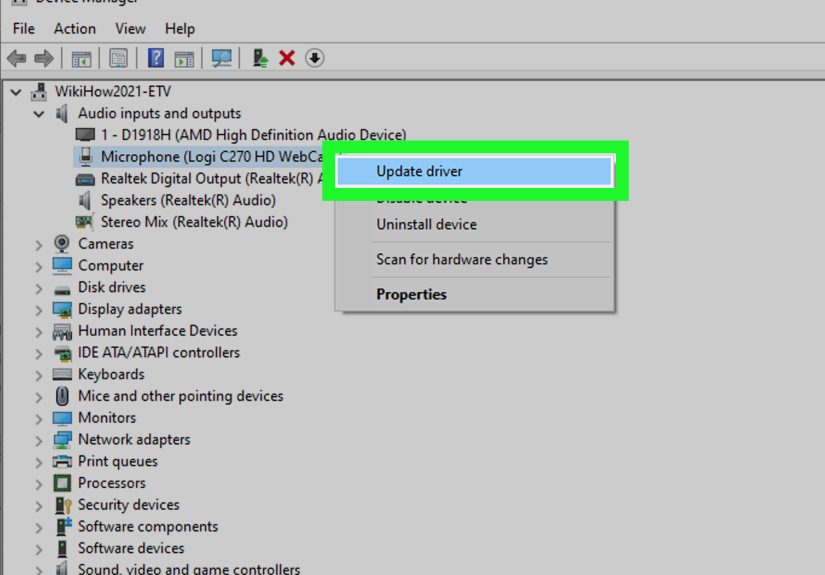
Outdated or broken audio drivers can cause Discord mic issues, especially after Windows updates or headset software updates. Open Device Manager, expand Audio inputs and outputs, right-click your microphone, and check for driver updates. You can also visit the manufacturer’s website for headset software, USB mic firmware, or Realtek audio drivers.
Try Running Discord as Administrator
If your microphone works normally but fails while gaming, Discord may not have enough permissions to capture input while a game is running with elevated privileges. Quit Discord, right-click the Discord shortcut, and choose Run as administrator. This is especially useful when Push to Talk does not work during full-screen games.
Fix Microphone Permissions on Mac
On macOS, microphone access is controlled through Privacy & Security settings. If Discord is denied access, your mic will stay silent no matter how dramatic your performance is.
Go to Apple menu > System Settings > Privacy & Security > Microphone. Find Discord in the list and turn microphone access on. If Discord is already enabled, toggle it off, restart Discord, toggle it back on, and test again.
Also check System Settings > Sound > Input. Choose the correct microphone and speak while watching the input level. If macOS does not show input activity, the issue is likely hardware, system-level permissions, or the selected input source.
Fix Discord Mic Problems in Chrome or Browser
If you use Discord in Chrome, Firefox, Edge, or Safari, your browser has its own microphone permissions. Discord may be ready to talk, but the browser may be standing at the door with a clipboard saying, “Not on my watch.”
Allow Discord to Use Your Mic in Chrome
In Chrome, open Settings > Privacy and security > Site settings > Microphone. Look for Discord under blocked sites. If it appears there, remove the block or change the permission to allow. Then reload Discord and join a voice channel. When Chrome asks for microphone permission, choose Allow.
Select the Correct Browser Microphone
Chrome lets you choose a default microphone. In the same Microphone settings page, use the dropdown to select the device you want Discord to use. If you recently changed headsets, installed a virtual audio device, or connected a webcam, Chrome may be listening to the wrong input.
Try a Private Window or Different Browser
Extensions, blocked site permissions, or cached settings can interfere with Discord voice. Try opening Discord in a private browsing window or a different browser. If the mic works there, your main browser profile likely has a permission, extension, or cache issue.
Fix Discord Mic Issues on Android and iPhone
Mobile Discord problems often come down to app permissions, Bluetooth routing, or network switching.
Android
Open Settings > Apps > Discord > Permissions. Tap Microphone and choose Allow. Depending on your Android version, you may also check Security & Privacy > Privacy > Permission manager > Microphone and confirm Discord has permission.
If your phone has a global microphone privacy toggle, make sure it is not disabled. Restart Discord, switch between Wi-Fi and mobile data, and check whether your Bluetooth headset is selected correctly.
iPhone
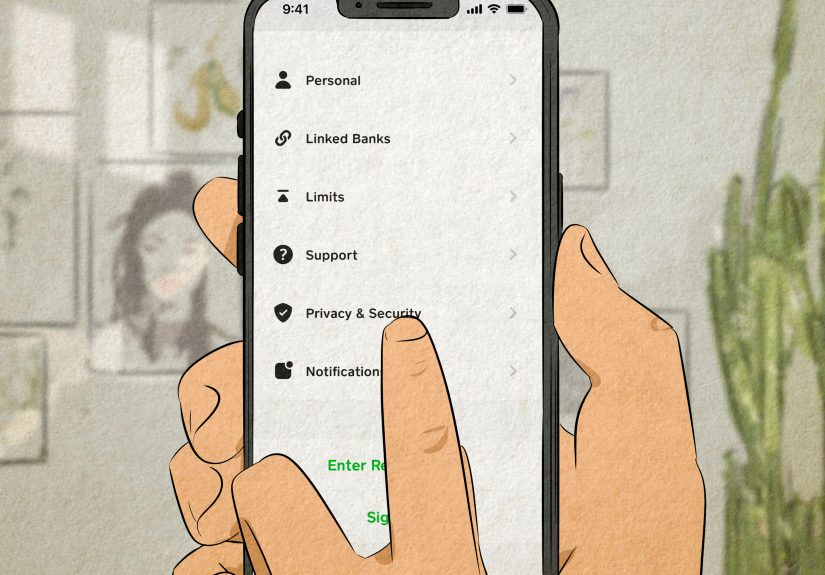
Open Settings > Privacy & Security > Microphone and turn on access for Discord. If you use Bluetooth earbuds or a headset, open Control Center during a call and check the audio route. Sometimes your iPhone may route output to one device while using another microphone input.
You can also update Discord, restart your iPhone, and reinstall the app if the issue continues. On iOS, reinstalling can clear stubborn app-level problems, but make sure you know your login details first.
Advanced Discord Microphone Troubleshooting
Disable Noise Suppression Temporarily
Discord includes voice processing features such as noise suppression, echo cancellation, noise reduction, and automatic gain control. These tools can be helpful, especially in noisy rooms, but they can occasionally cut off quiet voices, soft microphones, or unusual audio setups.
Go to User Settings > Voice & Video and temporarily disable noise suppression. Then test your microphone again. If your voice returns, re-enable features one at a time until you find the setting causing the problem.
Switch Audio Subsystem
On desktop, Discord may allow you to switch the audio subsystem between Standard and Legacy. If your microphone is detected but not transmitting correctly, try switching this setting and restarting Discord. This can help older headsets, unusual audio interfaces, or systems with driver compatibility problems.
Close Conflicting Apps
Other apps can grab your microphone before Discord does. Close Zoom, Teams, OBS, Steam voice chat, game launchers, audio recorders, browser tabs using the mic, and headset control software. Then relaunch Discord and test again.
On Windows, also check whether exclusive audio control is enabled for your microphone. If one app takes exclusive control, other apps may behave badly. In sound device properties, look for advanced microphone settings and consider disabling exclusive control if you experience repeated conflicts.
Check Bluetooth Headset Behavior
Bluetooth headsets can be tricky because many use separate modes for high-quality listening and microphone input. When the mic activates, audio quality may change. If Discord does not pick up the mic, disconnect and reconnect the headset, remove it from Bluetooth settings, pair it again, and select the correct input device in Discord.
If you need reliable voice quality for gaming or meetings, a wired USB microphone or wired headset is often less temperamental than Bluetooth. Bluetooth is convenient, but sometimes it acts like it has its own secret agenda.
Reinstall Discord
If nothing works, uninstall Discord and install the latest version from the official Discord download page. A clean install can fix corrupted files, broken updates, and settings that refuse to behave. After reinstalling, check microphone permissions again because your operating system may treat the fresh install as a new app.
How to Test Whether the Problem Is Discord or Your Mic
Testing outside Discord saves time. Open your system sound settings and test the microphone. Then try another app such as Voice Recorder, QuickTime, Zoom, Google Meet, or your browser’s microphone test. If the mic fails everywhere, the problem is hardware, drivers, OS permissions, or device settings. If the mic works everywhere except Discord, focus on Discord’s Voice & Video settings, input device selection, app permissions, and voice processing options.
Here is a practical example: suppose your USB microphone works in Windows Sound Settings and records clearly in Voice Recorder, but Discord shows no input activity. That points toward Discord selecting the wrong input device, a bad input mode, blocked Discord permissions, or a Discord voice setting that needs to be reset. On the other hand, if Windows itself shows no input activity, changing Discord settings will not solve the root issue.
Best Settings for Clear Discord Mic Audio
Once Discord starts picking up your microphone again, take a minute to make it sound good. Select the exact input device, set input volume around the middle to upper range, and adjust sensitivity so normal speech activates the mic without constant background noise. If you are in a quiet room, manual sensitivity can sound cleaner. If you are in a noisy room, noise suppression may help, but test it to make sure it does not chop off your words.
Use Push to Talk if you play with a mechanical keyboard, loud fans, pets, roommates, or snack wrappers with Olympic-level crunch. Use Voice Activity if you need hands-free conversation. For streaming, podcasting, or community moderation, consider a dedicated USB mic and a quiet recording position. Even a great microphone sounds bad if it is across the room, pointed at your keyboard, and emotionally neglected.
Common Discord Mic Problems and What They Usually Mean
Discord Detects the Mic but No One Can Hear You
Check whether you are muted, server-muted, or using Push to Talk without pressing the key. Also check input volume and sensitivity. If Discord’s test meter moves but friends cannot hear you, the issue may be channel permissions or server mute status.
Discord Says No Input Device Found
Reconnect the microphone, try another USB port, restart Discord, and check whether your operating system detects the mic. If the device is missing from Windows or macOS sound settings, Discord cannot use it.
Your Voice Cuts In and Out
Lower the input sensitivity threshold, disable automatic sensitivity, and test noise suppression, echo cancellation, and automatic gain control. Weak Wi-Fi or high latency can also make voice transmission sound choppy.
Mic Works Until You Open a Game
Run Discord as administrator on Windows, check Push to Talk keybinds, and make sure the game is not taking exclusive control of your audio device. Also confirm that your headset software is not changing profiles when a game launches.
Personal Experience: What Usually Fixes Discord Mic Problems Fast
After dealing with Discord microphone issues across gaming PCs, laptops, browser sessions, USB microphones, Bluetooth earbuds, and the occasional headset that looked innocent but was absolutely not innocent, one pattern stands out: the fastest fix is usually not the fanciest one. Most “Discord not picking up mic” problems come from a simple mismatch. Discord is listening to the laptop mic while you are speaking into a USB mic. Windows has blocked desktop app microphone access. Chrome has Discord sitting in the “not allowed” list. A headset mute switch is on. Push to Talk is enabled, but the user forgot the keybind. The drama is huge; the fix is tiny.
The best troubleshooting habit is to avoid changing five settings at once. That creates a new problem: you fix the original issue but have no idea which action worked. Instead, test in steps. First, confirm the microphone works outside Discord. If it does not work in your operating system’s sound test, stop touching Discord and fix the device-level issue. Check the cable, USB port, Bluetooth pairing, driver, and privacy permissions. Once the system hears the mic, move into Discord.
Inside Discord, the input device dropdown is the superstar. Do not rely on “Default” if you have multiple audio devices. Many computers collect audio inputs over time: headset mic, webcam mic, monitor audio, virtual cable, controller headset, laptop array microphone, capture card audio, and maybe a mysterious device named something like “Digital Audio Interface 2” that no human remembers installing. Pick the exact microphone by name. Then use the mic test.
Another surprisingly common fix is resetting Voice and Video settings. People tweak Discord audio over months or years: sensitivity here, noise suppression there, Push to Talk for one game, automatic gain control for another, and suddenly the settings page becomes a small haunted house. Resetting puts everything back to a known baseline. From there, you can adjust one setting at a time.
For streamers, remote workers, and community moderators, I recommend keeping a simple emergency checklist. Before an important call, open Discord settings, confirm the input device, run the mic test, and check OS permissions after major updates. Windows, macOS, browsers, and mobile systems regularly update privacy controls, and microphone permissions can behave differently after app reinstalls or system changes. It is also smart to keep a backup option, such as wired earbuds or your laptop mic, just in case your premium headset decides to retire mid-sentence.
Finally, remember that microphone troubleshooting is not a moral failure. Everyone has spent ten minutes saying “Can you hear me now?” into the void at least once. The key is to work logically: hardware, system permissions, app settings, then advanced processing. Follow that order, and you will usually fix Discord mic problems faster than your friends can type “bro ur muted.”
Conclusion
When Discord is not picking up your mic, do not panic. Start with the basics: unmute yourself, check your headset, restart Discord, and select the correct input device. Then move into operating system permissions, browser site permissions, driver updates, and advanced Discord voice settings. Most microphone problems come from a blocked permission, wrong input device, muted hardware switch, or overly aggressive voice setting.
If your microphone works outside Discord, focus on Discord’s Voice & Video settings. If your microphone fails everywhere, fix the hardware, permissions, or driver issue first. A little methodical troubleshooting can turn silent chaos into clear voice chatand yes, your friends will once again be able to hear your tactical callouts, meeting comments, and suspiciously loud snack breaks.
Note: This article is written for general troubleshooting and web publishing. Menu names may vary slightly depending on your Discord version, operating system, browser, device manufacturer, or app update.