Table of Contents >> Show >> Hide
- Why You Should Recycle Old Computer Hard Drives
- Step 1: Identify What Type of Hard Drive You Have
- Step 2: Back Up Anything You Still Need
- Step 3: Sign Out and Deauthorize Accounts
- Step 4: Choose the Right Data Sanitization Method
- Step 5: Remove the Hard Drive Only If Needed
- Step 6: Find a Responsible Electronics Recycler
- Step 7: Ask the Right Questions Before Handing Over Drives
- What Happens to a Hard Drive After Recycling?
- Can You Donate a Computer With the Hard Drive Inside?
- Hard Drive Recycling Mistakes to Avoid
- Best Practices for Businesses and Offices
- Personal Experience: What Recycling Old Hard Drives Teaches You
- Frequently Asked Questions About Recycling Old Hard Drives
- Conclusion
Old computer hard drives have a funny way of multiplying. One day you have a spare drive “just in case,” and the next day there is a tiny metal graveyard in your desk drawer, quietly judging your cable management. But those dusty drives are not just clutter. They may contain personal files, passwords, tax documents, family photos, business data, and recoverable information you forgot existed.
Learning how to recycle old computer hard drives the right way protects your privacy, reduces electronic waste, and helps valuable materials like aluminum, steel, copper, circuit board metals, and magnets re-enter the recycling stream. The goal is simple: secure your data first, then recycle the hardware responsibly. Tossing a hard drive in the trash is not a strategy. It is more like sending your digital diary on a landfill vacation.
This complete guide walks you through safe hard drive recycling, data wiping, certified e-waste options, donation decisions, and common mistakes to avoid. Whether you have one old laptop drive or a box of retired office storage devices, the process is manageable when you follow the right order.
Why You Should Recycle Old Computer Hard Drives
A hard drive is small, but it is not harmless. Inside that metal case are reusable materials and electronic components that should not be treated like ordinary household garbage. Recycling keeps recoverable materials in circulation and helps prevent electronics from ending up in landfills, where improper disposal can contribute to environmental problems.
There is also the privacy issue. A hard drive may look dead, ancient, or emotionally unavailable, but that does not mean the data is gone. Deleted files can sometimes be recovered if the drive has not been properly erased or destroyed. That is why hard drive disposal should always include a data security step before the recycling step.
Step 1: Identify What Type of Hard Drive You Have
Before you recycle anything, identify the storage device. This helps you choose the right data removal method.
Traditional HDD
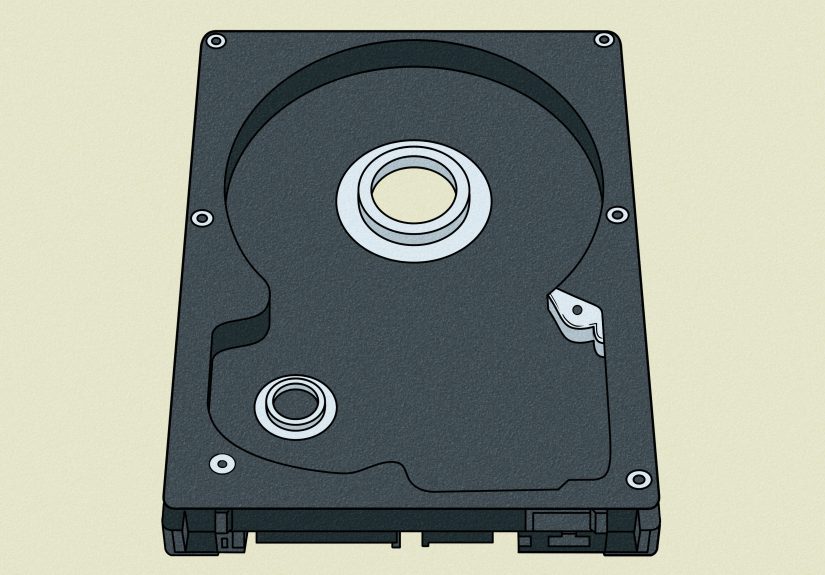
A hard disk drive, or HDD, contains spinning magnetic platters. These drives are common in older desktop computers, laptops, external backup drives, DVRs, and some servers. HDDs can often be wiped with secure erase software if they still function.
Solid-State Drive
A solid-state drive, or SSD, stores data on flash memory chips. SSDs are faster and quieter than HDDs, but they require different sanitization methods. A simple overwrite is not always the best approach for SSDs because of wear leveling and internal data management.
External Hard Drive
External drives usually contain either an HDD or SSD inside a plastic or metal enclosure. Treat them the same way you would treat an internal drive: back up anything important, erase the data, then recycle the device through a responsible electronics recycler.
Step 2: Back Up Anything You Still Need
Before wiping or recycling an old computer hard drive, check whether it holds files you want to keep. Once the drive is securely erased or destroyed, recovery may be impossible. That is great for privacy, less great if you forgot your 2014 vacation photos or the only copy of your school project titled “FINAL_final_REALFINAL.docx.”
Copy important files to a trusted location such as a new computer, an external backup drive, or a reputable cloud storage service. For families and small businesses, this is also a good time to organize files into categories: financial documents, photos, work files, school files, software keys, and personal records.
Step 3: Sign Out and Deauthorize Accounts
If the hard drive is still inside a working computer, sign out of accounts before disposal. Remove saved browser passwords, disconnect cloud sync services, and deauthorize software licenses when needed. This is especially important for computers connected to Apple ID, Microsoft accounts, Adobe apps, music libraries, or business tools.
For Macs, Apple recommends backing up your data and removing personal information before trading in, giving away, or recycling the device. For Windows PCs, you should back up important data, reset or wipe the system, and remove linked accounts when possible.
Step 4: Choose the Right Data Sanitization Method
Data sanitization means making the data on the drive impractical or impossible to recover. The best method depends on the drive type, whether it still works, and how sensitive the information is.
Option A: Secure Erase for Working Drives
If the drive still works, use a reputable secure erase method. For an HDD, this may involve overwriting the drive. For an SSD, use the manufacturer’s secure erase tool, built-in device reset options, or cryptographic erase when available. Cryptographic erase works by destroying the encryption key, making the data unreadable when encryption was properly enabled.
NIST guidance describes sanitization as a process that makes access to target data infeasible for a given level of effort. In plain English: make the files so unrecoverable that even a determined snooper has a very bad afternoon.
Option B: Factory Reset Is Not Always Enough
A factory reset may be useful for a complete computer, but do not assume it is enough for every storage device. Some reset options remove user access without fully sanitizing the drive. Read the instructions carefully and use secure erase tools when privacy matters.
Option C: Professional Data Destruction
If the drive is broken, unreadable, or contains highly sensitive data, use professional data destruction. Look for a provider that offers documented hard drive shredding, degaussing for magnetic media, or certified destruction. Businesses should ask for a certificate of destruction and chain-of-custody documentation.
For home users, professional destruction is often the simplest choice when you do not want to deal with software tools. It is also safer than trying to physically damage the drive yourself. Do not burn, smash, drill, or open drives at home. Besides being unsafe, it can create sharp debris, dust, and a mess that makes your garage look like a robot sneezed.
Step 5: Remove the Hard Drive Only If Needed
You do not always have to remove the hard drive from a computer before recycling. Many electronics recycling programs accept laptops and desktops with drives still installed. However, if you want more control over data destruction, removing the drive can be useful.
If you are comfortable with basic computer hardware, power the computer off, unplug it, and follow the manufacturer’s instructions for drive removal. Keep screws and brackets away from children and pets. If you are not comfortable opening the device, ask a repair shop, retailer service desk, or recycling provider about removal options.
Step 6: Find a Responsible Electronics Recycler
Once the data is handled, choose where the drive should go. The best recycling option depends on your location, the number of drives, and whether you need documentation.
Retail Drop-Off Programs
Many major retailers offer electronics recycling or take-back programs. Best Buy accepts many electronics for recycling and provides guidance about wiping data before drop-off. Staples lists hard drives among accepted technology recycling items in many locations. Always check current store rules before going because accepted items, fees, and limits can change.
Manufacturer Recycling Programs
Computer manufacturers such as Dell and Apple offer recycling or trade-in options for eligible devices. These programs usually advise users to back up and remove personal data before sending in equipment. Manufacturer programs are convenient for whole computers, laptops, and branded devices.
Local E-Waste Collection Events
Many cities, counties, schools, and community organizations host e-waste collection days. These events are useful for cleaning out multiple devices at once. Check your local solid waste authority for accepted items, fees, and whether data destruction is included.
Certified Electronics Recyclers
For the strongest environmental and data security standards, look for recyclers certified under recognized electronics recycling programs such as R2 or e-Stewards. These certifications focus on responsible handling, downstream recycling practices, and data protection processes. Businesses, nonprofits, schools, and medical offices should strongly consider certified IT asset disposition providers.
Step 7: Ask the Right Questions Before Handing Over Drives
Not all recycling services are equal. Before you hand over a hard drive, ask practical questions:
- Do you accept internal and external hard drives?
- Do you provide data wiping, shredding, or destruction?
- Are you R2, e-Stewards, or NAID AAA certified?
- Can you provide a certificate of destruction?
- Where do materials go after processing?
- Are there fees, limits, or appointment requirements?
For one household drive, a simple drop-off may be enough after you have wiped it. For a business drive containing customer records, payroll files, medical information, tax records, or legal documents, documentation matters. Privacy is not the place to save five minutes and hope for the best.
What Happens to a Hard Drive After Recycling?
After collection, a responsible recycler sorts devices by type and condition. Working drives may be evaluated for reuse only if data has been properly sanitized. Nonworking or end-of-life drives are typically dismantled, shredded, or processed for materials recovery.
Hard drives contain aluminum housings, steel parts, printed circuit boards, copper, and strong rare-earth magnets. These materials can be separated and sent into appropriate recycling streams. The process reduces the need for virgin material extraction and keeps electronic scrap out of regular trash.
Can You Donate a Computer With the Hard Drive Inside?
Yes, but only after preparing it properly. If the computer still works and is useful, donation may be better than immediate recycling because reuse extends the life of the device. Schools, nonprofits, refurbishers, and community programs may accept working computers.
However, donate responsibly. Back up your files, erase the drive, reinstall the operating system if appropriate, and remove your accounts. If you cannot confidently sanitize the device, choose a refurbisher or recycling program that includes verified data wiping.
Hard Drive Recycling Mistakes to Avoid
Mistake 1: Deleting Files and Calling It Done
Dragging files to the trash or recycle bin does not securely erase them. It usually removes easy access to the file, not the underlying data. Use secure erase, device reset with proper settings, encryption-based erase, or professional destruction.
Mistake 2: Throwing Drives in Household Trash
Hard drives are electronic waste. Put them into a proper e-waste recycling stream instead of the kitchen trash. Your banana peel and your 2TB drive do not need to become roommates.
Mistake 3: Forgetting External Drives and Backup Drives
People often wipe the main computer but forget the external backup drive sitting next to it. External drives may contain full system backups, old photos, and sensitive documents. Treat them with the same caution as internal drives.
Mistake 4: Assuming Every Recycler Destroys Data
Some recycling programs process hardware but do not guarantee data destruction unless you purchase or request that service. Read the terms and ask questions before drop-off.
Mistake 5: Trying Unsafe DIY Destruction
Physically damaging a hard drive at home can be risky and messy. Sharp metal, broken parts, and dust are not worth it. If destruction is needed, use a professional service.
Best Practices for Businesses and Offices
Businesses should create a written hard drive disposal policy. The policy should define who approves disposal, how assets are tracked, what sanitization method is used, and what documentation is required. Even small offices can benefit from a simple spreadsheet listing device type, serial number, wipe date, recycler name, and certificate number.
For organizations with regulated data, such as healthcare, finance, education, legal services, or government contracting, use a certified provider. Ask about chain of custody, secure transport, employee background checks, destruction standards, and certificates. A retired hard drive should leave your office like a VIP with paperwork, not like a mystery package in a cardboard box labeled “old stuff.”
Personal Experience: What Recycling Old Hard Drives Teaches You
The first thing most people learn when they finally recycle old computer hard drives is that digital clutter becomes physical clutter surprisingly fast. One old desktop drive turns into three laptop drives, then an external backup drive, then a mystery drive with no label that may contain either important documents or nothing but outdated printer drivers. The uncertainty is the annoying part. That is why labeling drives before storage is one of the simplest habits you can build.
A practical hard drive recycling experience usually starts with sorting. Put all storage devices in one place and separate them into categories: working drives, broken drives, external drives, drives still inside computers, and drives that might contain sensitive information. This step feels basic, but it saves time. It also prevents the classic mistake of wiping the easy drive and ignoring the old backup drive that contains everything.
Another lesson is that backing up files takes longer than expected. Old drives may connect slowly, need adapters, or contain duplicate folders with names like “backup-old,” “backup-new,” and “backup-use-this-one-seriously.” Give yourself enough time. Do not start the process 20 minutes before leaving for a recycling event. That is how people end up keeping the drive for “next weekend,” which often means “next year, probably.”
For households, the easiest workflow is usually: check the drive, copy important files, wipe it if possible, then take it to a retailer, municipal e-waste event, or certified recycler. For drives that no longer spin up or connect, professional destruction is less stressful. You do not need to become a forensic technician in your kitchen. You just need to choose a recycler that can securely handle data-bearing devices.
The experience also changes how you buy and manage storage in the future. After recycling a few old drives, many people start encrypting new computers from day one, keeping cleaner backups, and recording what each external drive is used for. That makes future recycling much easier. Encryption is especially useful because, when properly managed, it can make secure disposal simpler later.
One surprisingly satisfying part of recycling hard drives is the space you get back. A drawer full of obsolete electronics has a weird emotional weight. Once the drives are securely handled and recycled, the drawer becomes useful again. You may even find other ancient artifacts, such as a VGA cable, a software CD, or a USB stick shaped like a cartoon animal. Congratulations: you are now an amateur digital archaeologist.
The biggest takeaway is that hard drive recycling is not just about getting rid of metal. It is about closing a privacy loop. Every storage device has a story. Some stories should be saved, some should be deleted, and some should be professionally shredded into a very boring confetti. When you recycle old computer hard drives properly, you protect your information, reduce e-waste, and make your home or office a little less haunted by technology past.
Frequently Asked Questions About Recycling Old Hard Drives
Can hard drives be recycled?
Yes. Hard drives can be recycled through electronics recycling programs, certified e-waste recyclers, manufacturer take-back programs, municipal collection events, and some retail drop-off locations.
Should I wipe my hard drive before recycling?
Yes. Always remove personal data before recycling a hard drive. Use secure erase tools, manufacturer utilities, encryption-based erase, or professional data destruction depending on the drive type and sensitivity of the information.
Is removing the hard drive enough?
Removing the hard drive from a computer gives you control over the data-bearing component, but the drive still needs to be wiped or destroyed before recycling.
Can I recycle a broken hard drive?
Yes. Broken hard drives can be recycled, but if they contain sensitive data and cannot be wiped, use a recycler or data destruction provider that offers secure physical destruction.
Are SSDs recycled the same way as HDDs?
The recycling destination may be similar, but the data sanitization method can differ. SSDs should be erased using manufacturer tools, secure erase commands, encryption-based methods, or professional destruction.
Conclusion
Recycling old computer hard drives is a smart mix of privacy protection and environmental responsibility. The order matters: identify the drive, back up important files, remove accounts, sanitize or destroy the data, and then choose a responsible recycling option. For ordinary household drives, a reputable retail or municipal e-waste program may be enough after wiping. For sensitive data, use certified destruction and keep documentation.
Do not let old hard drives sit around forever, and definitely do not toss them in the trash. With a little planning, you can clear your drawer, protect your identity, and give valuable materials a second life. That is a pretty good ending for a gadget that once held your entire digital universe.
Note: Recycling rules, accepted items, and fees vary by location and provider. Always confirm local requirements before dropping off hard drives or computers.