Table of Contents >> Show >> Hide
- The Fastest Chromebook Screenshot Shortcuts
- How to Use the Chromebook Screen Capture Tool
- How to Screenshot on a Chromebook in Tablet Mode
- Where Chromebook Screenshots Are Saved
- Useful Chromebook Screenshot Tricks
- How to Edit a Screenshot on Chromebook
- Common Screenshot Problems and How to Fix Them
- Best Times to Use Each Screenshot Method
- Real-World Examples of Chromebook Screenshot Use
- Experience: What Using Chromebook Screenshot Shortcuts Actually Feels Like
- Conclusion
- SEO Tags
Sometimes you need proof. Maybe your Wi-Fi is acting like it pays rent and refuses to leave. Maybe you want to save a recipe, grab a funny group chat moment, or capture an error message before it disappears into the digital void. Whatever the reason, knowing how to take a screenshot on a Chromebook is one of those tiny skills that saves a shocking amount of time.
The good news? ChromeOS makes screenshots pleasantly easy. The even better news? Once you learn a few shortcuts and hidden tricks, you can capture your whole screen, one specific window, or just the tiny corner that matters. No frantic phone-photo-of-laptop-screen behavior required.
In this guide, you’ll learn exactly how to screenshot on a Chromebook, where your images are saved, how to use the built-in Screen Capture tool, and a few practical tricks that make the process smoother. We’ll also cover what to do if your Chromebook decides to be dramatic and stops cooperating.
The Fastest Chromebook Screenshot Shortcuts
If you want the shortest route from “I need this on screen” to “saved,” keyboard shortcuts are your best friend. On a Chromebook, the Show Windows key usually sits on the top row and looks like a rectangle with two vertical lines next to it. On some newer models, you may see a dedicated Screenshot key instead.
Take a full-screen screenshot
Press Ctrl + Show Windows.
This captures everything currently visible on your screen. It’s the Chromebook version of a no-nonsense, one-click camera snap. If your goal is to save a webpage, a settings screen, a class assignment, or a receipt confirmation, this is the fastest method.
Take a partial screenshot
Press Shift + Ctrl + Show Windows.
Your screen will dim slightly, and you’ll be able to click and drag over the exact area you want to capture. This is perfect when you don’t want your whole desktop in the frame. Maybe your screen has twelve tabs open, three notifications, and one deeply embarrassing music choice. A partial screenshot keeps the focus where it belongs.
Open more screenshot features
Press Shift + Ctrl + Show Windows to open the Screen Capture toolbar, or use the dedicated Screenshot key if your Chromebook has one.
From there, you can choose between full-screen, partial, and window capture options. You can also switch over to screen recording, which is handy if a still image won’t tell the whole story.
Using an external keyboard
If you’re using a standard external keyboard that doesn’t have the Chromebook’s Show Windows key, use F5 instead.
That means:
Ctrl + F5 = full screenshot
Shift + Ctrl + F5 = partial screenshot
How to Use the Chromebook Screen Capture Tool
The built-in Screen Capture tool is where Chromebook screenshots get a little more polished. Think of it as the control center for people who want options instead of pure keyboard speed.
Method 1: Open it from Quick Settings
Click the time in the bottom-right corner of the screen to open Quick Settings. Then select Screen capture. A toolbar will appear near the bottom of the display.
From that toolbar, you can choose:
- Full screen for everything on display
- Partial screen for a selected area
- Window for one app or browser window
Method 2: Open it with a shortcut
Press Shift + Ctrl + Show Windows. This is the quick-launch route to the same toolbar.
If you use screenshots often, this is arguably the sweet spot: faster than digging through menus, but more flexible than the one-step full-screen shortcut.
Why the toolbar is worth using
The Screen Capture toolbar is especially useful when you want a window screenshot. Instead of cropping later, you can click the window option first and capture only the app or browser window you need. Cleaner result, less cleanup, fewer regrets.
How to Screenshot on a Chromebook in Tablet Mode
If you have a 2-in-1 Chromebook or you’re using the device in tablet mode, the keyboard may not be your main tool. ChromeOS accounts for that.
Use the tablet button combo
Press Power + Volume Down at the same time.
This works much like taking a screenshot on an Android phone. The screen should flash briefly, and your image will be saved automatically.
Use the on-screen menu
On some Chromebook tablets and newer ChromeOS versions, you can also open screenshot features by holding the Power button and choosing Screen capture, or by opening Quick Settings and selecting the capture option there.
This is great when pressing hardware buttons feels like a finger yoga class you didn’t sign up for.
Where Chromebook Screenshots Are Saved
By default, Chromebook screenshots are saved to the Downloads folder. That’s the first place to look in the Files app. ChromeOS also automatically copies screenshots and recordings to your clipboard, which can save time if you want to paste the image directly into an email, document, or chat.
Depending on your setup, you may also spot recent captures quickly from the shelf or recent files area. But the safe bet is still Files > Downloads.
How to change the save location
If you’d rather store screenshots somewhere else, open the Screen Capture toolbar, click the Settings gear, and choose Select folder. You can change where future screenshots and recordings go.
This is especially useful if you want your captures to land in a dedicated project folder, a school folder, or cloud storage instead of piling up in Downloads like digital laundry.
Useful Chromebook Screenshot Tricks
Knowing the shortcuts is good. Knowing the sneaky little extras is better.
1. Capture only what matters
The partial screenshot option is the real productivity hero. Instead of sharing your entire desktop, you can isolate the exact paragraph, chart, photo, pop-up, or error box you need. It looks cleaner and protects anything else on your screen that shouldn’t be shared.
2. Use the keyboard to fine-tune your capture
When the screenshot selection tool is active, ChromeOS supports keyboard-based adjustments. You can use keys like Tab and the arrow keys to refine the selection area, which is useful if you want more precise control than a trackpad swipe gives you. It’s one of those features most people never discover, then immediately feel smug about once they do.
3. Paste the screenshot right away
Because ChromeOS copies the image to your clipboard automatically, you can often take a screenshot and then hit Ctrl + V in the place you want it. This is especially handy in Google Docs, Gmail, Slack-style messaging tools, or note apps.
4. Use screenshots with screen recording
The same toolbar that handles screenshots also handles screen recordings. If a still image isn’t enough to explain what’s happening on your screen, switch to recording mode and capture the action instead.
5. Learn the dedicated Screenshot key
Some newer Chromebooks include a dedicated Screenshot key. If yours has one, use it. It opens the Screen Capture toolbar without the multi-key shortcut, which is faster and easier for frequent use.
How to Edit a Screenshot on Chromebook
Once you’ve taken a screenshot, you may want to clean it up before sharing it. ChromeOS makes that pretty painless.
Open the screenshot from the Files app, and it will typically launch in the built-in image viewer or Gallery app. Depending on your device and setup, you can usually do basic edits such as:
- Crop the image
- Rotate it
- Resize or rescale it
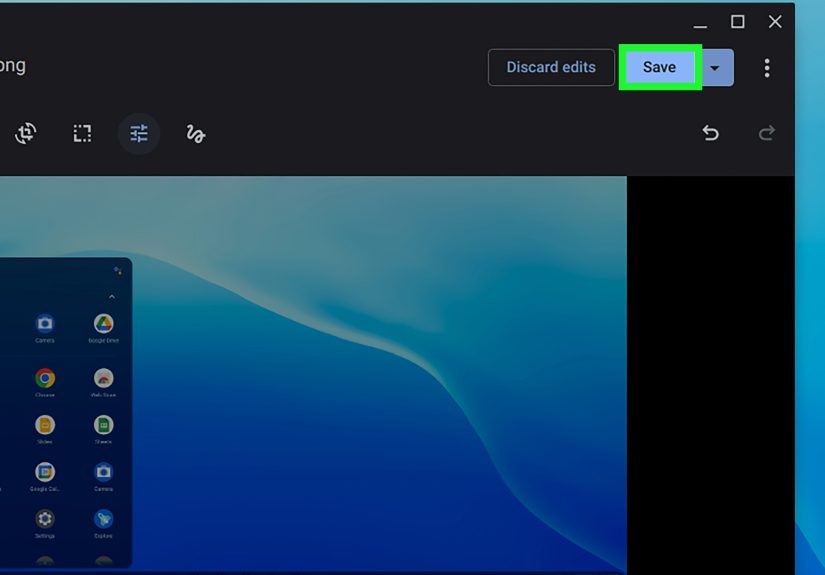
- Adjust lighting, contrast, or saturation
For quick edits, that’s often enough. For more advanced markup, annotation, arrows, text boxes, or heavy editing, you may prefer a web-based editor or an Android app from Google Play.
Common Screenshot Problems and How to Fix Them
The shortcut isn’t working
First, try the Quick Settings route: click the time, then open Screen capture. If that works, the screenshot function itself is fine, and the issue may be with the keyboard or shortcut behavior.
Restart your Chromebook and make sure ChromeOS is up to date. If you’re using an external keyboard, remember to replace Show Windows with F5.
I can’t find my screenshot
Open the Files app and check Downloads. If you previously changed the save location, open the Screen Capture tool and review the selected folder in settings.
The screenshot includes too much clutter
Use the partial or window capture options instead of full-screen capture. This gives you a cleaner image and saves editing time.
I need a full-page or scrolling screenshot
ChromeOS does not offer a built-in scrolling screenshot tool in the standard screenshot menu. If you need to capture an entire long webpage or document, you’ll usually need a browser extension, a dedicated web tool, or a print-to-PDF workaround.
Best Times to Use Each Screenshot Method
Use full-screen screenshot when:
- You want the whole page or desktop
- You need proof of what was visible on screen at one moment
- You’re saving a full layout, dashboard, or settings page
Use partial screenshot when:
- You only need one section of the screen
- You want to avoid showing tabs, bookmarks, or notifications
- You’re capturing an image, quote, or error message
Use window screenshot when:
- You want a tidy image of one browser or app window
- You don’t want the shelf or background included
- You want something cleaner than full-screen but faster than crop-and-edit
Real-World Examples of Chromebook Screenshot Use
Let’s make this practical. Here are a few everyday examples:
- School: Capture assignment instructions before switching tabs to work in Google Docs.
- Work: Grab an error message before tech support asks, “Can you send a screenshot?”
- Shopping: Save an order confirmation, promo code, or tracking page.
- How-to help: Screenshot a confusing settings menu so someone can guide you.
- Content creation: Capture sections of a webpage, analytics dashboard, or draft layout for reference.
In other words, Chromebook screenshots are not just random digital snapshots. They’re receipts, evidence, reminders, teaching tools, and occasional lifesavers.
Experience: What Using Chromebook Screenshot Shortcuts Actually Feels Like
Once you start using Chromebook screenshot shortcuts regularly, the experience becomes strangely addictive in the best possible way. At first, it feels like one more small computer trick to memorize. Then, without warning, it becomes part of your reflexes. You stop thinking, “How do I capture this?” and just do it.
What stands out most is how quickly screenshots fit into everyday tasks. If you’re researching something, a screenshot can save a chart, quote, or comparison before the page reloads or disappears behind ten other tabs. If you’re troubleshooting, grabbing an image of an error message is often faster than trying to describe it. Nobody wants to type, “It said something like sync failed but with a red triangle and a button that was maybe blue.” A screenshot ends the guessing game immediately.
On a Chromebook specifically, the experience feels smoother once you stop expecting a traditional Print Screen key. That’s usually the moment new users get stuck. They come from Windows, start hunting for PrtSc, don’t find it, and assume ChromeOS is being difficult on purpose. But once you learn the Show Windows key or the Screenshot key, it clicks. Literally and metaphorically.
The partial screenshot tool is where the real magic happens. Full-screen captures are fine, but partial capture is what makes you feel efficient. You can grab only the recipe ingredient list, only the invoice total, only the bug report, or only the image you need. It keeps your screenshots cleaner, easier to share, and less likely to include unrelated clutter. It also saves you from having to crop everything afterward, which is a tiny but satisfying win.
Another surprisingly useful part of the experience is the clipboard behavior. Taking a screenshot and pasting it straight into a document or message feels fast in a way that makes the whole workflow feel modern. You capture, paste, move on. No folder digging. No renaming files right away. No scavenger hunt in Downloads unless you actually need the saved copy later.
There is also a nice confidence boost that comes with knowing where screenshots live and how to change that location. Once you have a project folder or a school folder set as the save destination, your Chromebook starts feeling less like a casual browsing device and more like an organized work machine.
Of course, there are little annoyances. Every now and then, a user expects a built-in scrolling screenshot and discovers ChromeOS is not that generous. Or they hit the wrong top-row key and open the wrong tool. Or they forget that an external keyboard uses F5 instead of Show Windows. But those are small bumps, not deal-breakers.
Overall, the Chromebook screenshot experience is simple, fast, and easy to build into your routine. Once the shortcuts become muscle memory, capturing your screen stops feeling like a task and starts feeling like a superpower. A very nerdy superpower, yes, but still a superpower.
Conclusion
Learning how to take a screenshot on a Chromebook is one of the easiest ways to work smarter on ChromeOS. The basics are simple: Ctrl + Show Windows for a full-screen shot, Shift + Ctrl + Show Windows for partial capture, and the built-in Screen Capture toolbar when you want more control. In tablet mode, Power + Volume Down gets the job done.
Once you go beyond the basics, the real tricks start to show up: automatic clipboard copying, folder selection, window capture, keyboard-based selection tweaks, and quick access through Quick Settings. Put all of that together, and Chromebook screenshots go from “helpful” to “how did I ever work without this?”
So the next time your Chromebook flashes something important on screen, don’t panic, don’t reach for your phone camera, and definitely don’t try to memorize the error message word for word like it’s Shakespeare. Use the shortcut, save the moment, and move on like the ChromeOS wizard you now are.