Table of Contents >> Show >> Hide
- What GRUB Is Actually Doing Before It Betrays Your Emotional Stability
- Why Systems End Up at the GRUB Prompt
- First Response: What to Do When You See the GRUB Prompt
- How to Boot Temporarily from grub>
- How to Recover from grub rescue>
- The Real Fix After the System Boots
- When Manual Recovery Fails
- Practical Examples Sysadmins See All the Time
- How to Prevent Getting Dumped Into GRUB Again
- Final Takeaway
- Field Notes From the Server Room: Hard-Earned Experience with the GRUB Command Line
- SEO Tags
There are few sights more capable of ruining a calm morning than a black screen, a blinking cursor, and a bootloader prompt that looks like it has personal issues. One minute you are expecting a normal Linux boot. The next minute, your machine has dumped you into the GRUB command line like it is auditioning for a disaster recovery documentary. Welcome to the club.
For system administrators, seeing grub> or grub rescue> is not the end of the world. It just feels like it for the first thirty seconds. The good news is that GRUB is not only the problem in many of these moments, it is also part of the solution. Once you understand what the prompt is telling you, how to find your boot files, and how to recover cleanly, the panic level drops from “career-ending catastrophe” to “annoying but fixable before coffee gets cold.”
This guide walks through what it means to get dumped into the GRUB command line, why it happens, how to recover, and how seasoned sysadmins keep it from becoming a repeat performance. Along the way, we will keep the jargon readable, the examples practical, and the drama limited to the machine that caused it.
What GRUB Is Actually Doing Before It Betrays Your Emotional Stability
GRUB, short for GRand Unified Bootloader, is the middle manager of the Linux boot process. It stands between firmware and the operating system, finds the right kernel, loads the initramfs or initrd, passes boot parameters, and gets the machine moving toward a usable system. Usually it does this quietly. When it fails, it suddenly becomes very talkative.
On a healthy boot path, the system firmware hands off control, GRUB finds its modules and configuration, the menu appears or times out, the kernel loads, and the operating system continues. When pieces of that chain break, GRUB often stops and drops you to a prompt.
That prompt matters. A lot.
grub> vs. grub rescue>: Same Family, Very Different Mood
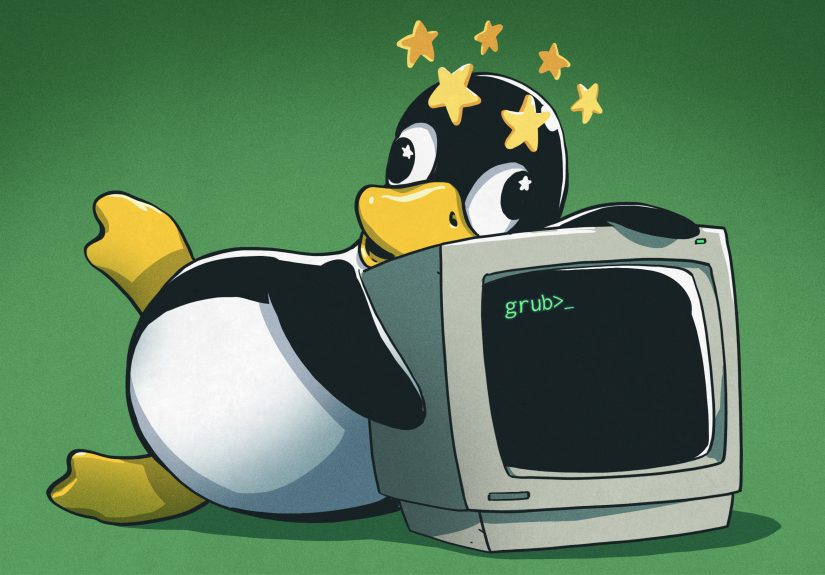
If you land at grub>, GRUB has loaded more of itself successfully. Think of this as the full command shell. It is still grumpy, but it has tools available. This usually means GRUB started normally but could not find or use its configuration file.
If you land at grub rescue>, the situation is more limited. That typically means GRUB could not even find a required module such as normal.mod. In other words, the bootloader is alive enough to complain, but not happy enough to do its full job. Rescue mode supports fewer commands, which is why it feels like being handed a screwdriver and a flashlight while the server room is metaphorically on fire.
Why Systems End Up at the GRUB Prompt
Machines do not usually wake up and choose chaos for no reason. Most GRUB prompt failures trace back to a handful of familiar sysadmin events.
1. Partition Changes and Disk Layout Shenanigans
If a partition was resized, moved, recreated, or relabeled, GRUB may still be looking for boot files in the old location. This is common after cloning disks, migrating VMs, replacing drives, or “making one tiny storage change” that was definitely going to be safe.
2. Another Bootloader Took Over
Dual-boot systems are famous for this. Install or repair another operating system, and suddenly GRUB is no longer in charge. Linux still exists. Your data still exists. But the boot path now has all the coordination of a group project nobody wanted.
3. Broken or Missing Boot Files
If /boot, /boot/grub, the kernel image, initramfs, or configuration files are missing or damaged, GRUB may stop cold. A failed package update, incomplete kernel install, or corrupted filesystem can all lead here.
4. BIOS and UEFI Mismatch
Reinstalling GRUB the wrong way for the platform is a classic move. BIOS-based systems and UEFI systems do not recover identically, and treating them as interchangeable is how a quick fix becomes a longer afternoon.
5. UUID or Filesystem Confusion
Sometimes GRUB can find the bootloader components, but the system later fails because the root filesystem, /boot, or EFI partition references changed. That can happen after disk cloning, restoring from backup, or replacing storage hardware.
First Response: What to Do When You See the GRUB Prompt
The first rule is wonderfully boring: do not type random commands just because the cursor looks lonely. Slow down and collect clues.
Start by reading the exact prompt and any error message. “No such partition,” “unknown filesystem,” or a complaint about normal.mod each point in slightly different directions.
Then use GRUB like a flashlight.
Useful Commands for Early Triage
ls is your best friend. It can list available devices and partitions, and it can also show directory contents. You can use commands like:
Your goal is to locate the partition that contains either the Linux root filesystem, the /boot directory, or the GRUB modules. If you find files like vmlinuz, initrd.img, or a /boot/grub directory, you are getting warm.
At this point, sysadmin logic matters more than bravery. You are not trying to permanently fix the system from the prompt right away. You are trying to boot it once so you can make a proper repair from a fully running OS or a rescue environment.
How to Boot Temporarily from grub>
If you are at the fuller grub> prompt and can find the correct partition, you may be able to boot manually. A common pattern looks like this:
On some systems, the kernel and initramfs are symlinked in the filesystem root, so the paths may look shorter:
The exact partition numbers, device names, and file paths vary. That is why ls comes first and heroics come second. The temporary boot is only step one. Once the system is up, you still need to regenerate configuration and possibly reinstall the bootloader properly.
How to Recover from grub rescue>
Rescue mode is more limited, but it is not helpless. The usual trick is to point GRUB to the right module directory, load the normal module, and return to normal mode. A common sequence looks like this:
If that works, you may get the usual GRUB menu back. From there, boot the operating system normally or continue with more manual commands if necessary. If needed, some systems also require loading the Linux module and specifying kernel and initramfs paths manually afterward.
This is the part where sysadmins become detectives. Wrong partition? Wrong path. Separate /boot partition? Different prefix. UEFI layout? Different directory conventions. GRUB recovery is less about memorizing one magic spell and more about understanding where boot files actually live.
The Real Fix After the System Boots
If you manage a temporary boot, congratulations. You have escaped the immediate trap. Now do the permanent repair before rebooting again and discovering that lightning can, in fact, strike the same server twice.
Regenerate the GRUB Configuration
Many distributions generate the live GRUB configuration from templates and defaults. That means you generally should not hand-edit grub.cfg unless you truly enjoy fragile surprises. Update the source settings, then rebuild the configuration using the proper distro command.
Examples include commands such as update-grub on Debian- and Ubuntu-style systems or grub2-mkconfig on Red Hat-style systems. The point is not the exact command name. The point is to rebuild the configuration cleanly from the current system state.
Reinstall the Bootloader the Right Way
If the bootloader itself is damaged or missing, reinstall it correctly for your platform. On BIOS systems, the install target is usually the disk, not a numbered partition. On UEFI systems, recovery often involves the EFI bootloader files and the EFI System Partition instead of writing a boot sector the old-fashioned way.
That distinction matters more than many sysadmins would like to admit. Reinstalling GRUB to the wrong target is how a bad boot day becomes a truly memorable weekend.
Verify /etc/fstab, UUIDs, and Mounted Boot Partitions
Boot issues are not always strictly “a GRUB problem.” If disk identifiers changed, or if /boot or /boot/efi was not mounted during maintenance, your configuration may be technically rebuilt but still wrong. Check filesystem UUIDs, verify the active layout, and make sure the files you repaired are on the partition the firmware and bootloader actually use.
When Manual Recovery Fails
Sometimes the right move is to stop wrestling with the prompt and boot from rescue media. That is not surrender. That is professionalism.
A live USB, installer rescue environment, or cloud recovery ISO can let you mount the installed system, bind-mount key filesystems, and chroot into the environment for a proper repair. This is especially helpful when the root filesystem needs checks, the bootloader packages must be reinstalled, or the system is too broken for a quick in-place save.
In plain English: if the patient is conscious enough to complain but not coherent enough to stand up, get a stretcher.
Practical Examples Sysadmins See All the Time
The VM Migration Surprise
A virtual machine gets moved to new storage, boots once, then falls into grub rescue>. The partition UUIDs changed during the migration, and GRUB is staring into the void. Solution: locate the correct boot partition, recover temporarily, then rebuild configuration and verify UUID references.
The Dual-Boot Ambush
A workstation gets another OS installed for testing. That OS rewrites boot behavior. Linux is still there, but GRUB is no longer in control. Solution: boot from rescue media, reinstall GRUB for the correct firmware mode, regenerate configuration, and confirm the EFI entries or boot order.
The “I Cleaned Up /boot” Incident
Someone removed “old files” from /boot without realizing the current kernel or initramfs was among them. The machine reboots to an ugly prompt and suddenly everyone becomes very interested in change management. Solution: boot rescue media, reinstall missing kernel or boot packages, rebuild GRUB, and maybe have a polite but unforgettable conversation afterward.
How to Prevent Getting Dumped Into GRUB Again
- Keep rescue media or a recovery ISO available before you need it.
- Do not edit generated GRUB configuration files unless you absolutely must.
- Know whether the system boots with BIOS or UEFI before doing repairs.
- After cloning or migrating disks, verify UUIDs, boot entries, and mounted boot partitions.
- Keep at least one older, known-good kernel when possible.
- Test reboot-sensitive changes during planned windows, not five minutes before leaving.
- Document the storage layout so future-you does not have to reverse-engineer it under pressure.
Final Takeaway
Being dumped into the GRUB command line feels dramatic because it happens so early in the boot process. The system looks dead, the prompt looks hostile, and the pressure rises quickly. But in most cases, it is a recoverable problem. The key is understanding the difference between grub> and grub rescue>, using discovery commands to find the real boot files, getting the machine up temporarily, and then making a permanent repair the correct way for the platform.
In other words, GRUB is less of a monster and more of a grumpy gatekeeper. Learn its language, respect its quirks, and it usually lets you back into your own server.
Field Notes From the Server Room: Hard-Earned Experience with the GRUB Command Line
Ask enough sysadmins about the GRUB prompt and you start hearing the same kind of war story told in slightly different accents. It is almost never the glamorous outage that gets you. It is the sleepy maintenance reboot after a routine change, the storage migration that “should be transparent,” or the single workstation that nobody touched for months until it suddenly decides today is the day for theater.
One of the most common lessons is that the first five minutes matter more than the next fifty. The admins who recover fastest are usually the ones who stop, read the screen carefully, and avoid typing random commands in a burst of adrenaline. They note the exact error, identify whether they are at grub> or grub rescue>, and start mapping disks with ls instead of guessing. That calm, almost boring discipline saves enormous time.
Another shared experience is how often the root cause turns out to be something indirect. The prompt appears, everyone blames GRUB, and later the real culprit turns out to be a changed UUID, a missing EFI mount during updates, or a kernel image that never finished installing cleanly. GRUB ends up being the messenger who got booed at the meeting. Annoying, yes, but often not the villain.
Veteran sysadmins also learn that temporary recovery and permanent repair are different jobs. Booting the machine once from the command line can feel like a magic trick, and it is satisfying in the way all emergency command-line success is satisfying. But the experienced admin does not celebrate too early. They know that if they do not rebuild configuration, verify partitions, and reinstall the loader correctly where needed, the next reboot will be a sequel nobody asked for.
There is also a practical emotional lesson. GRUB problems look scary because they happen before the familiar operating system appears. No login screen. No monitoring agent. No comforting dashboard. Just a spare prompt and the sudden sensation that your machine has become more honest than polite. Over time, though, that fear fades. The prompt becomes less of a nightmare and more of a puzzle: find the right partition, point GRUB at the right files, get a boot, perform the fix, document what happened.
And maybe the most universal lesson of all: every sysadmin eventually becomes a little superstitious about reboots. Not irrationally, just enough to check the console, confirm the boot mode, and make sure rescue access exists before touching anything important. It is not fear. It is wisdom earned one blinking cursor at a time.