Table of Contents >> Show >> Hide
- Why Making Barcodes in Word Is Not as Simple as Typing Fancy Lines
- Step 1: Choose the Right Barcode Type Before You Touch Word
- Method 1: Make Barcodes in Word with DisplayBarcode
- Method 2: Create Mail Merge Barcodes in Word with MergeBarcode
- Method 3: Use a Barcode Font in Word
- Method 4: Create the Barcode Elsewhere and Insert It into Word
- How to Print Barcodes from Word Without Wrecking Scan Quality
- Common Mistakes When Inserting Barcodes in Word
- Best Use Cases for Barcodes in Word
- Real-World Experiences, Lessons, and a Few Barcode Scars
- Conclusion
If you have ever opened Microsoft Word and thought, “Today I shall boldly become a barcode wizard,” you are not alone. Plenty of people need barcodes for inventory labels, product tags, file folders, shipping workflows, event badges, and those mysterious office systems that somehow run on stickers and optimism. The good news is that you can make barcodes in Word. The less dramatic news is that Word is not really a full-blown barcode studio. It is more like a helpful assistant who says, “I can do this, but please do not make it weird.”
That is why this guide matters. If you want to create and insert barcodes in Word the right way, you need to know which method fits your job, which barcode type makes sense, and how to avoid printing something that looks official but scans like modern art. In this article, we will walk through the best ways to make barcodes in Word, including Word’s built-in field codes, barcode fonts, and external barcode tools. We will also cover label printing, common mistakes, and practical examples so you can stop guessing and start scanning.
Why Making Barcodes in Word Is Not as Simple as Typing Fancy Lines
Let’s clear up the first big misconception. Word no longer has a classic built-in barcode tool the way some people remember from older workflows. That does not mean Word is useless for barcode creation. It just means the process depends on the method you choose.
In practice, there are three main ways to create barcodes in Word:
- Use Word field codes such as DisplayBarcode and MergeBarcode
- Use a barcode font for simple barcode formats
- Create the barcode in another tool, then insert it into Word as an image or through label software
Each method has a personality. Field codes are the “I read the manual and now I feel powerful” option. Fonts are the “let’s keep this simple” option. External tools are the “I need this to work by 4 p.m. and I cannot babysit it” option.
Step 1: Choose the Right Barcode Type Before You Touch Word
Before you make anything, decide what kind of barcode you need. This matters because different barcode types store different data, follow different rules, and are used in different industries.
Common barcode types you may use in Word
Code 39 is one of the easiest barcode formats for office users. It works well for internal inventory, asset tags, and labels where you control the scanning environment. It is often used with barcode fonts, which makes it a popular starting point.
Code 128 is more compact and holds more data than Code 39. It is often a better choice for logistics, internal tracking, and labels where space is tight. If you need something more efficient and professional-looking, Code 128 usually wins the beauty contest.
UPC-A and EAN-13 are retail product barcodes. These are not casual doodles. If you are labeling products for actual retail sale, you must use valid numbering rules and often official barcode assignments.
GS1-128 is used more in shipping, warehousing, and supply chain settings. It can carry structured information like lot numbers, serial numbers, and expiration dates. In other words, it is the overachiever of the barcode family.
QR codes are two-dimensional barcodes and are useful for links, digital forms, menus, and event check-ins. If you want to send people to a website with one scan, QR codes are usually the easiest play.
Rule of thumb: for internal labels, Code 39 or Code 128 is often enough. For retail, shipping, or standards-based use, confirm the exact barcode format your system, supplier, or carrier requires before printing a single label. A barcode that scans beautifully but uses the wrong standard is still a very elegant mistake.
Method 1: Make Barcodes in Word with DisplayBarcode
This is the most direct native method for creating barcodes in Word. Word supports the DisplayBarcode field, which lets you generate several barcode types right inside the document. If you want a barcode without installing a font or opening a separate app, this is your most “Word-like” route.
How to insert a barcode with DisplayBarcode
- Open your Word document and place the cursor where you want the barcode.
- Press Ctrl + F9 to insert field braces. Do not type curly braces manually. Word is very particular about this, like a cat who only drinks from one specific bowl.
- Type the field code inside the braces.
- Use a format such as:
{ DisplayBarcode "123456789012" CODE128 t } - Right-click the field and choose Toggle Field Codes if needed.
- Update the field so Word renders the barcode.
The text in quotes is the data you want to encode. The barcode type comes next, such as CODE39, CODE128, UPCA, EAN13, or QR. Switches like t can display the text below the barcode, while other switches can control height, scaling, or QR error correction.
Useful examples
Code 39:{ DisplayBarcode "2345678" CODE39 d t }
Code 128:{ DisplayBarcode "490123456789" CODE128 t }
QR code:{ DisplayBarcode "https://example.com" QR q 3 }
If the barcode does not render, the data may not match the selected barcode format. That is Word’s polite way of saying, “I did not sign up for nonsense.”
Method 2: Create Mail Merge Barcodes in Word with MergeBarcode
If you are making dozens or hundreds of barcodes, manually entering one field at a time is a terrible life choice. This is where MergeBarcode becomes useful. It is designed for mail merge scenarios, which makes it ideal for inventory labels, employee badges, asset tags, shelf labels, or shipping lists generated from Excel.
How MergeBarcode works
With mail merge, Word pulls data from a source such as Excel. Instead of typing one barcode value by hand, you tell Word to generate the barcode from a field in your data file.
For example, if your Excel sheet has a column named ItemCode, your field might look like this:
{ MergeBarcode ItemCode CODE128 t }
Basic workflow for barcode mail merge
- Create your data list in Excel with columns like ItemCode, Name, SKU, or URL.
- Open Word and go to Mailings > Start Mail Merge > Labels.
- Select your label vendor and product number, or create a custom label size.
- Choose Select Recipients and connect your Excel file.
- Insert the text fields you want on the label.
- Insert a MergeBarcode field where the barcode should appear.
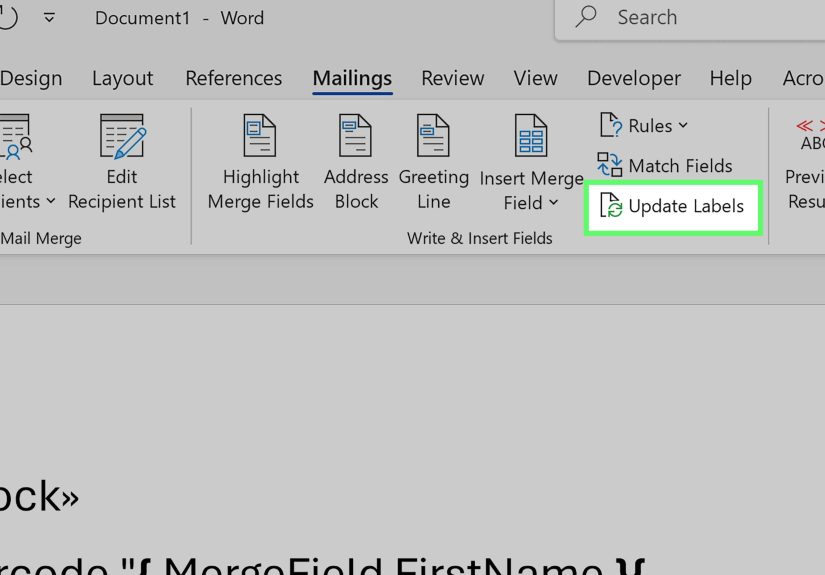
- Preview the results, update labels, and print a test page before committing to a full run.
This method is excellent when every label needs a unique barcode. It is also how many small businesses stop doing repetitive work and start feeling suspiciously efficient.
Method 3: Use a Barcode Font in Word
Barcode fonts remain popular because they are simple. You type regular text, apply the font, and the text turns into a barcode. That sounds magical, and when used correctly, it mostly is.
When barcode fonts work best
Barcode fonts are best for simple internal workflows, especially with formats like Code 39. They are fast, familiar, and easy to use if your barcode standard is straightforward.
How to create a barcode with a font
- Install a barcode font on your computer.
- Open Word and type the data you want to encode.
- Apply the barcode font to that text.
- Adjust size and spacing if needed.
- Test the printed barcode with a scanner.
For Code 39, many fonts require start and stop characters, usually an asterisk, before and after the text. So instead of typing ABC123, you may need *ABC123*. If you skip that step, your barcode may look confident and still fail on the scanner. That is the barcode equivalent of showing up to the airport without your passport.
What to watch out for
Fonts are easy, but they are not foolproof. Some Word formatting choices, especially character spacing, can make barcodes unreadable. Also, not every barcode type is safe to fake with a simple font. If your barcode must meet retail, shipping, or compliance standards, use caution and verify the output carefully.
Method 4: Create the Barcode Elsewhere and Insert It into Word
Sometimes the smartest way to make barcodes in Word is to admit that Word should not do everything. If you are working with sheet labels, branded product labels, shipping labels, or QR campaigns, a dedicated barcode or label tool can be easier and safer.
For example, label platforms and printer software often let you:
- Choose the proper barcode standard
- Preview the code before printing
- Import a spreadsheet for sequential or variable data
- Print directly to label stock or thermal label printers
- Insert or sync the final barcode into Word-based workflows
This route is especially useful when you need accurate shipping labels, GS1 workflows, or thermal printer output. Word is great for document layout, but dedicated label software is often better for the high-stakes barcode part.
How to Print Barcodes from Word Without Wrecking Scan Quality
Creating the barcode is only half the job. Printing is where many good intentions go to die.
Follow these barcode printing best practices
Print a test first. Always scan a sample before printing fifty sheets of disappointment.
Use enough white space. Barcodes need quiet zones, which are blank areas around the symbol. Crowding a barcode with text, borders, or graphics can hurt scanning.
Use the right label stock. Wrinkled labels, rough surfaces, glossy glare, or low-quality paper can reduce scan accuracy.
Do not stretch randomly. Resizing a barcode carelessly can distort its proportions. Bigger is not always better; squashed is almost never better.
Avoid taping over barcodes when possible. Tape, plastic glare, and creases can interfere with scanning, especially on shipping labels.
Match the printer to the job. Standard office printers may work for many internal labels, but shipping and warehouse environments often benefit from dedicated label printers.
Common Mistakes When Inserting Barcodes in Word
- Using the wrong barcode type for the system or scanner
- Typing field braces manually instead of using Ctrl + F9
- Forgetting Code 39 start and stop characters when using a font-based method
- Printing without testing the barcode on the actual scanner
- Over-formatting the barcode with spacing, compression, or decorative layout tricks
- Assuming a barcode that looks nice is automatically standards-compliant
That last one is the sneakiest. Barcodes are practical creatures. They care very little about your design preferences and a great deal about data structure, contrast, spacing, and print quality.
Best Use Cases for Barcodes in Word
Word works especially well for barcodes when you need:
- Inventory or asset labels from an Excel list
- File folder or archive labels
- Employee or visitor badges with variable codes
- Simple QR codes inside forms, flyers, or instructions
- Low-volume internal labeling where Word is already part of the workflow
It is less ideal when you need high-compliance retail packaging, complex shipping standards, or industrial label production at scale. In those cases, Word can still help with layout, but dedicated barcode software usually deserves the main role.
Real-World Experiences, Lessons, and a Few Barcode Scars
I have seen barcode projects start with a wonderfully innocent sentence: “We just need to print a few labels in Word.” That sentence has the same energy as “We’ll only be at Ikea for ten minutes.” Sometimes it is true. Often it becomes a character-building exercise.
One of the most common experiences is discovering that a barcode can look perfectly sharp on screen and still fail after printing. A team creates neat-looking labels, aligns everything beautifully, and feels great. Then the scanner refuses to read half of them. Why? Usually because the font was stretched, the label stock was glossy, the printer output was too light, or somebody placed decorative text too close to the symbol. The barcode was not ugly. It was just not scannable, which is a very important difference.
Another frequent lesson shows up during mail merge projects. People love the idea of generating hundreds of labels from Excel, and honestly, they should. It is efficient, scalable, and far better than typing every code by hand like a medieval scribe with a deadline. But the Excel source has to be clean. Extra spaces, inconsistent number lengths, and mixed formatting can create barcode chaos. One row scans. The next row acts like it is on strike. Suddenly the problem is not Word at all. It is the spreadsheet, sitting there quietly like it did nothing.
Barcode fonts also teach humility. They are wonderfully convenient, especially for Code 39, and they can make you feel like a genius in under five minutes. Then you learn about start and stop characters, check digits, spacing, and scanner settings, and you realize the font was only the first chapter of the story. Many users have had the exact same experience: the barcode displays beautifully, but the scanner reads nothing. That is usually the moment testing becomes a religion.
Then there is the printer factor. Office users often assume any printer that can produce a decent memo can also produce a reliable barcode. Sometimes yes. Sometimes absolutely not. Small labels, dense codes, and shipping workflows are less forgiving than a regular document. Thermal label printers, dedicated label software, or carrier-approved templates often save enormous time because they remove the guesswork. The funny thing is that people often resist using a dedicated tool right up until Word has eaten three hours of their afternoon.
The most successful barcode projects usually share the same habits. They choose the barcode type first. They test with the real scanner, not a hopeful glance. They print one sheet before printing one hundred. They leave enough white space. And they treat Word as part of a workflow, not a magical machine that automatically knows the difference between a warehouse label and a retail barcode.
So yes, you can absolutely make barcodes in Word. Just do it with a little strategy, a little patience, and a healthy respect for the tiny black lines that hold your whole process together.
Conclusion
If you want to know how to make barcodes in Word, the smartest answer is this: start with the job, not the software. For simple needs, Word’s DisplayBarcode and MergeBarcode fields can do the work. For basic internal labels, barcode fonts may be enough. For shipping, retail, or more demanding workflows, a dedicated barcode or label tool often gives better results.
The key is not just creating a barcode. It is creating one that scans correctly, prints clearly, and matches the standard your workflow expects. Once you understand that, Word becomes a useful barcode partner instead of a mysterious line-making machine.