Table of Contents >> Show >> Hide
- What Is LinkedIn and Why Should You Create an Account?
- Before You Start: What You Need to Create a LinkedIn Account
- How to Create a LinkedIn Account Step by Step
- Step 1: Go to the LinkedIn Sign-Up Page
- Step 2: Enter Your Email and Password
- Step 3: Add Your Real Name
- Step 4: Complete the Verification Prompt
- Step 5: Add Your Location
- Step 6: Enter Your Job Title or Student Information
- Step 7: Choose Whether to Import Contacts
- Step 8: Add a Professional Profile Photo
- Step 9: Confirm Your Email and Finish the Initial Setup
- How to Build a Strong LinkedIn Profile After Sign-Up
- LinkedIn Privacy and Security Tips for New Users
- Expert Tips to Make Your LinkedIn Account Stand Out
- Common LinkedIn Account Mistakes to Avoid
- Real-World Experiences: What Creating a LinkedIn Account Actually Teaches You
- Conclusion: Build Your LinkedIn Account Like a Career Asset
Creating a LinkedIn account is one of those modern career tasks that sounds simple until you actually sit down to do it. Suddenly, you are not just signing up for another social platform. You are building a public professional identity, a searchable resume, a networking hub, a personal brand page, and, depending on your ambition level, a tiny billboard that says, “Hello, opportunity, I am wearing my metaphorical blazer.”
The good news? Setting up LinkedIn is not difficult. The better news? Creating a LinkedIn account the right way can help recruiters, hiring managers, clients, collaborators, classmates, and industry peers understand who you are faster. The slightly less glamorous news? A half-empty LinkedIn profile with a blurry vacation photo and the headline “Student at Life” will not do you many favors unless you are applying to become a motivational coffee mug.
This full guide walks you through how to create a LinkedIn account step by step, how to optimize your profile, how to avoid common beginner mistakes, and how to use expert LinkedIn tips to look credible from day one. Whether you are a student, job seeker, freelancer, business owner, career changer, or professional finally giving in after years of “I should probably make a LinkedIn,” this guide is for you.
What Is LinkedIn and Why Should You Create an Account?
LinkedIn is a professional networking platform designed for career development, business relationships, recruiting, industry learning, and personal branding. Unlike entertainment-focused social media, LinkedIn is built around your professional story: your work experience, education, skills, achievements, certifications, portfolio, recommendations, and connections.
A LinkedIn account can help you appear in recruiter searches, apply for jobs, follow companies, connect with people in your field, publish posts, join professional conversations, and showcase your expertise. Think of it as your digital handshake. A good one feels confident, clear, and human. A bad one feels like a damp business card found in a parking lot.
LinkedIn is especially useful because it allows your career information to work for you even when you are not actively applying for jobs. A complete profile can attract inbound opportunities, make networking easier, and support your credibility when someone searches your name online.
Before You Start: What You Need to Create a LinkedIn Account
Before creating your LinkedIn profile, gather a few basic items. This will make the process smoother and prevent you from writing your entire career history while staring blankly at your laptop like it just asked you to explain your five-year plan in ancient Greek.
You Will Need:
- A valid personal email address
- Your real first and last name
- A strong password
- Your current location
- Your current job title, student status, or career goal
- A professional profile photo
- A short summary of your skills and experience
Use a personal email address you can access long term. Avoid role-based emails such as [email protected] or [email protected] because those belong to a job function, not to you personally. If you leave the company, your login access may leave with it, probably while waving from the parking lot.
LinkedIn also expects members to use their real names. A personal profile should represent a real individual, not a company, nickname, alias, or fictional character. If you want to represent a business, create a personal account first and then build a LinkedIn Page for your organization later.
How to Create a LinkedIn Account Step by Step
Step 1: Go to the LinkedIn Sign-Up Page
Open your browser and go to LinkedIn. Click the option to join or sign up. You can create your account on desktop or through the LinkedIn mobile app, but desktop is often easier for beginners because you can type, edit, and review details more comfortably.
Step 2: Enter Your Email and Password
Enter your email address and create a strong password. A good password should be unique, difficult to guess, and not reused from another website. Your dog’s name plus “123” may be emotionally meaningful, but it is not exactly Fort Knox.
Use a mix of uppercase and lowercase letters, numbers, and symbols. If you use a password manager, this is a great time to let it do the heavy lifting.
Step 3: Add Your Real Name
Enter your first and last name as you use them professionally. This helps people recognize you, connect with you, and verify that they have found the right person. Avoid keyword stuffing your name field with titles such as “John Smith MBA CPA Sales Ninja.” Save the expertise for your headline and About section.
Step 4: Complete the Verification Prompt
LinkedIn may ask you to complete a security check or email confirmation. Follow the instructions carefully. Verification steps help protect the platform from fake accounts and automated spam. It may feel like a tiny obstacle, but it is better than joining a professional network overrun by suspicious robots offering “exclusive crypto mentorship.”
Step 5: Add Your Location
LinkedIn will ask for your country, region, or city. Your location helps recruiters and contacts find you for relevant opportunities. If you are open to remote work, you can still use your real location and mention remote preferences elsewhere on your profile.
Step 6: Enter Your Job Title or Student Information
Next, add your current job title, company, school, or career stage. If you are unemployed, freelancing, changing careers, or just starting out, be honest and strategic. You can use phrases such as “Marketing Graduate,” “Freelance Graphic Designer,” “Aspiring Data Analyst,” or “Customer Service Professional Seeking Operations Roles.”
Your goal is not to pretend you are something you are not. Your goal is to make it easy for the right people to understand where you fit.
Step 7: Choose Whether to Import Contacts
LinkedIn may offer to help you find people you know by importing contacts. This can be useful, but it is optional. If you are new to the platform, you may prefer to skip this step at first and build your network manually. Manual networking is slower, but it also helps you avoid accidentally connecting with your dentist, your cousin’s ex-boss, and that one person you met in 2014 whose name you never learned.
Step 8: Add a Professional Profile Photo
Your LinkedIn profile photo matters. A clear, recent, professional image helps your profile look trustworthy. You do not need an expensive studio headshot. A photo taken in natural light with a clean background can work beautifully.
Choose a photo where your face is visible, you are dressed appropriately for your industry, and the image is not blurry. Avoid group photos, party pictures, heavy filters, sunglasses, or cropping yourself out of a wedding photo where someone else’s shoulder is still in the frame like a ghost of networking past.
Step 9: Confirm Your Email and Finish the Initial Setup
Once you confirm your email and complete the basic prompts, your LinkedIn account is active. Congratulations. You now have a professional online presence. Do not stop here, though. An empty LinkedIn profile is like opening a restaurant and forgetting to add tables, food, or lighting. Technically it exists, but nobody knows what to do with it.
How to Build a Strong LinkedIn Profile After Sign-Up
Creating the account is only the first step. The real value comes from building a complete, searchable, and compelling profile. LinkedIn is not just a place to list jobs. It is a place to tell a professional story.
Write a Clear LinkedIn Headline
Your headline appears under your name and is one of the first things people see. By default, LinkedIn may use your current job title. That is fine, but you can make it stronger by including your specialty, industry, or value.
Instead of writing:
Marketing Assistant
Try:
Marketing Assistant | Social Media Content, Email Campaigns & Brand Research
Instead of:
Student
Try:
Business Student | Interested in Finance, Data Analysis & Market Research
A good LinkedIn headline should answer three questions quickly: Who are you? What do you do? What do you want to be known for?
Create an Engaging About Section
The About section is your professional introduction. It should sound like a human wrote it, not like a resume was fed into a blender. Use first person, keep it clear, and focus on your strengths, interests, achievements, and goals.
A simple structure works well:
- Start with who you are and what you do.
- Mention your key skills or areas of expertise.
- Add one or two achievements or examples.
- Explain what opportunities or connections interest you.
- End with a friendly invitation to connect.
Example:
I am a junior web developer focused on building responsive, user-friendly websites with HTML, CSS, JavaScript, and React. I enjoy turning messy problems into clean digital experiences and have completed projects including portfolio sites, landing pages, and small business pages. I am currently interested in front-end development roles, open-source collaboration, and learning more about accessibility-focused design. Feel free to connect if you work in web development, design, or tech hiring.
Add Work Experience With Results
Your Experience section should do more than list job duties. Whenever possible, describe accomplishments and results. Numbers help, but context also matters.
Weak example:
Managed social media accounts.
Better example:
Managed Instagram and LinkedIn content for a local fitness brand, increasing average monthly engagement by 35% through short-form educational posts and customer success stories.
If you do not have formal work experience, include internships, volunteer work, freelance projects, student leadership, coursework, or portfolio projects. Everyone starts somewhere. Even CEOs once had a first job, although some of them now describe it with suspiciously heroic lighting.
Add Education, Certifications, and Skills
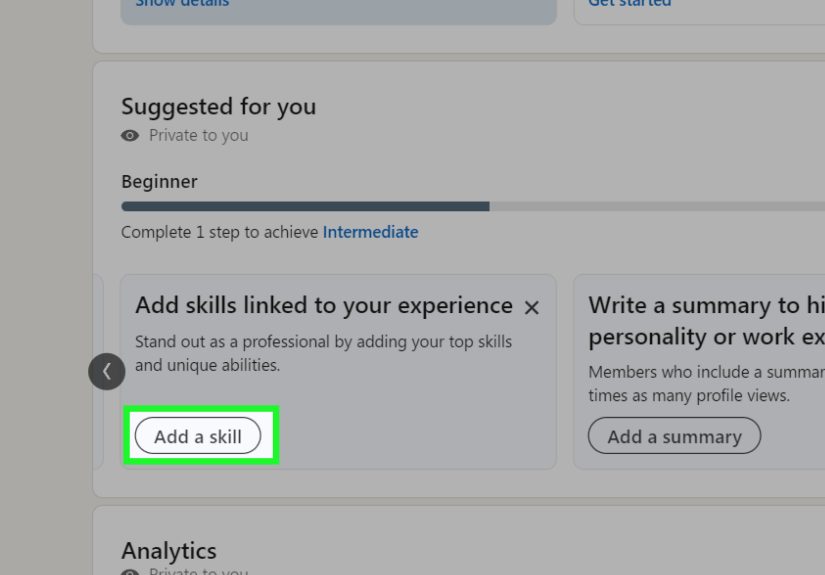
Add your school, degree, field of study, certifications, licenses, courses, and relevant training. Then add skills that match your career goals. Skills help LinkedIn understand where your profile belongs and may help recruiters find you.
Be honest. Add skills you can actually discuss in an interview or demonstrate in a project. “Excel” is fine if you can use pivot tables. “Quantum Excel Wizardry” is probably best left alone unless you can explain it without summoning thunder.
Customize Your LinkedIn URL
After creating your account, customize your public LinkedIn URL. A clean URL is easier to share on resumes, email signatures, portfolios, and business cards.
A default URL may include random letters and numbers. A custom version can look like:
linkedin.com/in/janesmith
To edit it, go to your profile, find the public profile and URL settings, and choose a simple version of your name if available. If your name is already taken, add a middle initial, profession, or location, such as janesmithmarketing or jane-smith-nyc.
Use the Featured Section
The Featured section lets you highlight work samples, articles, portfolio links, media, presentations, or important posts. This is valuable for creators, consultants, developers, designers, writers, students, and anyone whose work is easier to understand when people can see it.
If your profile says you are a strong writer, feature an article. If you are a designer, feature a portfolio. If you are a developer, link to a project. Proof beats adjectives. Anyone can say they are “detail-oriented.” A polished project says it without making readers mentally roll their eyes.
LinkedIn Privacy and Security Tips for New Users
Review Your Public Profile Visibility
Your LinkedIn profile can appear in search engines depending on your public visibility settings. Review what information is visible outside LinkedIn. You may choose to show or hide sections such as your photo, headline, experience, education, or contact details.
If you are job searching publicly, visibility can help. If you are employed and discreetly exploring options, you may want to adjust settings carefully. Privacy settings are not glamorous, but neither is accidentally broadcasting your career moves to everyone with Wi-Fi.
Turn On Two-Factor Authentication
Two-factor authentication adds an extra layer of security to your LinkedIn account. With it enabled, logging in from a new or unknown device may require both your password and a code or approval method. This makes unauthorized access harder.
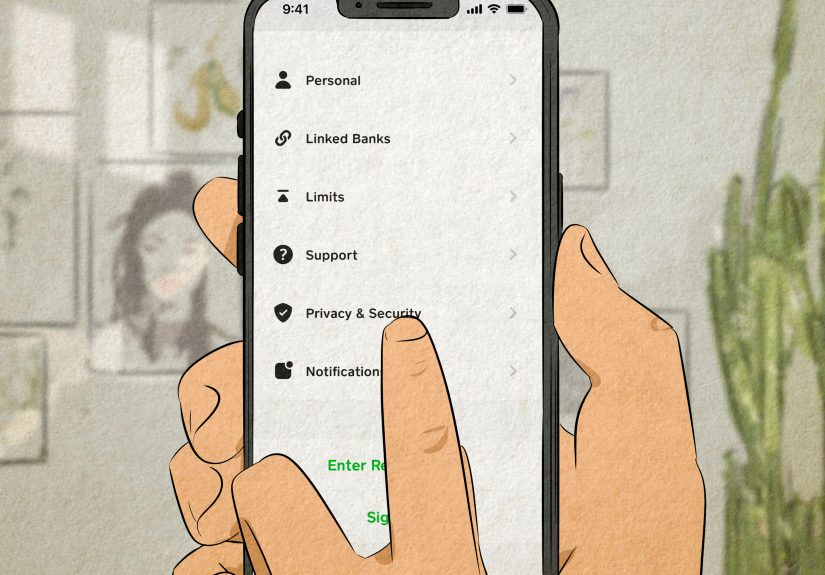
To turn it on, go to Settings & Privacy, open Sign in & Security, and look for two-factor authentication. Follow the prompts and choose the available method that works best for you.
Consider LinkedIn Verification
LinkedIn offers profile verification options in some regions and circumstances, including identity, workplace, and educational institution verification. Verified information can help signal authenticity and build trust. Availability may vary, so check your profile for current verification options.
Watch Out for Fake Recruiters and Job Scams
LinkedIn is useful for job searching, but scammers also target job seekers. Be cautious with messages that promise unusually high pay, ask for money upfront, request sensitive personal information too early, or push you to communicate only through unofficial channels.
Before sharing private information, verify the recruiter and job posting. Check the company’s official website, confirm the recruiter’s email domain, and be suspicious of pressure tactics. A real opportunity should not feel like a hostage negotiation with a benefits package.
Expert Tips to Make Your LinkedIn Account Stand Out
1. Complete Your Profile Before Heavy Networking
Before sending dozens of connection requests, complete your profile. A stranger is more likely to accept your request if your profile explains who you are. Networking with an empty profile is like knocking on someone’s door while wearing a paper bag over your head. Memorable, yes. Effective, no.
2. Use Keywords Naturally
LinkedIn search depends partly on keywords. Use relevant terms in your headline, About section, Experience section, and Skills section. For example, if you want a digital marketing role, include phrases such as SEO, content marketing, Google Analytics, email marketing, social media strategy, and campaign reporting when they accurately reflect your abilities.
3. Make Your First Three Lines Count
In many views, only the first part of your About section appears before someone clicks to read more. Start with a strong opening. Avoid generic lines such as “I am a hardworking professional passionate about success.” That sentence has been used so often it should have its own retirement plan.
4. Ask for Recommendations
Recommendations are written testimonials from colleagues, managers, clients, professors, or collaborators. A thoughtful recommendation can make your profile more credible. Ask people who know your work well, and make the request specific. For example, ask a former manager to mention your project management, communication, or sales results.
5. Connect With Intention
Start with people you already know: classmates, coworkers, former managers, professors, clients, industry contacts, and professional acquaintances. When connecting with someone new, add a short note. Mention why you are reaching out.
Example:
Hi Maria, I enjoyed your recent post about UX research in healthcare. I am building my skills in product design and would be glad to connect.
This is much better than the mysterious blank request from a person with no photo and a headline that simply says “Entrepreneur.” Entrepreneur of what, Derek? Sandwiches? Satellites? Suspense?
6. Post or Comment Thoughtfully
You do not need to become a daily content creator to benefit from LinkedIn. Start by commenting thoughtfully on posts in your industry. Share useful observations, ask good questions, and add genuine perspective. Over time, this helps people associate your name with your field.
7. Keep Your Profile Updated
Update your LinkedIn profile whenever you change roles, complete a certification, publish work, finish a major project, or learn an important skill. Your profile should grow with your career. Do not let it become a digital museum exhibit titled “Who I Was Three Jobs Ago.”
Common LinkedIn Account Mistakes to Avoid
Using an Unprofessional Photo
Your photo does not need to be stiff or boring, but it should fit your professional goals. Avoid photos from parties, cars, bathrooms, beaches, or any place where your future manager might wonder if you understand the concept of office hours.
Writing a Vague Headline
Headlines like “Looking for opportunities” or “Hard worker” do not tell people what you do. Use your headline to include role, skills, industry, or direction.
Copying Your Resume Word for Word
Your LinkedIn profile can support your resume, but it should not be a cold duplicate. LinkedIn allows more personality and context. Use it to explain the story behind your experience.
Adding Too Many Random Skills
More is not always better. A focused list of relevant skills is stronger than a giant pile of unrelated buzzwords. If you are targeting software engineering roles, “JavaScript” and “API development” matter more than “cake decorating,” unless the software is for bakeries, in which case congratulations on your niche.
Ignoring Privacy Settings
New users often forget to review visibility, contact, and notification settings. Spend a few minutes adjusting them. This helps you control who sees your activity and how people can reach you.
Real-World Experiences: What Creating a LinkedIn Account Actually Teaches You
Creating a LinkedIn account is not just a technical task. It is often the first time many people sit down and seriously organize their professional identity. That experience can feel surprisingly challenging. You may know what you do every day, but explaining it clearly to strangers is a different skill. LinkedIn forces you to answer questions that sound simple but are actually powerful: What do I want to be known for? What skills do I want people to notice? What kind of opportunities am I trying to attract?
One common experience among new LinkedIn users is the realization that job titles do not always tell the full story. Someone may have the title “Administrative Assistant,” but their real value includes event coordination, vendor communication, budget tracking, customer service, scheduling, and document management. When building a profile, that person learns to translate daily tasks into professional strengths. This is not exaggeration. It is clarity.
Students often have a similar moment. Many assume they have “no experience” because they have not held a full-time job yet. But once they begin filling out LinkedIn, they remember class projects, internships, volunteer roles, campus organizations, part-time jobs, research assignments, and technical skills. A student who helped organize a fundraising event may have experience in planning, teamwork, promotion, and stakeholder communication. LinkedIn helps turn those scattered experiences into a visible professional starting point.
Career changers may find LinkedIn even more valuable. A person moving from hospitality into project coordination, for example, might initially worry that their past work is irrelevant. But when they write their profile carefully, they can highlight transferable skills such as client communication, problem solving, time management, conflict resolution, and operations support. The profile becomes a bridge between where they have been and where they want to go.
Another practical experience is learning how much presentation matters. Two people may have similar backgrounds, but the one with a clear headline, polished photo, keyword-rich About section, and specific achievements will usually make a stronger impression. This does not mean style beats substance. It means substance needs a readable package. Even excellent experience can be overlooked if it is buried under vague language.
New users also quickly discover that LinkedIn works best when it is not treated like a dusty online resume. The platform becomes more useful when you connect with people, comment on relevant posts, follow companies, save jobs, and learn from industry conversations. You do not have to post inspirational essays every morning before breakfast. Simply showing up consistently and professionally can help.
Many professionals also learn the importance of digital trust. A complete profile with a real photo, accurate work history, thoughtful activity, and verification where available feels more credible than a thin profile with almost no details. In a world where fake accounts and job scams exist, trust signals matter. Your LinkedIn profile should reassure people that you are real, reachable, and professionally serious.
Finally, creating a LinkedIn account teaches patience. Opportunities rarely appear five minutes after you click “Join now.” The benefits build over time as you improve your profile, grow your network, and engage with your field. A strong LinkedIn presence is like compound interest for your career. At first, it seems quiet. Then, one day, someone finds your profile, sends a message, shares a lead, invites you to apply, or remembers you for a project. That is when the setup work starts to pay off.
Conclusion: Build Your LinkedIn Account Like a Career Asset
Creating a LinkedIn account is easy. Creating a LinkedIn profile that actually helps your career takes a little more thought. Start with the basics: use your real name, choose a reliable email address, add a professional photo, write a clear headline, complete your About section, list your experience, add relevant skills, customize your URL, and review your privacy and security settings.
Then go beyond setup. Connect with intention, engage with useful content, ask for recommendations, keep your profile updated, and treat LinkedIn as a living career asset. You do not need to sound like a corporate robot or pretend to be the world’s leading expert in everything. You simply need to be clear, credible, and active enough for the right people to understand your value.
Your LinkedIn account is more than a profile. It is your professional front door. Make sure it is clean, welcoming, and not guarded by a blurry selfie from 2017.
Note: LinkedIn features, menus, and verification options may change over time, so users should always review the latest settings available inside their own LinkedIn account.