Table of Contents >> Show >> Hide
- What Does “Frame by Frame” Mean on YouTube?
- The Fastest Way to Go Frame by Frame on YouTube
- YouTube Frame-by-Frame Keyboard Shortcuts
- Why the Frame-by-Frame Shortcut Might Not Work
- How to Go Frame by Frame on YouTube on Mobile
- How to Capture a Specific YouTube Frame
- When Should You Use Frame-by-Frame Viewing?
- Should You Use a Browser Extension?
- Can You Use VLC for Frame-by-Frame Video?
- Best Tips for Accurate YouTube Frame Analysis
- Common Mistakes to Avoid
- Quick Troubleshooting Checklist
- Real-World Experience: What Frame-by-Frame Viewing Actually Feels Like
- Conclusion
- SEO Tags
Sometimes a YouTube video moves too fast for human eyeballs. A basketball crossover happens in a blink. A cooking tutorial shows the “perfect golden brown” stage for approximately one-third of a sneeze. A movie trailer hides an Easter egg so tiny you need detective energy and possibly a snack. That is where learning how to go frame by frame on a YouTube video becomes surprisingly useful.
The good news: YouTube already has built-in frame-by-frame controls on desktop. You do not need to download sketchy software, summon a tech wizard, or shout “enhance!” at your monitor like you are in a crime drama. The main trick is knowing which keys to press, when to press them, and what to do when YouTube acts like it suddenly forgot how keyboards work.
In this simple guide, you will learn how to move one frame forward or backward on YouTube, how to troubleshoot the shortcut when it does not work, how to use slow motion on mobile, and when browser extensions or video tools make sense. Whether you are a student, coach, creator, editor, gamer, animator, or professional overanalyzer, this guide will help you pause the chaos and inspect the moment one frame at a time.
What Does “Frame by Frame” Mean on YouTube?
A video is made of individual still images called frames. When those frames play quickly, your brain sees smooth motion. Many YouTube videos play at 24, 30, or 60 frames per second, depending on how the video was recorded and uploaded. Going frame by frame means moving through those tiny still images one at a time instead of watching the video continuously.
This is useful when normal playback is too fast. For example, a dancer may want to study foot placement, a gamer may want to catch a hidden detail, and a teacher may want to pause on the exact frame where a diagram changes. Instead of dragging the progress bar and landing somewhere in the general neighborhood of the moment, frame-by-frame playback lets you get precise.
The Fastest Way to Go Frame by Frame on YouTube
The easiest way to view a YouTube video frame by frame is to use your keyboard on a desktop or laptop browser.
Step-by-Step Instructions
- Open the YouTube video in a desktop browser.
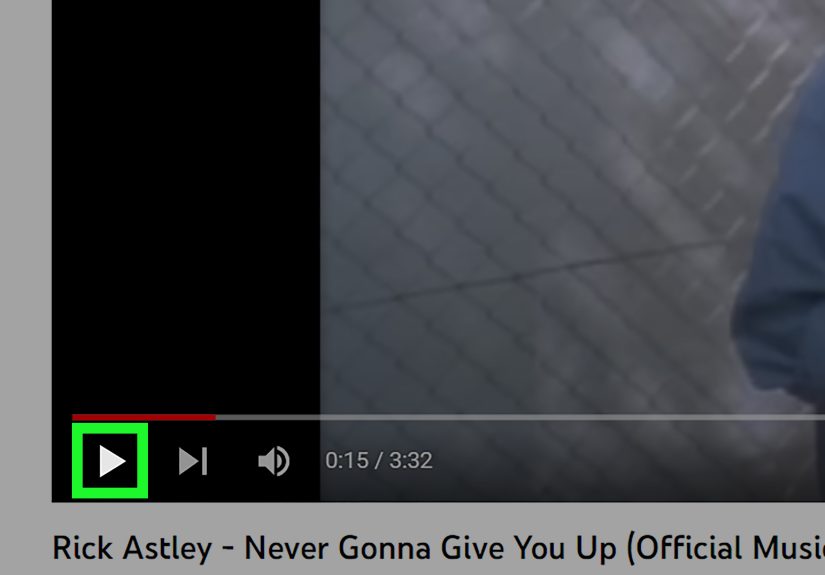
- Click the video player so YouTube knows your keyboard commands are meant for the video.
- Press K or the spacebar to pause the video.
- Press the period key (.) to move forward one frame.
- Press the comma key (,) to move backward one frame.
That is the whole magic trick. Pause first, then use . for the next frame and , for the previous frame. If you remember nothing else from this article, remember this tiny keyboard sandwich: comma goes back, period goes forward.
YouTube Frame-by-Frame Keyboard Shortcuts
Frame-by-frame viewing works best when you combine it with other YouTube keyboard shortcuts. Here are the most helpful ones for precise video analysis.
| Shortcut | What It Does | Best Use |
|---|---|---|
| K | Play or pause the video | Quickly stop the video before frame stepping |
| . | Move forward one frame while paused | Inspecting the next exact moment |
| , | Move backward one frame while paused | Reviewing a moment you just passed |
| Left Arrow | Rewind 5 seconds | Backing up near the scene you want |
| Right Arrow | Skip forward 5 seconds | Moving ahead in small jumps |
| J | Rewind 10 seconds | Returning to the start of a fast moment |
| L | Skip forward 10 seconds | Jumping through slower parts |
| < | Slow down playback speed | Watching action in slow motion |
| > | Speed up playback speed | Skimming through less important sections |
| F | Full-screen mode | Seeing small visual details more clearly |
A practical workflow is to use J or the left arrow to get close to the scene, press K to pause, and then use . or , to move one frame at a time. It is much faster than trying to drag the progress bar with your mouse, which often feels like trying to park a shopping cart on a tightrope.
Why the Frame-by-Frame Shortcut Might Not Work
If the comma and period keys are not moving the video frame by frame, do not panic. YouTube is usually not broken. Most shortcut problems happen because the player is not paused, the wrong part of the page is selected, or another tool is intercepting your keyboard input.
1. The Video Is Still Playing
The frame-by-frame shortcut only works when the video is paused. If the video is playing, pressing period or comma may do nothing useful. Pause with K first, then try again.
2. The YouTube Player Is Not in Focus
If your cursor is in the search box, comment field, browser address bar, or another page element, YouTube may treat your keystrokes as typing instead of video commands. Click directly on the video player, then press K, ., or ,.
3. Your Keyboard Layout Is Different
Some keyboard layouts place punctuation keys in different positions. If your keyboard uses a non-U.S. layout, the physical key may not behave exactly as expected. Try switching to a standard English keyboard layout temporarily or use an on-screen keyboard to test the command.
4. A Browser Extension Is Interfering
Extensions that modify YouTube, block scripts, control shortcuts, or manage video playback can sometimes interfere with native keyboard commands. Try opening the same video in a private window or temporarily disabling video-related extensions.
5. You Are Watching on Mobile
The native comma and period frame shortcuts are desktop keyboard controls. They are not built into the standard YouTube mobile app in the same way. On a phone, you will need a workaround, such as slowing the video down and scrubbing carefully.
How to Go Frame by Frame on YouTube on Mobile
Here is the slightly annoying truth: the YouTube mobile app does not offer the same true frame-by-frame keyboard shortcut experience as desktop YouTube. But you still have a few useful options.
Mobile Workaround: Use Slow Motion
- Open the YouTube app on your phone.
- Play the video you want to inspect.
- Tap the video to show the controls.
- Tap the settings icon.
- Select Playback speed.
- Choose a slower speed, such as 0.25x or 0.5x.
- Drag the progress bar carefully to inspect the moment.
This is not perfect frame-by-frame playback, but it helps when you are trying to examine quick movement on a phone. It works well for sports plays, dance tutorials, repairs, recipe steps, makeup details, and any video where the important part happens faster than your thumb can react.
Mobile Workaround: Use a Desktop Browser Mode
Some users try opening YouTube in a mobile browser and requesting the desktop site. This may help in certain situations, especially if you are using a tablet with a physical keyboard. However, results vary by browser, device, and YouTube interface changes. For the most reliable experience, use a desktop or laptop computer.
How to Capture a Specific YouTube Frame
Once you find the exact frame you want, you may want to save it. The simplest method is to use your computer’s screenshot tool.
On Windows
Pause the video on the frame you want, then press Windows + Shift + S to open the Snipping Tool. Select the area around the video frame and save or paste the screenshot where you need it.
On Mac
Pause on the frame, then press Command + Shift + 4 to select an area of the screen. Drag around the video image and release to save the screenshot.
For Cleaner Screenshots
Move your mouse away from the video so the controls disappear before taking the screenshot. You can also press F for full-screen mode, pause on the right frame, wait a moment for the controls to fade, and then capture the screen.
Always consider copyright and fair use before publishing screenshots from YouTube videos. Capturing a frame for personal study is one thing; using someone else’s video still in a commercial article, thumbnail, product, or ad is another. When in doubt, ask permission or use your own footage.
When Should You Use Frame-by-Frame Viewing?
Frame-by-frame playback sounds like a niche trick until you realize how many everyday situations benefit from it. Here are some of the best uses.
Sports Analysis
Coaches and athletes can study body position, timing, balance, and technique. A pitcher’s release, a golfer’s swing, a sprinter’s foot strike, or a basketball player’s defensive stance can be easier to understand one frame at a time.
Dance and Fitness Tutorials
Some tutorials move quickly, especially when instructors assume everyone watching was born with rhythm and flexible hamstrings. Frame stepping lets you inspect transitions, hand placement, posture, and timing without replaying the same five seconds twenty times.
Video Editing and Content Creation
Creators can use frame-by-frame viewing to study cuts, transitions, motion blur, reaction shots, visual effects, and thumbnail-worthy moments. It is also useful when checking if an edit lands exactly where it should.
Animation Study
Animators can learn a lot from frame analysis. Timing, spacing, squash and stretch, anticipation, and follow-through all become easier to see when you slow a clip down to individual frames.
Education and Research
Students and teachers can pause on formulas, maps, diagrams, lab demonstrations, lecture slides, or historical footage. Instead of guessing what flashed on screen, you can step directly to the frame that matters.
Product Reviews and Tutorials
If a reviewer quickly shows a port, label, menu, tool setting, or installation step, frame-by-frame playback can save you from the classic “rewind, overshoot, rewind again, sigh dramatically” cycle.
Should You Use a Browser Extension?
YouTube’s built-in shortcuts are enough for most users. However, a browser extension can be helpful if you analyze video often and want extra controls, visible frame counts, or shortcut customization.
Frame-by-frame browser extensions may add features such as arrow-key stepping, frame counters, time displays, or controls that work on multiple video websites. This can be useful for editors, researchers, coaches, and people who regularly compare video moments.
Before installing any extension, check the permissions carefully. Some video-control extensions need access to websites you visit so they can modify the video player. That does not automatically mean they are unsafe, but it does mean you should choose extensions from reputable stores, read reviews, and avoid installing tools you do not trust.
Can You Use VLC for Frame-by-Frame Video?
If you have permission to download or use a local copy of a video, VLC Media Player can be a strong option for frame-by-frame analysis. VLC has a dedicated next-frame function, commonly triggered with the E key. This is useful for local video files, training footage, recorded lectures, and videos you created yourself.
However, do not download YouTube videos unless you have the right to do so. YouTube’s built-in player is the safest and simplest option for normal viewing. Use VLC mainly for your own files, licensed content, or videos you are allowed to store locally.
Best Tips for Accurate YouTube Frame Analysis
Use the Highest Available Quality
Click the settings gear and choose the highest practical resolution. A 1080p or 4K frame will show more detail than 480p, assuming your connection can handle it. If the video looks blurry, let it buffer for a moment after changing quality.
Slow Down Before You Step Through Frames
When you are searching for the right moment, slow playback to 0.5x or 0.25x first. Once you get close, pause and use the period or comma keys. This gives you both speed and precision.
Use Full Screen for Tiny Details
Small objects, text, gestures, and UI elements are easier to inspect in full-screen mode. Press F, pause the video, then move frame by frame.
Write Down Timestamps
If you are analyzing multiple moments, write down timestamps as you go. This is especially helpful for teachers, coaches, editors, and researchers. A simple note like “2:14.6 hand position changes” can save you from hunting for the same moment again.
Do Not Trust Every Frame as Perfect Evidence
Videos can include motion blur, compression artifacts, dropped frames, and editing cuts. A single frame may look strange even when the motion is normal. Use frame-by-frame viewing as a helpful analysis tool, not as the final judge of reality.
Common Mistakes to Avoid
Trying to Frame Step While the Video Is Playing
This is the most common mistake. The video must be paused before the period and comma keys work for frame stepping.
Using the Arrow Keys and Expecting One-Frame Movement
The left and right arrow keys usually jump several seconds, not one frame. They are useful for getting close to a scene, but they are not the frame-by-frame controls.
Clicking the Comments Box First
If you click into a text field, your keyboard shortcuts may stop controlling the video. Click the video player again before using shortcuts.
Relying on Mobile for Precise Work
Mobile is fine for quick viewing, but desktop is much better for frame-accurate analysis. If the task matters, use a laptop or desktop browser.
Quick Troubleshooting Checklist
- Pause the video first.
- Click directly on the video player.
- Use . to move forward one frame.
- Use , to move backward one frame.
- Try a different browser if the shortcut fails.
- Disable extensions that modify YouTube.
- Check your keyboard layout.
- Use desktop YouTube for the best results.
Real-World Experience: What Frame-by-Frame Viewing Actually Feels Like
The first time you use YouTube frame by frame, it feels like discovering a secret door in a house you have lived in for years. You have watched hundreds or thousands of videos, clicked pause like a normal civilized person, dragged the timeline like a tiny digital fishing rod, and accepted that “close enough” was your destiny. Then you learn that period and comma can move one frame at a time, and suddenly you feel like you have been given the remote control from a sci-fi movie.
In practical use, the best experience comes from combining shortcuts instead of relying on only one. For example, imagine you are watching a tutorial on how to replace a laptop battery. The creator removes a connector quickly, and you cannot tell whether they pulled upward, sideways, or performed some kind of forbidden plastic surgery. Start by pressing J to jump back 10 seconds. Then press K to pause right before the movement. Now tap the period key slowly. Frame by frame, the mystery reveals itself. The hand moves in, the tool slides under the connector, the angle becomes clear, and your laptop gets to live another day.
For sports videos, the experience is even more satisfying. A tennis serve, baseball swing, or soccer touch can be almost impossible to understand at full speed. But when you go frame by frame, you begin to see the mechanics: the weight shift, the shoulder rotation, the moment of contact, the follow-through. It turns a highlight clip into a mini coaching session. You may still not become a professional athlete overnight, but at least you can now explain why your golf swing looks like a folding chair trying to escape.
Frame-by-frame viewing is also excellent for content creators. If you make videos, you can study where other creators cut scenes, change camera angles, insert text, or use reaction shots. You can pause on a strong facial expression for thumbnail inspiration or examine how a transition is timed. This does not mean copying someone’s work; it means learning visual rhythm. Writers read. Musicians listen. Video creators study frames.
One lesson you quickly learn is that not every frame is beautiful. Pause almost any human being mid-sentence and you will discover a museum of awkward expressions. This is normal. Video works because motion smooths out those tiny weird moments. So when you are choosing a screenshot, move a few frames forward and backward before deciding. The “perfect” frame is often not the first one you land on. It may be three frames later, when the eyes are open, the hand is clear, and the face no longer looks like it just learned about taxes.
Another useful habit is to write down timestamps. If you are analyzing a long lecture, tutorial, or match, do not trust yourself to remember where everything happened. You will not. Your brain will confidently say, “It was somewhere around the middle,” which is not a timestamp; it is a cry for help. Keep a simple note with the time and what you found. For example: “6:42 tool angle visible,” “12:09 slide changes,” or “3:18 best frame for screenshot.” This turns frame-by-frame viewing from a fun trick into a serious workflow.
The biggest limitation is mobile. On a phone, you can slow playback and scrub carefully, but it does not feel as precise as desktop frame stepping. If you are casually checking a moment, mobile is fine. If you are doing real analysis, use a computer. The keyboard makes the process faster, cleaner, and less frustrating.
Overall, the experience is simple but powerful. YouTube frame-by-frame playback gives you control over moments that normally disappear too quickly. Once you learn it, you will use it everywhere: tutorials, sports, animation, product reviews, music videos, gaming clips, lectures, and suspiciously fast recipe demonstrations. It is one of those small shortcuts that makes you wonder why YouTube does not put a giant neon sign over it saying, “Hey, this is useful!”
Conclusion
Learning how to go frame by frame on a YouTube video is one of the easiest ways to get more control over what you watch. On desktop, the process is simple: pause the video, press . to move forward one frame, and press , to move backward one frame. Add shortcuts like J, L, K, arrow keys, full screen, and playback speed controls, and you have a surprisingly powerful video analysis setup without installing anything.
For mobile users, true frame-by-frame control is limited, but slow playback and careful scrubbing can still help. For advanced users, browser extensions or VLC can add more control, especially when working with local files or frequent video analysis tasks.
The next time a YouTube moment flashes by too quickly, do not wrestle with the progress bar like it owes you money. Pause, tap the right key, and move through the video one frame at a time.
SEO Tags
Note: This article was written in original American English, synthesized from current real-world YouTube controls and reputable technical references, without inserting source links into the article body.