Table of Contents >> Show >> Hide
- Can You Directly Lock the Samsung Gallery App?
- Method 1: Use Samsung Secure Folder to Lock Private Photos
- Method 2: Hide the Secure Folder Icon
- Method 3: Use Private Album in Samsung Gallery
- Method 4: Hide Albums in Samsung Gallery
- Method 5: Use App Pinning Before Handing Over Your Phone
- Method 6: Use Google Photos Locked Folder
- Which Method Should You Choose?
- Privacy Tips Before You Lock Your Gallery
- Troubleshooting: Why Can’t I Find Secure Folder or Private Album?
- Common Mistakes to Avoid
- Real-World Experience: What It Feels Like to Lock Gallery on a Samsung Galaxy Phone
- Conclusion
- SEO Tags
Your Samsung Galaxy Gallery probably knows more about your life than your best friend. It has vacation photos, screenshots of recipes you swore you would cook, family videos, work documents saved as images, memes you cannot explain in court, and at least one blurry photo of the floor. Naturally, you may want to lock it.
The good news is that Samsung gives Galaxy users several privacy tools for protecting photos and videos. The slightly annoying news is that “locking the Gallery” can mean different things depending on your phone model, One UI version, and what level of privacy you want. Some users want to hide one album. Others want to lock private photos behind a password. Some simply want to hand their phone to a friend without that friend going on a surprise archaeological dig through 2019.
This guide explains the best ways to lock, hide, or protect your Gallery on a Samsung Galaxy phone using built-in features such as Secure Folder, Private Album, Hide Albums, App Pinning, and Google Photos Locked Folder. No spy-movie skills required. A thumbprint and three minutes of patience should do nicely.
Can You Directly Lock the Samsung Gallery App?
On many Samsung Galaxy phones, there is no simple universal switch that says “Lock Gallery App.” Samsung does not always provide a native app-lock toggle for the regular Gallery app itself. Instead, Samsung focuses on protecting private media through features such as Secure Folder and, on supported newer One UI versions, Private Album inside the Gallery app.
That distinction matters. Locking the entire Gallery app would block access to all photos. Moving private files into a locked area protects only selected photos and videos. For most people, the second option is better. Your everyday photos remain easy to browse, while sensitive items go into a locked space. Think of it as putting valuables in a safe instead of locking the entire house every time you want to see the sofa.
The best method depends on your goal:
- For strong protection: Use Samsung Secure Folder.
- For newer supported Galaxy phones: Use Private Album in Gallery if available.
- For simple organization: Hide albums, but understand this is not true password protection.
- For lending your phone: Use App Pinning so someone cannot wander away from the current app.
- For Google Photos users: Use Google Photos Locked Folder.
Method 1: Use Samsung Secure Folder to Lock Private Photos
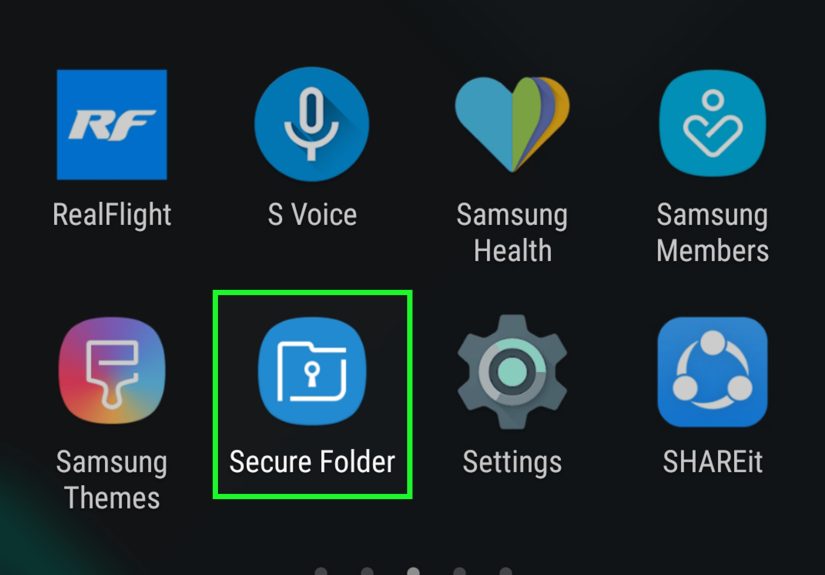
Samsung Secure Folder is the most reliable built-in method for locking Gallery content on a Galaxy phone. It creates a separate protected space on your phone where you can store photos, videos, documents, and even separate copies of apps. It is protected by a PIN, password, pattern, or biometric unlock, depending on your device settings.
Secure Folder is not just a “hide this album and hope nobody taps the wrong button” trick. It is designed as a private area protected by Samsung Knox security. When you move photos into Secure Folder, they are separated from your normal Gallery view. That makes it ideal for personal documents, private pictures, surprise gift ideas, work images, or anything you do not want appearing while someone is casually scrolling.
How to Set Up Secure Folder
- Open Settings on your Samsung Galaxy phone.
- Tap Security and privacy.
- Tap More security settings.
- Select Secure Folder.
- Sign in with your Samsung account if prompted.
- Choose your lock method: PIN, password, pattern, or fingerprint.
- Finish setup and open Secure Folder from your Apps screen.
For better privacy, choose a Secure Folder PIN or password that is different from your regular phone unlock code. Using the same PIN everywhere is convenient, but so is leaving your house key under a doormat labeled “HOUSE KEY.” Privacy works better when you do not make it too easy.
How to Move Photos from Gallery to Secure Folder
- Open the Gallery app.
- Long-press the photo or video you want to protect.
- Select additional photos or videos if needed.
- Tap More or the three-dot menu.
- Choose Move to Secure Folder.
- Authenticate with your Secure Folder lock if asked.
After the transfer, those files should no longer appear in your regular Gallery. To view them, open Secure Folder, unlock it, and then open the Gallery app inside Secure Folder. Yes, Secure Folder has its own private version of Gallery. It feels a little like a phone inside your phone, minus the tiny furniture.
How to Lock Secure Folder Immediately
Once your private photos are inside Secure Folder, adjust the auto-lock setting. Open Secure Folder, tap the three-dot menu, go to Settings, then choose Auto lock Secure Folder. For maximum privacy, set it to lock immediately when you leave the app or when the screen turns off.
This matters because a private folder that stays open too long is like a diary with a dramatic cover and no latch. Locking it quickly keeps accidental exposure to a minimum.
Method 2: Hide the Secure Folder Icon
If you do not want other people to even know Secure Folder exists on your phone, you can hide its icon from the Apps screen. This does not delete your private files. It simply removes the obvious shortcut.
How to Hide Secure Folder
- Swipe down with two fingers to open Quick Settings.
- Find the Secure Folder tile.
- Tap it to hide or show Secure Folder.
You can also manage Secure Folder visibility from Settings on many Galaxy devices. Go to Settings, then Security and privacy, then More security settings, and open Secure Folder. If your model includes the option, turn off Add Secure Folder to Apps screen.
Hiding the icon is not a replacement for a strong password, but it adds a useful layer of “nothing to see here.” It is especially helpful if you want a cleaner app drawer or prefer not to advertise that you have private files locked away.
Method 3: Use Private Album in Samsung Gallery
On supported newer Galaxy devices and One UI versions, Samsung Gallery may include a Private album feature. This is a more direct way to lock selected photos and videos inside the Gallery app itself. If your phone has this option, it is one of the easiest methods because you do not need to jump into Secure Folder every time.
How to Set Up Private Album
- Open the Gallery app.
- Tap the Menu button, usually at the bottom right.
- Select Private album.
- Follow the on-screen setup instructions.
- Configure your lock screen method if prompted.
- Choose your preferred lock method, such as PIN or pattern.
- Finish setup.
Once Private Album is enabled, you can move selected photos or videos into it. Open an image, tap the menu, and look for an option such as Move to private album. You may also be able to select multiple items and move them together.
If you do not see Private Album, your phone may not support it yet, or your software may need an update. Check by going to Settings, then Software update, then Download and install. Also update Samsung Gallery through the Galaxy Store. Sometimes the feature is not missing; it is just waiting behind an update button, sipping coffee.
Method 4: Hide Albums in Samsung Gallery
Samsung Gallery also lets you hide albums. This is useful for cleaning up your Gallery view, hiding app folders, or keeping less important albums out of sight. However, hiding albums is not the same as locking them. Hidden albums may be unhidden by someone who knows where to look.
How to Hide Albums
- Open the Gallery app.
- Tap Albums.
- Tap View all if needed.
- Tap the three-dot menu.
- Select Hide albums.
- Toggle on the albums you want to hide.
This method is perfect for hiding clutter, such as screenshots, downloads, social media folders, or duplicate image folders created by apps. It is not ideal for sensitive content. If the photos truly matter, move them to Secure Folder or Private Album instead.
Here is the simple rule: Hide Albums is for tidiness. Secure Folder is for privacy. One cleans the room. The other locks the door.
Method 5: Use App Pinning Before Handing Over Your Phone
Sometimes you do not need to lock the Gallery permanently. You just need to stop someone from leaving the app you gave them. For example, you may want to show a friend one funny video without granting them a backstage pass to your entire digital life.
Android includes a feature called App Pinning, also known as Screen Pinning on some devices. When enabled, it locks the phone to one app until you unpin it. If you turn on the option that requires your lock screen before unpinning, the other person cannot simply escape into Gallery, Messages, or Settings.
How to Turn On App Pinning
- Open Settings.
- Tap Security and privacy.
- Tap More security settings.
- Find Pin app or App pinning.
- Turn it on.
- Enable the option that requires your PIN, pattern, password, or biometrics before unpinning.
How to Pin an App
- Open the app you want the other person to use.
- Open the Recent apps screen.
- Tap the app icon above the app preview.
- Select Pin this app.
To unpin, follow the on-screen button combination shown by your phone, then unlock the device. App Pinning is excellent for parents, students, coworkers, and anyone with a friend who says “I just want to see one picture” and then immediately starts swiping like they are searching for buried treasure.
Method 6: Use Google Photos Locked Folder
If you use Google Photos on your Samsung Galaxy phone, you can also protect sensitive photos and videos with Locked Folder. Items moved into Locked Folder do not appear in the main Photos grid, memories, albums, or search. They are protected by your device screen lock or Google Account security, depending on how you access them.
How to Set Up Google Photos Locked Folder
- Open Google Photos.
- Tap Collections.
- Tap Locked.
- Select Set up Locked Folder.
- Follow the prompts to unlock with your device screen lock.
How to Move Photos to Locked Folder
- Open Google Photos.
- Select the photo or video you want to protect.
- Tap Add to or the menu option.
- Select Move to Locked Folder.
- Confirm by tapping Move.
Google Photos Locked Folder is useful if your photo library already lives in Google Photos. Just remember to review backup settings. If backup is off, Locked Folder items may exist only on that device. If the phone is damaged, lost, reset, or the app data is cleared, local-only items can be lost. Privacy and backup are often a balancing act: one protects from curious eyes, the other protects from tragic coffee spills.
Which Method Should You Choose?
If you want the strongest Samsung-native solution, choose Secure Folder. It works well for private photos, videos, files, and apps. If your Galaxy phone supports Private Album, that may be the most convenient option for locking Gallery items without leaving the Gallery app. If you only want to hide clutter, use Hide Albums. If you are handing your phone to someone, use App Pinning. If you are deeply invested in Google Photos, use Locked Folder.
For many users, the best setup is a combination. Keep sensitive media in Secure Folder or Private Album, hide unnecessary albums for a cleaner Gallery, and turn on App Pinning when someone else borrows your phone. That gives you privacy, organization, and social peace in one neat little package.
Privacy Tips Before You Lock Your Gallery
Use a Strong Lock Method
A four-digit PIN is better than nothing, but a longer PIN or password is stronger. Biometrics are convenient, but you should still have a secure backup method. Avoid obvious passwords like birthdays, repeated digits, or “1234,” which is less of a password and more of an invitation.
Check App Permissions
Locking your Gallery is smart, but you should also review which apps can access your photos and videos. Go to Settings, then Security and privacy, then Privacy or Permission manager. Review photo and video permissions. Remove access from apps that do not need it.
Update Your Phone
Privacy tools improve over time. Samsung and Google regularly adjust security features, fix bugs, and add new options. Keep your phone updated by going to Settings, then Software update. Also update Samsung Gallery, Google Photos, and related apps from the Galaxy Store and Google Play Store.
Be Careful With Third-Party Vault Apps
Some third-party “vault” apps promise to lock photos, hide files, and guard your secrets like a tiny digital dragon. Some are legitimate, but others may request broad permissions, show aggressive ads, or create backup problems. Built-in tools such as Secure Folder, Private Album, and Google Photos Locked Folder are usually safer choices for most Galaxy users.
Troubleshooting: Why Can’t I Find Secure Folder or Private Album?
If Secure Folder is missing, first check whether your phone supports it. Most modern Samsung Galaxy phones do, but availability can vary by model, region, work profile settings, or software version. Search for “Secure Folder” inside Settings. If it appears, open it from there.
If Private Album is missing inside Gallery, update your phone software and the Samsung Gallery app. The feature may depend on your One UI version and regional rollout. Not every Galaxy phone receives every feature at the same time. This is normal, although admittedly not as satisfying as pressing one button and receiving instant magic.
If “Move to Secure Folder” does not appear, make sure Secure Folder is already set up. Also confirm that the file is stored locally on your device or SD card. Some cloud-only files may need to be downloaded before they can be moved.
Common Mistakes to Avoid
The first mistake is assuming that hiding an album means it is locked. It is not. Hidden albums are mostly for reducing visual clutter. The second mistake is forgetting backup settings. If you move important photos into a protected folder and later reset your device without backing them up properly, you may lose them. The third mistake is using the same weak PIN everywhere. If someone knows your regular phone code, they may be able to unlock other areas that rely on the same method.
Another common mistake is leaving Secure Folder open in the background. Always use auto-lock settings so it locks quickly. Also remember that screenshots, edited copies, shared copies, and downloaded duplicates may exist outside the folder. Moving one photo into Secure Folder does not magically chase down every copy like a privacy detective in sneakers.
Real-World Experience: What It Feels Like to Lock Gallery on a Samsung Galaxy Phone
In everyday use, locking Gallery content on a Samsung Galaxy phone feels less like installing a giant security system and more like building good habits. The first time you set up Secure Folder, it may seem slightly formal. Samsung asks you to sign in, choose a lock method, and decide how the folder behaves. But after that, the process becomes quick. Open Gallery, select the private images, tap More, move them to Secure Folder, and breathe easier.
The biggest practical benefit is confidence. Imagine you are showing a coworker a photo of a product sample, a classmate a screenshot of homework instructions, or a family member a vacation picture. Without any privacy setup, every swipe feels like a tiny suspense movie. Will they stop at the correct photo? Will they keep swiping? Will your phone suddenly reveal a screenshot of a gift receipt, a medical appointment reminder, or an extremely dramatic shopping cart you abandoned at 2:00 a.m.? With private items moved away, that anxiety drops fast.
Secure Folder is especially helpful for mixed-use phones. Many people use one Galaxy phone for school, work, family, banking, travel, and entertainment. The Gallery becomes a giant drawer where everything lands. A locked area lets you separate sensitive files from normal memories. You can keep everyday pictures in the regular Gallery while protecting documents, IDs, private projects, or personal images in Secure Folder.
There are a few small annoyances. Moving a large number of videos can take time. Secure Folder also creates a separate environment, so some sharing and editing workflows feel different. If you edit an image inside Secure Folder, you need to remember where that edited file lives. If you want to share something, you may need to move it out first. This is not difficult, but it does add a step. Privacy often does that. It is the digital version of locking a bike: slightly slower, much smarter.
Private Album, when available, feels more natural because it lives inside Samsung Gallery. It is great for users who want a simpler locked photo area without opening a separate Secure Folder app. However, Secure Folder remains more flexible because it can protect more than images. It can hold apps, files, and separate accounts, which makes it better for people who want a wider privacy zone.
App Pinning is the underrated hero. It is not glamorous, and nobody brags about it at parties, but it solves a real problem: handing your phone to someone without giving them full access. The best experience is turning on App Pinning before you need it. Then, when someone asks to use your phone, you can pin the app in seconds. It feels polite but firm, like saying, “Here is the calculator, not my entire life history.”
The best long-term habit is simple: decide what belongs in the normal Gallery and what belongs in a locked space. Move sensitive items as soon as possible instead of waiting until your Gallery becomes a jungle. Review app permissions every few months. Keep your phone updated. Use a strong lock method. Do those things, and your Samsung Gallery becomes much easier to manage, safer to share, and far less likely to surprise you at the worst possible moment.
Conclusion
Learning how to lock the Gallery on a Samsung Galaxy phone is really about choosing the right privacy tool for the job. For serious protection, Samsung Secure Folder is the best all-around option. For supported newer phones, Private Album offers a convenient Gallery-based solution. Hide Albums is helpful for tidying your Gallery, while App Pinning keeps people from roaming around your phone when you lend it to them. Google Photos Locked Folder is another strong option if you use Google Photos as your main photo library.
The smartest approach is layered: lock sensitive photos, hide clutter, review app permissions, and update your software. Your Gallery should be a place for memories, not a source of panic every time someone says, “Can I see that picture?” With a few settings changed, your Samsung Galaxy phone can keep your photos organized, private, and safely away from curious swipers.