Table of Contents >> Show >> Hide
- What “Read-Only” Means in Word
- Step 1: Check Whether Word’s “Always Open Read-Only” Setting Is Turned On
- Step 2: Exit Protected View
- Step 3: Remove Restrict Editing Protection
- Step 4: Turn Off “Mark as Final”
- Step 5: Clear the Read-Only Attribute in File Properties
- Step 6: Make Sure the File Is Not Locked by Another User or Another Word Session
- Step 7: Check Cloud Permissions on OneDrive, SharePoint, Dropbox, or Google Drive
- Step 8: Check for Password Protection or Information Rights Management
- Step 9: Save a Fresh Editable Copy
- How to Tell Which Read-Only Problem You Actually Have
- Common Mistakes to Avoid
- Best Practices to Prevent Read-Only Headaches Later
- Real-World Experiences Removing Read-Only Status on Word Documents
- Conclusion
If you have ever opened a Word document only to find that it behaves like a museum exhibitlook, don’t touchyou are not alone. Few things are more annoying than being ready to edit a file and discovering Word has slapped a virtual “hands off” sticker on it. The good news is that a read-only Word document is usually not broken. It is just protected by a setting, a permission, a sharing rule, or a safety feature.
In this guide, you will learn how to remove the read-only status on Word documents step by step. We will cover the most common causes, including Word’s built-in read-only mode, Protected View, editing restrictions, file properties, shared-drive permissions, and those lovely moments when Word insists another person has the file open. Spoiler: sometimes that “other person” is basically Word arguing with itself.
If you want a practical, beginner-friendly answer to how to remove read-only from a Word document, this is the guide to bookmark.
What “Read-Only” Means in Word
When a Word file opens in read-only mode, you can usually read, scroll, and sometimes print the document, but you cannot freely edit and save over the original file. This can happen for several reasons:
- The document was set to Always Open Read-Only.
- The file opened in Protected View because Word sees it as potentially unsafe.
- The document owner applied Restrict Editing controls.
- The file was marked as Final.
- The Windows file itself has the Read-only attribute.
- The document is on OneDrive, SharePoint, Dropbox, or Google Drive and you only have view access.
- The file is currently locked for editing by another person or another app instance.
- The document has password-based or rights-managed protection.
In other words, “read-only” is not one single problem. It is more like a neighborhood with several annoying residents.
Step 1: Check Whether Word’s “Always Open Read-Only” Setting Is Turned On
This is one of the easiest fixes and one of the most overlooked. Word has a built-in setting that tells a file to open as read-only by default.
How to remove it
- Open the document in Word.
- Click File.
- Select Info.
- Click Protect Document.
- If Always Open Read-Only is enabled, click it to turn it off.
- Save the document.
If this was the problem, congratulations. You solved it before needing to wage war with permissions, passwords, or mysterious syncing services.
Step 2: Exit Protected View
Sometimes Word opens a file in Protected View, which is basically Word saying, “I don’t fully trust this file, so I’m keeping it behind glass.” This commonly happens with files downloaded from the internet, received as email attachments, or opened from someone else’s cloud storage.
How to enable editing
If you see a yellow warning bar near the top of the document, click Enable Editing. If you see a more serious warning, Word may show Edit Anyway under the File menu.
Important: Only do this if you trust the file source. If the document came from a random email attachment with a vague subject line like “please see urgently,” that is not a productivity tool. That is a trap wearing business casual.
Step 3: Remove Restrict Editing Protection
If you can open the file but every edit attempt gets rejected, the document may be protected with Restrict Editing. This is common in forms, shared templates, contracts, and school or office documents where only certain sections are supposed to be editable.
How to turn off editing restrictions
- Open the document in Word.
- Go to the Review tab.
- Click Restrict Editing.
- In the task pane, click Stop Protection.
- Enter the password if Word asks for one.
If you do not know the password, there is no legitimate shortcut. You will need the document owner or administrator to remove the protection. That may be inconvenient, but it is also the whole point of protection.
Step 4: Turn Off “Mark as Final”
Another common culprit is Mark as Final. This feature is not heavy-duty security, but it does discourage editing and can make a file behave like it is read-only.
How to remove Mark as Final
- Open the document.
- Click File > Info.
- Click Protect Document.
- If Mark as Final is active, click it to turn it off.
- Save the file again.
Think of Mark as Final as Word’s polite way of saying, “Please don’t mess this up.” Helpful in theory, maddening in practice.
Step 5: Clear the Read-Only Attribute in File Properties
Sometimes the problem is not inside Word at all. Windows may have marked the actual file as read-only.
How to change file properties
- Close the document in Word.
- Find the file in File Explorer.
- Right-click the file and choose Properties.
- Under the General tab, look for Read-only.
- If the box is checked, clear it.
- Click Apply, then OK.
- Reopen the document in Word.
This fix is especially common for files copied from external drives, moved between folders, restored from backups, or inherited from older systems.
Step 6: Make Sure the File Is Not Locked by Another User or Another Word Session
If Word says the document is locked for editing by another user, the file may actually be open elsewhere. On shared networks and cloud folders, that is common. On your own computer, it can happen if Word or an Office app process is still running in the background after a crash.
What to do
- Ask coworkers whether someone else has the file open.
- Close all Word windows on your computer.
- Wait a moment, then reopen the file.
- If needed, restart Word or restart your computer.
- Try saving a copy under a different file name.
In some cases, a temporary owner file can linger after Word closes incorrectly. Restarting usually clears the drama. Computers are fast, but they still know how to hold grudges.
Step 7: Check Cloud Permissions on OneDrive, SharePoint, Dropbox, or Google Drive
If the file is stored in the cloud, the issue may be permissions rather than Word settings. In that case, the document opens read-only because you only have viewing access.
Signs this is the real problem
- You can open the file but cannot save changes to the original.
- You see “View only,” “Can view,” or similar language.
- The document was shared with you by someone else.
- You can edit a downloaded copy, but not the original cloud file.
How to fix it
On OneDrive or SharePoint: Ask the owner to change your access from view to edit. If you manage the file, open the sharing settings and update the user’s direct access or link permissions.
On Dropbox: Request edit access to the original folder or file if you only have limited permissions.
On Google Drive: Open the file and click Request edit access if it shows View only.
When this is the issue, no amount of button-clicking inside Word will solve it. That is like trying to fix a locked front door by adjusting your desk chair.
Step 8: Check for Password Protection or Information Rights Management
Some documents are protected more seriously. If the file requires a password to modify, or if rights management limits editing, printing, or copying, you will need the correct authorization to make changes.
What this means in plain English
If Word asks for a password to remove protection, you need that password. If your organization uses document rights management, you need the correct permission level from the administrator or owner. There is no proper, supported way around that.
This is worth mentioning because many tutorials online blur the line between troubleshooting and bypassing. A good guide should help you edit your document or a document you are allowed to work onnot teach you how to bulldoze someone else’s controls.
Step 9: Save a Fresh Editable Copy
Sometimes the quickest solution is not to wrestle with the original file. If the document came from email, a protected folder, or a view-only share, try saving a new copy locally.
How to do it
- Open the document.
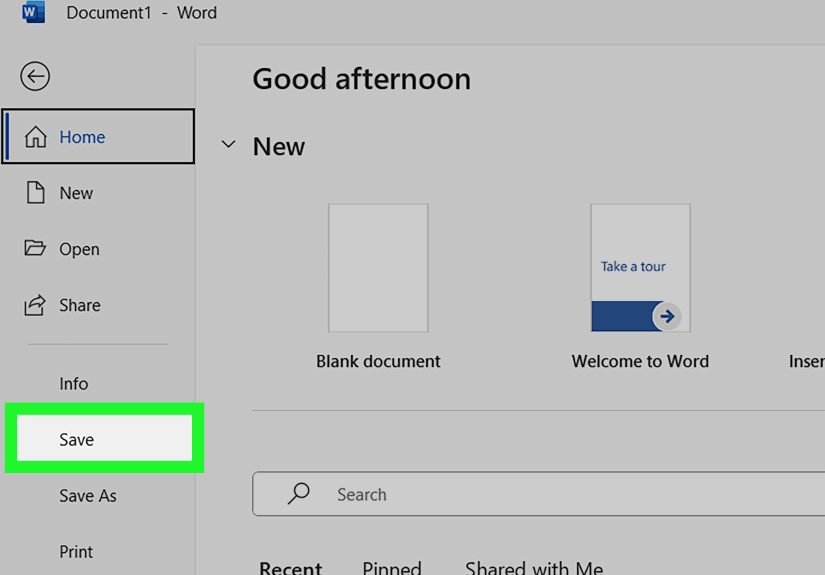
- Click File > Save As.
- Choose a local folder such as Desktop or Documents.
- Rename the file slightly.
- Save it and reopen the new copy.
This does not override permissions on the original, but it can help when you simply need an editable version for your own use and you are allowed to work from a copy.
How to Tell Which Read-Only Problem You Actually Have
Here is a simple cheat sheet:
- Yellow warning bar? It is probably Protected View.
- File > Info shows Always Open Read-Only? Toggle it off.
- Review tab says Restrict Editing? Stop protection if you have permission.
- Properties shows Read-only checked? Clear the file attribute.
- Shared cloud file says View only? Ask for edit permissions.
- Word says another user has it open? Wait, close Word everywhere, or restart.
- Password prompt? You need the owner’s help.
Common Mistakes to Avoid
Assuming every read-only file is the same
This is the biggest mistake. A Word setting, a Windows file attribute, and a cloud permission can all create similar symptoms while needing completely different fixes.
Clicking “Enable Editing” on untrusted files
If the file came from an unknown source, stop and verify it first. Convenience is nice. Malware is not.
Ignoring the storage location
A file on your desktop behaves differently from a file in a managed SharePoint library or a shared Dropbox folder. Location matters.
Forgetting to save after removing protection
You can toggle settings off, close the file, and then accidentally preserve the problem if you do not save changes.
Best Practices to Prevent Read-Only Headaches Later
- Use clear naming conventions for shared and final documents.
- Only apply Restrict Editing when you really need it.
- Check cloud sharing permissions before sending a link.
- Avoid emailing the same file back and forth when coauthoring tools are available.
- Store working drafts separately from final, protected copies.
- If you enable protection, document the password and ownership process securely.
A little file-management discipline now can save you from a future afternoon spent muttering at a toolbar.
Real-World Experiences Removing Read-Only Status on Word Documents
In real life, people rarely search for how to remove the read-only status on Word documents because they are curious. They search because something urgent is due in ten minutes and Word has suddenly decided to become a bouncer.
One common scenario is a student downloading a class template, opening it, and panicking because typing does nothing. In many cases, the file is simply in Protected View because it came from email or a learning portal. A quick click on Enable Editing solves it, and suddenly the crisis level drops from “I may fail this assignment” to “okay, maybe I just need coffee.”
Office workers run into a different flavor of chaos. A report sits in OneDrive or SharePoint, several people touch it during the day, and one person suddenly finds the file view-only. The problem is often not Word itself at all. Someone shared the document with Can View instead of Can Edit, or the file is already open elsewhere. The fix is less about wizardry and more about checking who has access, who has the file open, and whether the file was marked final for distribution.
Freelancers and small-business owners often see the Windows file-attribute version of this problem. They copy a document from an old USB drive, an archive folder, or a client-supplied package, and the file lands on the computer with the read-only attribute checked. Word looks guilty, but the actual villain is File Explorer. Unchecking the attribute in Properties can feel oddly satisfying, like finally finding the light switch in a dark room.
Another very normal experience involves templates and contracts. A manager protects a Word file so the layout stays intact, then months later nobody remembers the password. At that point the document turns into digital concrete. The lesson is not just “use passwords.” It is “use passwords responsibly and store them where your future self will not hate your past self.”
Then there are cloud-permission mix-ups. Someone shares a Dropbox or Google Drive link, everyone assumes editing is allowed, and then half the team can only stare at the document like art critics. In those cases, the solution is usually a simple permission change or edit-access request, but it can waste a shocking amount of time before anyone notices the obvious.
The biggest takeaway from real-world experience is this: read-only Word documents are usually fixable, but the winning move depends on identifying the exact cause. Once you stop treating every read-only message like the same monster, troubleshooting becomes much faster and much less dramatic.
Conclusion
If you need to remove read-only from a Word document, start simple and work in layers. Check Word’s own read-only setting first. Then look at Protected View, Restrict Editing, Mark as Final, and Windows file properties. If the document lives in the cloud, verify sharing permissions. If the file is locked or password-protected, involve the person who owns it.
Most Word read-only problems are not permanent, and they are not signs that your file is doomed. They are usually just Word, Windows, or your cloud platform being cautious, controlling, or a little overprotective. Once you identify which one is acting up, you can usually get back to editing without too much drama.