Table of Contents >> Show >> Hide
- Why Hard Drive Transfers Get Weird So Fast
- Before You Transfer Anything
- How to Transfer Data Between Two Hard Drives on Windows
- How to Transfer Data Between Two Hard Drives on Mac
- How to Transfer Data Between a Windows Drive and a Mac Drive
- Best Transfer Method by Situation
- Common Mistakes to Avoid
- How to Speed Up Hard Drive Transfers
- What to Do If the Transfer Fails
- Final Thoughts
- Real-World Experiences: What These Transfers Actually Feel Like
- SEO Tags
If transferring data between two hard drives sounds simple, that is because it is simpleright up until your Mac refuses to write to an NTFS drive, your Windows PC acts like an external disk is an alien object, or you discover that “copying files” and “moving your whole system” are not the same thing. Surprise. Storage has a way of becoming dramatic the moment you are in a hurry.
This guide breaks down the safest and fastest ways to transfer data between two hard drives on Windows and Mac, whether you are moving family photos, migrating a massive video archive, upgrading to a larger SSD, or cleaning house before your computer starts wheezing like it just climbed a staircase. You will learn how to choose the right method, avoid common mistakes, and make sure your files actually arrive where they are supposed to go.
Why Hard Drive Transfers Get Weird So Fast
On paper, the job seems straightforward: connect Drive A, connect Drive B, drag files from one to the other, and go celebrate your productivity. In real life, though, there are a few traps. The biggest one is file system compatibility. A drive formatted for Windows may not behave properly on Mac, and a drive formatted for Mac may be invisible or unusable on Windows without extra help.
The second trap is confusing a file transfer with a full migration. Copying documents, photos, videos, and music is easy. Moving an entire operating system, installed apps, user settings, and boot data is a different animal. That often calls for migration software, backup tools, or drive cloning rather than basic drag-and-drop.
So before you move a single file, decide what kind of move you are really making. Your future self will send a thank-you note.
Before You Transfer Anything
1. Know What You Are Moving
Ask one question first: Are you moving files, or are you replacing a drive?
- Files only: Documents, photos, videos, music, project folders, exports, downloads, and archives can usually be copied with File Explorer on Windows or Finder on Mac.
- Whole-computer migration: If you want apps, accounts, settings, and other system data to move too, use Windows migration options, Apple Migration Assistant, or dedicated cloning software.
- Backup transfer: If one drive is a backup drive, treat it like a backup drive. Do not casually mix backup strategy with random storage chaos.
2. Check Storage Space
This sounds obvious, yet it is somehow the plot twist in half of all storage disasters. Make sure the destination drive has enough free space for everything you plan to copy, plus a little breathing room. A drive filled to the ceiling is like an overstuffed suitcase: technically possible, emotionally exhausting.
3. Choose the Right File System
If both drives will live in the same ecosystem, use the native format. If the drive must work with both Windows and Mac, use a format both systems can read and write.
| Format | Best For | Works On | Keep In Mind |
|---|---|---|---|
| NTFS | Windows-only storage | Full support on Windows | Mac can usually read it, but not natively write to it |
| APFS | Modern Mac-only storage | Best for current macOS setups | Not a practical native choice for Windows |
| Mac OS Extended | Older Mac workflows and some backup use | Mac | Limited usefulness on Windows without extra tools |
| exFAT | Shared use between Windows and Mac | Windows and macOS | Great for cross-platform file transfer, but not ideal for every backup workflow |
| FAT32 | Legacy compatibility | Almost everywhere | Older and restrictive, especially for large files |
For most people who need one external drive to work on both Windows and Mac, exFAT is the practical sweet spot.
4. Copy First, Delete Later
If the source drive matters, do not use “Move” until you verify the files on the destination. Copy first. Open random files. Check folder counts. Then delete the originals only when you are absolutely sure the transfer worked. The words “I thought it copied everything” have caused enough pain for one century.
How to Transfer Data Between Two Hard Drives on Windows
Method 1: Use File Explorer for Regular File Transfers
This is the easiest method for most people.
- Connect both hard drives to your Windows computer.
- Open File Explorer.
- Locate the source drive and select the files or folders you want to transfer.
- Right-click and choose Copy, or press Ctrl + C.
- Open the destination drive, then paste with Ctrl + V.
That is it. No software drama. No mysterious wizard. Just old-fashioned file transfer, which is still surprisingly effective.
Method 2: Use Cut and Paste for a True Move
If you want the files to leave the original drive after the transfer, use Cut instead of Copy. Still, only do this when you are comfortable with the risk. For anything important, copy first, verify second, clean up third.
Method 3: Use Robocopy for Big, Messy Jobs
For huge file libraries, nested folders, or transfers that need more reliability, Windows includes Robocopy, a command-line copy tool. It is especially useful when File Explorer gets moody during giant transfers.
This basic example copies all files and subfolders, including empty ones. Robocopy is excellent for advanced users, but if command lines make your soul leave your body, File Explorer is perfectly fine.
Method 4: Use Backup or Migration Tools for a Bigger Move
If your goal is not just files but a smoother transition to another PC, Windows also offers backup and transfer options. These are better for organized migration than random copying from folder to folder like a digital raccoon.
How to Transfer Data Between Two Hard Drives on Mac
Method 1: Use Finder for Simple Transfers
On Mac, Finder is your best friend for ordinary file transfers.
- Connect both drives to your Mac.
- Open a Finder window.
- Select the files or folders on the source drive.
- Drag them to the destination drive in the Finder sidebar, or use copy and paste.
For regular documents, media, and project folders, this is the simplest path. Mac keeps the process pleasantly visual, which is great unless you are copying 800 GB and pretending the progress bar is not emotionally manipulative.
Method 2: Use Migration Assistant for a Full Mac Move
If you are moving to a new Mac and want more than just files, use Migration Assistant. It is designed to transfer user accounts, apps, documents, and settings from another Mac, a Time Machine backup, or even a Windows PC. That makes it the better choice when you want a “new computer, old life” experience.
Method 3: Use a Direct Cable Between Macs
Mac-to-Mac transfers can also be done through a direct cable connection in supported situations. This can be faster and more elegant than bouncing everything through an intermediate drive. If you work with very large media libraries, that can save real time.
How to Transfer Data Between a Windows Drive and a Mac Drive
This is where things get spicy.
If your hard drive is formatted as NTFS, your Mac may read it but may not natively write to it. If the drive is APFS or Mac OS Extended, Windows will not be thrilled. In cross-platform situations, the cleanest answer is often to use a drive formatted as exFAT.
A simple cross-platform workflow looks like this:
- Back up any important data already on the destination drive.
- Format the destination drive as exFAT if it needs to work with both systems.
- Connect the drive to the source computer and copy your data.
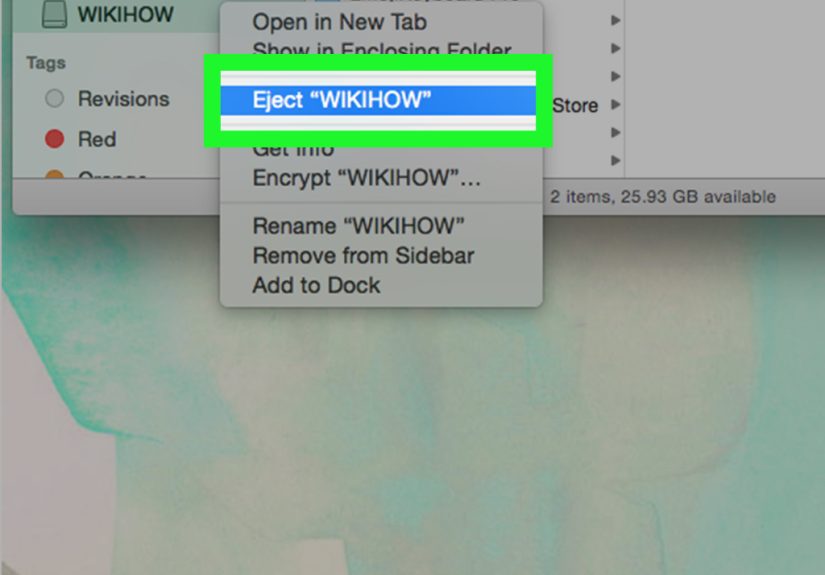
- Eject it properly.
- Connect it to the second computer and continue working.
If you skip the format step and hope the operating systems magically cooperate, you may get lucky. You may also get a read-only drive and a new respect for planning.
Best Transfer Method by Situation
| Situation | Best Method | Why It Works |
|---|---|---|
| Move documents, photos, and videos | Copy and paste in File Explorer or Finder | Fast, simple, and built in |
| Transfer huge nested folders on Windows | Robocopy | More dependable for large jobs |
| Move to a new Mac | Migration Assistant | Brings over more than just files |
| Use one drive on both Windows and Mac | Format it as exFAT | Cross-platform read and write support |
| Protect files long-term | Use backup tools, not just manual copies | Better recovery and version history |
| Replace a system drive | Cloning or migration software | A basic file copy is not the same as a bootable replacement |
Common Mistakes to Avoid
- Forgetting file system compatibility: This is the classic “Why is my drive read-only?” moment.
- Using a backup disk like a junk drawer: A dedicated backup drive should stay dedicated.
- Deleting originals too soon: Verify first. Always.
- Yanking out the drive without ejecting: That is how corruption enters the chat.
- Confusing app transfer with file transfer: Files copy easily. Full software environments are trickier.
- Using painfully slow ports or cables: A fast SSD connected through a bargain-bin bottleneck is still going to crawl.
How to Speed Up Hard Drive Transfers
If your transfer is taking forever, a few practical tweaks can help:
- Connect drives directly to the computer instead of through a weak hub.
- Use modern ports such as USB 3.x, USB-C, or Thunderbolt when available.
- Close heavy apps during the transfer, especially anything indexing or scanning files.
- Transfer large folders in batches if one enormous dump keeps failing.
- Do not run backups, video exports, and virus scans at the same time unless you enjoy watching progress bars move like cold molasses.
What to Do If the Transfer Fails
If the copy stops midway, do not panic and start clicking everything. That is how computers learn to fear us.
Instead, check these basics:
- Make sure both drives still appear in the system.
- Confirm you have write permission to the destination drive.
- Check that the destination has enough free space.
- Test copying a smaller folder first.
- On Mac, use Disk Utility First Aid if a drive acts suspicious.
- On Windows, retry with smaller batches or use Robocopy for stubborn transfers.
If a source drive is making unusual sounds, disconnecting randomly, or disappearing, treat it as a possible failing drive. In that case, stop doing unnecessary reads and focus on saving the most important files first.
Final Thoughts
The best way to transfer data between two hard drives depends on what you are actually trying to move. For ordinary file transfers, built-in tools like File Explorer and Finder are usually enough. For a cross-platform setup, exFAT is often the most practical format. For a full machine move, Migration Assistant, backup tools, or cloning software make much more sense than dragging folders around and hoping destiny is on your side.
In other words: match the method to the mission, verify your files before deleting anything, and never trust a progress bar with your whole heart.
Real-World Experiences: What These Transfers Actually Feel Like
In real life, transferring data between two hard drives is rarely a glamorous event. It usually starts with one of three moods: panic, procrastination, or “I should have done this six months ago.” One common scenario is the photo hoarder situation. Someone realizes their laptop is almost full, plugs in an external drive, and begins moving years of family pictures. Everything feels easy for the first ten minutes. Then the transfer slows down, duplicate folders appear, and suddenly there are three versions of “Vacation Final Final Really Final.” The lesson here is simple: make one clearly labeled destination folder, copy everything in stages, and verify random files before deleting anything from the original drive.
Another classic experience is the gamer or creative professional upgrading from an old HDD to a faster SSD. The excitement is real because faster storage can make a computer feel like it drank espresso. But this is also where people discover that copying files is not the same as cloning a working setup. Project files, exported media, and game saves often transfer without trouble, but software installations and system-level items can be less cooperative. The smoothest experience usually happens when the user decides in advance whether this is a simple file move or a full replacement job. That one decision saves a shocking amount of frustration.
Mac users often run into a different flavor of confusion. A drive that worked perfectly on a Windows PC may connect to a Mac just fine, only for the Mac to act like a polite librarian: happy to let you read, absolutely unwilling to let you write. This is the moment many people learn about file systems whether they wanted to or not. Once they reformat a shared transfer drive as exFAT, life gets easier. It is not a thrilling revelation, but it is a useful onekind of like discovering your toaster works better when it is plugged in.
There is also the emotional roller coaster of the “failing old drive.” In that situation, the transfer becomes less about organization and more about rescue. Users tend to start with confidence, then hear a strange click, see the drive disconnect once, and instantly transform into digital firefighters. The smartest moves in these moments are always the same: stop doing unnecessary browsing, copy the irreplaceable folders first, and resist the urge to reorganize mid-emergency. This is not the time to alphabetize your archives or rename every file from 2017.
One surprisingly positive experience comes from people who build a repeatable routine. They use the same folder structure every time, keep one external drive for transfer and another for backup, label drives clearly, and eject them properly. Those people are annoyingly calm, and honestly, good for them. Their transfers tend to be faster, cleaner, and far less chaotic because they treat storage like a system instead of a last-minute scramble.
The biggest takeaway from real-world transfers is that the technology usually works when the plan makes sense. Most disasters come from rushing, mixing up drive formats, deleting originals too early, or assuming every device and operating system will get along automatically. They will not. Hard drives are like coworkers on a group project: useful, necessary, and occasionally impossible unless someone sets clear rules.