Table of Contents >> Show >> Hide
- Why people turn off Google Assistant on Android
- Turn off Google Assistant on Android in 6 simple steps
- What happens after you turn off Google Assistant?
- Troubleshooting: Why does Google Assistant still show up?
- Should you disable Google Assistant completely or just limit it?
- Real-world experiences after turning off Google Assistant on Android
- Conclusion
- SEO Tags
Sometimes Google Assistant is helpful. It can set timers, answer random trivia, and remind you that yes, you do in fact need milk. Other times, it barges in because your thumb brushed the wrong corner of the screen, your power button got promoted to “assistant launcher,” or your phone heard “Hey Google” when nobody in the room even said “Hey” to a human. If you are ready to turn off Google Assistant on Android, the good news is that it usually takes only a few taps.
This guide walks through six simple steps to disable Google Assistant, stop “Hey Google,” reclaim your power button, and keep the assistant from popping up like an uninvited party guest. Because Android brands love customizing menus, the exact path may vary a little between Pixel, Samsung Galaxy, Motorola, and other phones. Still, the core idea stays the same: turn off the assistant itself, disable voice activation, and remove the shortcuts that keep waking it up.
Whether your goal is better privacy, fewer accidental triggers, improved battery life, or just a calmer phone experience, this step-by-step guide will help you shut the whole thing down without turning your settings menu into a scavenger hunt.
Why people turn off Google Assistant on Android
There is no single reason people disable Google Assistant. Usually, it is a mix of convenience, privacy, and pure annoyance. Some users do not like the idea of a wake phrase listening in the background. Others are tired of hitting the power button and getting an AI helper instead of the actual power menu. On newer Android phones, the experience can get even more confusing because some menus now refer to a digital assistant app or Gemini instead of simply saying Google Assistant. That wording change can make a quick setting feel like a treasure hunt designed by a mischievous wizard.
Another common issue is accidental activation. Maybe you swipe up from the bottom corner, maybe you hold the side button too long, or maybe your phone thinks your dog barked “Hey Google.” However it happens, the result is the same: the assistant opens when you did not ask for it. Turning it off can make your Android device feel simpler, more predictable, and a lot less chatty.
Turn off Google Assistant on Android in 6 simple steps
Step 1: Open the Assistant settings on your phone
Start with the easiest route. Open the Google app on your Android phone. Tap your profile picture in the top-right corner, then tap Settings. From there, look for Google Assistant. On some phones, you may see options labeled Assistant, Digital assistants from Google, or something similarly close enough to make you squint and mutter, “Fine, that must be it.”
If that path does not match your device, use your phone’s search bar inside the Settings app and type phrases like Google Assistant, digital assistant app, or assistant settings. Android manufacturers organize menus differently, but the search tool usually cuts through the nonsense.
Step 2: Toggle off Google Assistant itself
Once you are inside the Assistant settings, look for a section called General. This is usually where the main switch lives. Turn off the Google Assistant toggle. On some devices, the option appears right away; on others, you may need to scroll a little until you find it under your phone or device settings.
This step disables the core Assistant experience on your Android phone. In plain English, it stops the standard assistant interface from launching the way it normally would. If you only do one thing in this guide, do this one. It is the main kill switch, the big red button, the “let me use my phone in peace” setting.
That said, some Android phones still keep certain triggers active unless you turn them off separately. So even after the main toggle is off, do not leave yet. Think of Step 2 as shutting the front door, while the next few steps make sure none of the windows are still open.
Step 3: Turn off “Hey Google” and Voice Match
The next thing to disable is voice activation. Inside Assistant settings, open Hey Google & Voice Match or simply Voice Match, depending on your device. Turn off Hey Google. This prevents your phone from waking the assistant when it hears the wake phrase.
This step matters because many people do not actually mind the assistant existing; they just do not want it listening for a trigger phrase all day. Turning off Voice Match can reduce accidental activations and cut down on those awkward moments when your phone answers a TV commercial like it just got drafted into customer service.
If you use Google Home speakers or shared smart devices, keep in mind that phone settings and home-device settings are not always identical. You may need to review Voice Match settings separately in the Google Home app for speakers or displays. But for your Android phone, disabling “Hey Google” is the key move.
Step 4: Take back your power button
On many modern Android phones, especially Pixels and some devices running Android 12 or newer, pressing and holding the power button may launch the assistant instead of the power menu. This is excellent news for people who wake up every morning desperate to ask AI about the weather. It is less exciting for everyone else.
To fix this, open Settings, then go to System, Gestures, and Press & hold power button. Turn off Hold for Assistant or switch the action to Power menu. Once you do that, your power button goes back to being a power button, which sounds obvious, but apparently required a software meeting somewhere.
This step is one of the biggest quality-of-life improvements for Android users. It reduces accidental assistant launches and restores the familiar shutdown and restart menu. Small setting, huge relief.
Step 5: Disable gesture shortcuts that keep summoning the assistant
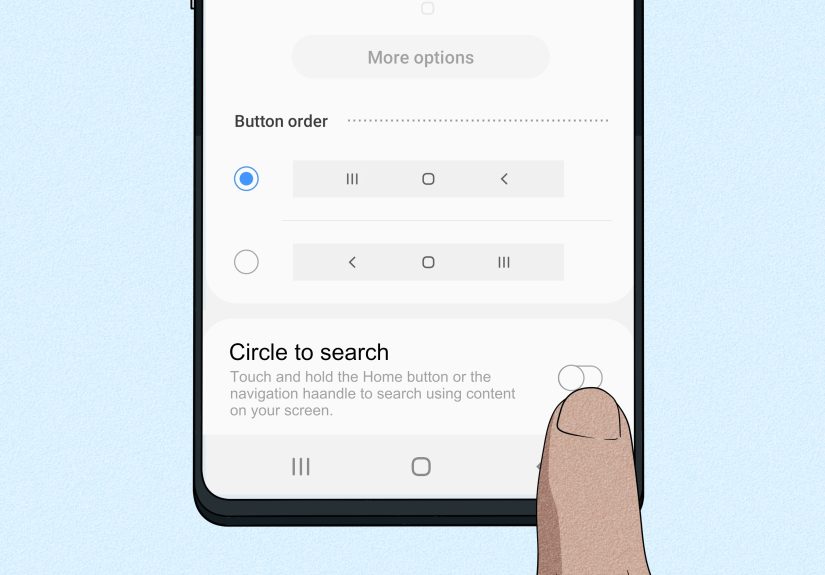
Some Android phones let you launch Google Assistant with gestures, especially a diagonal swipe from the bottom corners of the screen. If you use gesture navigation, this can cause accidental pop-ups when you are just trying to move around your phone like a normal person with thumbs.
To turn that off, go to Settings, then System, Gestures, and System navigation. Tap the gear icon next to your current navigation setting. Look for an option like Swipe to invoke assistant and turn it off.
On some phones, the wording may differ slightly, but the goal is the same: stop gesture-based Assistant launches. If you have ever opened Google Assistant while trying to go home or switch apps, this step is your personal revenge arc.
Step 6: Change the default digital assistant app to None
This final step is especially helpful on newer Android phones and Samsung Galaxy devices. Open Settings, then go to Apps and Default apps or Choose default apps. Find Digital assistant app. Tap it, then choose None if your phone offers that option.
This matters because even if Google Assistant is mostly disabled, Android may still treat it as your default assistant service. By changing the default digital assistant app to None, you remove one more path that can wake it up. On Samsung phones, you may also want to review Advanced features and Side button settings so the long press action is not still assigned to a digital assistant.
In other words, this step is how you close the loop. The assistant is off, the voice trigger is off, the gesture shortcut is off, and Android no longer thinks it should hand assistant duties to Google by default. That is the full shutdown strategy.
What happens after you turn off Google Assistant?
Once Google Assistant is disabled, a few things change right away. Your phone will stop responding to “Hey Google.” Long-press shortcuts tied to the assistant should stop working once you disable them. Assistant-based voice commands, hands-free help, and some personalized responses may disappear too. That is normal.
What does not necessarily disappear is the Google app itself. On many Android phones, the Google app is part of the system experience, so you are usually disabling Assistant features, not completely removing every Google-related service from the phone. That distinction matters. You are turning off the virtual assistant behavior, not exiling Google from the kingdom.
If your goal is privacy, you may also want to review microphone permissions, app permissions, and activity settings inside your Google account. Disabling Assistant is a great first step, but it is not the same as locking down every voice-related setting on the device.
Troubleshooting: Why does Google Assistant still show up?
If Google Assistant still appears after you followed the steps above, do not panic. Android has a few different doors that can lead to the same room. Here are the most common reasons it still pops up:
Your phone uses a different menu path. Samsung, Pixel, and other Android brands do not always organize settings the same way. Search the Settings app for assistant, Voice Match, power button, and default apps.
The power button is still mapped to a digital assistant. This is incredibly common on Pixel devices and newer Android versions.
Gesture navigation still has the assistant corner enabled. Turn off the swipe shortcut separately.
Your default digital assistant app is still set to Google. Switch it to None or another assistant if your phone allows it.
You are actually seeing Gemini settings. On newer devices, Google is shifting mobile assistant experiences toward Gemini. That means some menus may not say “Google Assistant” at all, even though they control the same type of behavior.
The trick is not just to toggle off one switch. It is to check every shortcut that can wake the assistant: voice, button, gesture, and default app assignment.
Should you disable Google Assistant completely or just limit it?
For some people, the best move is a full shutdown. For others, a lighter touch works better. Maybe you still like using the assistant manually but do not want the wake phrase active. In that case, turning off Hey Google alone might be enough. Maybe you only hate the power-button shortcut. Then Step 4 solves the biggest annoyance without changing anything else.
The smartest approach depends on your habits. If you rarely use voice commands, turning off Google Assistant completely makes sense. If you still enjoy the occasional timer, weather check, or hands-free command while cooking, then limiting triggers may be the better compromise. There is no trophy for suffering through accidental activations just because you might someday ask your phone how many teaspoons are in a tablespoon.
Real-world experiences after turning off Google Assistant on Android
In real life, the biggest change people notice after turning off Google Assistant on Android is not some dramatic transformation. It is the quiet. The phone stops interrupting. It stops guessing. It stops acting like every long press, corner swipe, or overheard phrase is an invitation to jump on stage and perform. That calmer experience is exactly why so many Android users look for ways to disable the assistant in the first place.
One common example is the person who uses a Pixel phone and keeps hitting the power button expecting the shutdown menu. Instead, the assistant appears, ready to help with everything except the one thing they wanted. After changing the power-button setting back to Power menu, the whole phone feels normal again. It is not flashy. It is not futuristic. It is just practical. And honestly, practical ages better than clever.
Samsung Galaxy users often describe a different frustration. Their phones may still have digital assistant options buried under default apps, side button settings, or Google-related menus. That means they can disable one trigger and still accidentally launch an assistant with another. Once they go through the full process, especially changing the default digital assistant app and reviewing the side button action, the experience becomes far less confusing. The device starts behaving like a tool again, not like a magician with poor boundaries.
Parents also tend to appreciate turning off “Hey Google” on Android phones. In a house where kids are watching videos, smart speakers are talking, and televisions are shouting ads into the universe, wake phrases can trigger at the weirdest times. The assistant might respond to a cartoon character, a YouTube host, or a toddler making up songs about dinosaurs and pancakes. Turning off Voice Match and the wake phrase often reduces those random interruptions immediately. Suddenly the phone stops trying to join every family conversation like an overly eager cousin at Thanksgiving.
Then there is the privacy-minded user. This person may not even dislike Google Assistant as a product. They just prefer fewer always-ready voice features running in the background. For them, disabling the assistant feels less like rejecting technology and more like choosing a quieter default. They are not throwing their phone into a cabin in the woods. They are simply deciding that not every feature needs to be active all the time. That is a pretty reasonable relationship boundary to set with a device you carry everywhere.
Another real-world pattern shows up with people who tried Assistant for a while and realized they only used it once a month to set a timer. For those users, the cost-benefit math changes quickly. If the assistant is mostly causing accidental launches and only occasionally saving them ten seconds, turning it off feels like decluttering. It is the digital version of cleaning out a kitchen drawer and discovering you owned six mystery adapters and zero patience.
There are also users who do not want to disable everything, only the parts that annoy them. They turn off “Hey Google” but keep manual access. They disable the corner swipe but keep the app available. They remove the assistant from the power button but leave one path open for occasional use. That approach often works well because Android gives you layers of control. You do not have to choose between full chaos and full exile. You can tune the experience until it feels right.
Across all these situations, the most important takeaway is simple: turning off Google Assistant on Android is less about hating AI and more about choosing how your phone behaves. People usually do it because they want fewer interruptions, clearer controls, and a device that responds on purpose instead of by accident. That is not anti-tech. That is just good phone management with a side of sanity.
Conclusion
Turning off Google Assistant on Android is not difficult once you know where the settings are hiding. The fastest path is to open the Google app, head to Assistant settings, and disable the main toggle. After that, turn off “Hey Google,” remap the power button, disable assistant gestures, and change the default digital assistant app to None when available. Together, those six simple steps shut down nearly every route Google Assistant uses to appear uninvited.
The result is a cleaner Android experience with fewer accidental triggers, fewer voice wake-ups, and much less “Why is my phone talking to me?” energy. And really, that is the dream.