Table of Contents >> Show >> Hide
- What Is a Windows Service?
- Why Windows Uses Services
- How a Windows Service Works
- Windows Service vs. Process: What Is the Difference?
- Windows Service vs. Regular Application
- Common Examples of Windows Services
- How to View and Manage Windows Services
- Why Windows Services Matter for Performance, Stability, and Security
- When Should Software Be Installed as a Windows Service?
- Real-World Experience: What Working with Windows Services Actually Feels Like
- Final Thoughts
- SEO Tags
If Windows were a hotel, services would be the staff working behind the scenes before you even stumble into the lobby with your coffee. They do the essential jobs nobody notices until something breaks. Printing stops. Time sync goes weird. Updates freeze. Network discovery gets moody. Suddenly, everyone cares about “that background thing” they ignored five minutes ago.
So what is a service, exactly? In Windows, a service is a special kind of program designed to run in the background, often without a user interface, and usually without needing a person to sign in first. It can start automatically when the computer boots, run quietly while the system works, and be controlled by Windows through a built-in management system. That simple definition explains why Windows services are such a big deal for servers, business apps, security tools, backup software, and core operating system features.
This guide breaks down the Windows service definition in plain English, shows how services work, explains how they differ from regular apps and processes, and walks through real examples that make the concept click. No fluff, no robotic nonsense, and no mysterious “contentReference” crumbs left behind.
What Is a Windows Service?
A Windows service is a long-running background program that the operating system can start, stop, pause, resume, and monitor. Unlike a typical desktop application, a service does not need to sit on your screen waving for attention. In fact, most services are designed specifically not to have a visible interface.
Here is the easiest way to understand the definition of a Windows service:
A Windows service is a system-managed background application that performs ongoing tasks for the operating system, hardware, network, or software, often starting at boot and continuing even when no user is logged in.
That definition matters because it highlights four big traits:
- It runs in the background.
- It is managed by Windows, not just launched like a normal app.
- It can start automatically or on demand.
- It is built for persistent, ongoing work.
Examples include Windows Update, Print Spooler, DHCP Client, Windows Time, SQL Server services, antivirus engines, backup agents, and monitoring tools. If a task needs to keep humming along reliably, a service is often the right tool.
Why Windows Uses Services
Windows services exist because computers need certain tasks to happen consistently in the background. Your PC cannot wait for you to open a window and click a giant “Start Networking” button every morning. That would be charmingly retro, but not useful.
Services solve that problem by giving Windows a way to run important jobs independently from the interactive user session. That means a service can keep working whether the machine is sitting at the login screen, whether a remote user is connected, or whether several other apps are opened at once.
This model is especially important for:
- System functions: networking, updates, event logging, time synchronization, and device support.
- Server workloads: web servers, databases, directory services, and file sharing.
- Security operations: endpoint protection, identity tools, and monitoring agents.
- Business applications: line-of-business software that must stay available even when no one is signed in.
In other words, services are the reason modern Windows systems can behave like dependable infrastructure instead of needy houseplants.
How a Windows Service Works
A Windows service does not just wander into memory and improvise. It is registered with Windows and controlled through the Service Control Manager, usually called the SCM. Think of the SCM as the traffic controller for services. It keeps track of installed services, knows how they should start, and sends commands like Start, Stop, Pause, or Resume.
The Service Control Manager
When Windows boots, the Service Control Manager starts early in the process. It reads the service database, checks startup settings, handles dependencies, and launches services that are supposed to run automatically. Administrators and tools interact with services through this system rather than by treating them like ordinary desktop apps.
That is why service management feels structured. Windows knows which service is installed, what executable it points to, which account it runs under, whether it depends on another service, and what should happen when it starts.
Startup Types
Every service has a startup type that tells Windows when to run it. The common options are:
- Automatic: starts during boot.
- Automatic (Delayed Start): starts shortly after boot, useful when you want a service running but not competing with everything else during startup.
- Manual: starts only when triggered by a user, app, or the system.
- Disabled: cannot start until re-enabled.
These startup types are one reason services are so flexible. A critical service can be launched every time Windows starts, while a rarely used helper service can wait quietly until needed.
Service Accounts
Services also run under a security context, often called a service account. This account determines what the service can access locally and across the network. Some services use built-in accounts like Local System, Local Service, or Network Service. Others use dedicated domain accounts or group managed service accounts in enterprise environments.
This is not just an admin detail. It is a security issue. A service with excessive privileges can become a bigger risk if compromised. That is why best practice is usually least privilege: give the service only the permissions it actually needs.
Windows Service vs. Process: What Is the Difference?
This is where people often get tangled up, because the words are related but not interchangeable.
A process is an executing program. It is the running instance of software in memory. A service is a specific kind of background workload that Windows manages through the Service Control Manager.
So yes, a service runs inside a process. But not every process is a service.
For example:
- When you open Notepad, that is a process, not typically a service.
- When Print Spooler runs in the background, it is a service and also has a process behind it.
- Some Windows services may share a host process with other services, which is why service-to-process mapping is not always one-to-one.
If you like analogies, a process is the car on the road. A service is the delivery route assigned and managed by the company. Related? Absolutely. Identical? Not even close.
Windows Service vs. Regular Application
A normal desktop app is built for interaction. You launch it, click buttons, close it, and complain when it asks to update during lunch.
A service is built for continuity. It is meant to stay available and do its job in the background. That is why services are a natural fit for servers and back-end tasks.
Here is the practical difference:
- Regular application: user-focused, interactive, often tied to a signed-in session.
- Windows service: system-focused, background-oriented, designed for reliability and long uptime.
This is also why developers choose services for things like job schedulers, queue processors, telemetry collectors, file sync engines, and server-side business logic. If the software must keep running even when no one is watching, a service usually makes more sense than a normal app window.
Common Examples of Windows Services
The concept gets much easier once you attach it to familiar names.
Operating System Services
- Windows Update: handles update-related operations.
- Windows Time: keeps the system clock synchronized.
- DHCP Client: helps obtain and manage IP configuration.
- Print Spooler: queues and manages print jobs.
- Event Log: records system and application events.
Application Services
- SQL Server: runs the database engine as a service.
- Oracle services on Windows: can run database instances in the background even without a logged-in user.
- Backup agents: monitor and process scheduled backups.
- Monitoring tools: collect performance, health, and alerting data.
- Security agents: antivirus, EDR, identity mapping, and policy enforcement components.
These examples show why services are so central to Windows administration. They are not some weird niche feature hiding in a dusty corner of the OS. They are the framework behind many of the things users assume will “just work.”
How to View and Manage Windows Services
You do not need secret wizard powers to manage services. Windows gives you several ways to inspect and control them.
Services Console
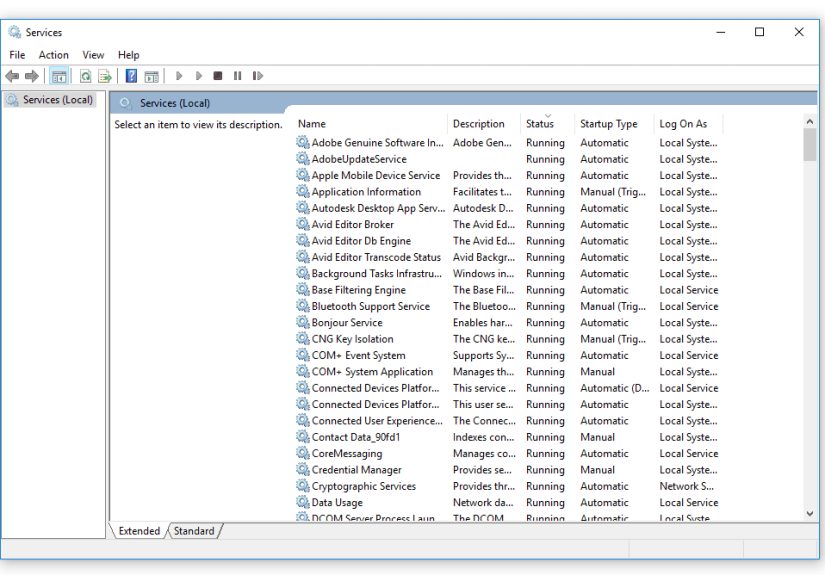
The easiest tool is the Services console. Press Win + R, type services.msc, and press Enter. From there, you can open a service, view its status, change its startup type, and start or stop it.
This is the most user-friendly option, especially for troubleshooting a single machine. It is also where many admins first learn that Windows has a lot going on behind the curtain. A lot.
Task Manager
Task Manager can show running services and help connect them to broader system activity. It is useful when you want a faster overview rather than detailed configuration.
PowerShell and Command Line
For automation and remote administration, PowerShell and sc.exe are the go-to tools. Admins commonly use commands like:
Get-ServiceStart-ServiceStop-ServiceSet-Servicesc querysc config
That matters because large environments do not manage services one mouse click at a time. They use scripts, monitoring platforms, and policy-based tools to keep service behavior consistent.
Why Windows Services Matter for Performance, Stability, and Security
A well-behaved service is almost invisible. A badly configured one is unforgettable.
Services affect system performance because too many auto-starting services can increase boot time and consume memory or CPU. They affect stability because failed or misordered services can break printing, databases, log collection, or authentication. And they affect security because the account and privileges attached to a service can expand your attack surface if handled poorly.
That is why service management is not just “IT housekeeping.” It is part of operations, security, and application reliability all at once.
Good service hygiene usually means:
- Use the right startup type.
- Document dependencies.
- Monitor critical services.
- Use least-privilege service accounts.
- Review unnecessary or legacy services before disabling anything.
That last part is important. Randomly disabling services because a forum post promised “faster Windows” is how people accidentally turn a functioning system into an educational experience.
When Should Software Be Installed as a Windows Service?
Not every program should be a service. A game launcher does not need that much ambition. But software is a strong candidate for service architecture when it needs to:
- run continuously in the background,
- start at boot,
- work without user interaction,
- support server or enterprise workloads,
- remain available even when no one is logged in.
That is why web services, database engines, schedulers, sync tools, security agents, and monitoring collectors are often implemented as Windows services. The architecture is built for long-running reliability.
Real-World Experience: What Working with Windows Services Actually Feels Like
Here is the human side of the topic, because the clean textbook definition only gets you so far. In practice, Windows services are one of those things you barely notice when everything is healthy and suddenly obsess over when something refuses to start at 8:02 a.m. on a Monday.
A classic experience goes like this: the application is “installed correctly,” the server rebooted overnight, and the app team insists nothing changed. Yet the system is down because one service is stuck in Starting, another is set to Manual by accident, and a third depends on something that never came online. That is when services stop feeling abstract and start feeling very personal.
Another common scenario involves service accounts. Everything works beautifully for weeks, then a password changes, permissions shift, or a security policy tightens up. Suddenly, the service will run manually for an administrator but not automatically under its assigned account. That is a clue that the issue is not the executable itself but the security context behind it. For many admins, this is the moment they learn that “runs on my machine” is not the same as “runs as a service at boot with the correct privileges.”
There is also the boot-time chaos problem. A service may be perfectly healthy, but if it starts too early and its dependency is not ready yet, it fails and leaves everyone grumpy. Changing the startup type to Automatic (Delayed Start) can sometimes turn a flaky service into a reliable one. It is not magic. It just gives the machine time to finish bringing up the basics before asking another component to join the party.
Monitoring adds another layer of experience. Mature teams do not just hope services are fine. They watch them. If a critical service stops, they want alerts, logs, restart actions, and enough context to know whether the root cause is memory pressure, a broken dependency, a credential issue, or a software bug. This is why service monitoring tools are so heavily used in real environments. A stopped service is often the first symptom of a larger application or infrastructure problem.
And then there is the cautionary tale every admin eventually collects: disabling a “useless-looking” service because the name sounded optional. Maybe it seemed harmless. Maybe a random tuning guide suggested it. A reboot later, networking breaks, printing vanishes, updates fail, or some line-of-business app starts behaving like it was assembled from spare parts. Windows services have a habit of being more important than their names suggest.
The deeper lesson from real-world experience is simple: services are not just background tasks. They are part of the operating rhythm of Windows. Understanding them makes troubleshooting faster, deployments cleaner, security tighter, and uptime less dramatic. And in IT, fewer surprises is a beautiful thing.
Final Thoughts
If you remember just one thing, make it this: a Windows service is a background program managed by the operating system to perform long-running tasks reliably, often from boot and often without a user interface. That is the heart of the Windows service definition.
Once you understand the role of the Service Control Manager, startup types, service accounts, and the difference between a service and a regular process, a lot of Windows behavior starts making more sense. Services are everywhere. They keep systems available, applications responsive, and infrastructure alive behind the scenes.
So the next time someone asks, “What is a service?” you can answer with confidence: it is one of the quiet little engines that keeps Windows from falling apart while the rest of us click buttons and pretend everything is simple.