Table of Contents >> Show >> Hide
- What Is a YouTube Thumbnail, Exactly?
- How to Add a Thumbnail to a Video on YouTube on Desktop
- How to Change a Thumbnail After a Video Is Published
- How to Add a Thumbnail on Mobile
- How YouTube Shorts Thumbnails Work
- Why the Upload Thumbnail Option Might Be Missing
- YouTube Thumbnail Requirements
- Best Practices for Creating a Custom YouTube Thumbnail
- Common Thumbnail Mistakes to Avoid
- How Thumbnails Support YouTube SEO
- Should You Test Different Thumbnails?
- A Simple Example of a Strong Thumbnail Strategy
- Real-World Experience: What I Have Learned About YouTube Thumbnails
- Final Thoughts
If your YouTube video is a movie, your thumbnail is the movie poster. And yes, that tiny image has a wildly unfair amount of responsibility. Before viewers hear your intro, admire your editing, or appreciate the blood, sweat, and overcaffeinated keyboard shortcuts behind your upload, they see the thumbnail. In many cases, that one image decides whether your video gets a click or gets ghosted.
That is why learning how to add a thumbnail to a video on YouTube is not some optional “nice little creator trick.” It is a core publishing skill. A strong YouTube thumbnail can make a tutorial look clearer, a review feel more trustworthy, and a vlog appear more interesting before anyone even presses play. A weak one can make a great video look like it was uploaded by accident during a power outage.
In this guide, I will walk you through exactly how to add a thumbnail to a YouTube video, how to change it after publishing, what to do if the upload option is missing, and how to create a custom YouTube thumbnail that actually helps your video perform better. I will also cover YouTube thumbnail size, mobile workflow, Shorts limitations, and practical design tips that help your content stand out without sliding into clickbait clown territory.
What Is a YouTube Thumbnail, Exactly?
A YouTube thumbnail is the preview image that appears beside or on top of your video in search results, recommendations, channel pages, playlists, and other browsing surfaces. YouTube can generate a few automatic thumbnail options for you, but creators usually get better results by uploading a custom thumbnail that is more deliberate, branded, and easier to understand at a glance.
Think of it this way: your title tells people what the video is about, and your thumbnail helps them feel why they should care. The best-performing videos usually pair the two. The thumbnail grabs attention, while the title adds context. That combination is where the magic lives.
How to Add a Thumbnail to a Video on YouTube on Desktop
If you are using a computer, this is the fastest and easiest workflow. Here is how to add a thumbnail to a video on YouTube through YouTube Studio:
- Sign in to YouTube Studio.
- From the left-hand menu, click Content.
- Select the video you want to edit.
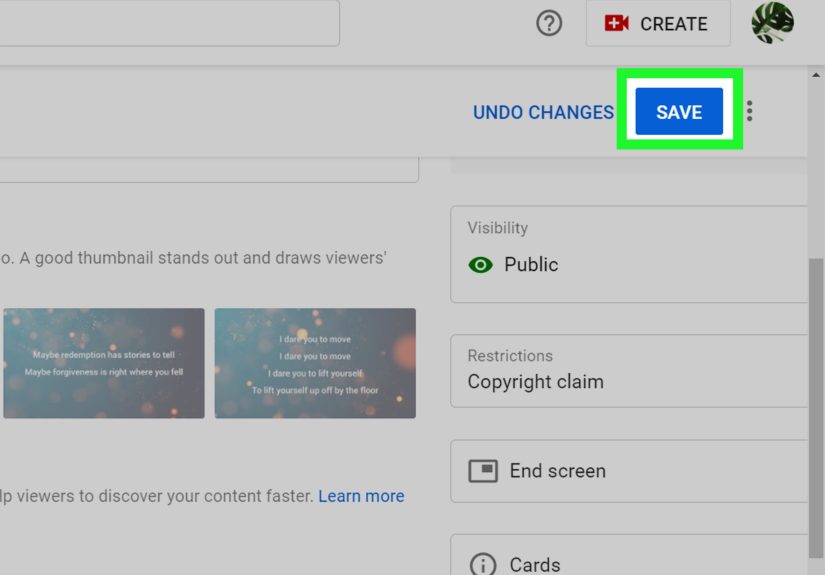
- In the thumbnail section, choose one of YouTube’s automatic options or click Upload thumbnail.
- Select the image file from your device.
- Click Save.
That is it. No ritual dance required, no secret creator dungeon, no need to whisper “algorithm” three times into your webcam. Just upload the image and save your changes.
You can do this while uploading a brand-new video or later after the video is already live. That means you are not stuck with your first choice forever. If your current thumbnail is not getting the clicks you hoped for, you can replace it and test a better one.
How to Change a Thumbnail After a Video Is Published
One of the nicest things about YouTube is that thumbnails are editable. So if your video is already published and the current image is looking tired, confusing, or suspiciously like a random freeze-frame of you blinking, you can swap it out.
To change a YouTube thumbnail after publishing:
- Go to YouTube Studio.
- Click Content.
- Open the published video.
- Click Upload thumbnail or select a different suggested image.
- Click Save.
Keep in mind that your thumbnail update may not appear everywhere instantly. Sometimes it takes a little time to roll across YouTube. So if you change it and do not see the new version in every surface right away, do not panic and assume the internet has betrayed you personally.
How to Add a Thumbnail on Mobile
If you are working from your phone, you can still edit thumbnails using the YouTube Studio app. The steps may vary a bit depending on your device and app version, but the flow is generally straightforward.
- Open the YouTube Studio app.
- Tap Content.
- Select the video you want to edit.
- Tap Edit, then tap the thumbnail area.
- Choose an auto-generated image or select a custom thumbnail from your device.
- Confirm your selection and tap Save.
If you are managing your channel on the go, this is incredibly handy. Maybe you uploaded from your laptop, then later realized your thumbnail looks like a tax document. No problem. You can fix it from your phone before more viewers scroll past it.
How YouTube Shorts Thumbnails Work
YouTube Shorts are a little different. For a regular long-form video, you can upload a separate custom image. For Shorts, the process is more limited. In most cases, you choose a frame from the Short itself in the YouTube app rather than uploading a separate custom image through Studio.
That means if you care about the YouTube Shorts thumbnail, you should plan ahead. Include frames in your Short that would make a strong cover image. Do not leave it to chance unless your creative strategy is “freeze on the weirdest face possible and hope for the best.”
Why the Upload Thumbnail Option Might Be Missing
If you do not see the option to upload a custom thumbnail, the most common reason is feature access. On YouTube, custom thumbnails are tied to channel verification and feature eligibility.
So if your channel is new or you have never gone through verification, you may only see auto-generated thumbnail choices. To check your status:
- Open YouTube Studio on desktop.
- Click Settings.
- Click Channel.
- Open Feature eligibility.
There you can see which features are enabled for your channel. If custom thumbnails are not active yet, complete the verification steps YouTube requires for the level of access needed.
If your account is already verified and the button still does not appear, try signing out and back in, refreshing Studio, updating the app, or testing from desktop if you are currently on mobile. Sometimes the issue is less “YouTube hates me” and more “the app is being moody today.”
YouTube Thumbnail Requirements
Before you upload your image, make sure it matches YouTube’s basic technical requirements. This is where a lot of creators get tripped up, especially when the thumbnail looks fine on their computer but fails during upload.
- Recommended size: 1280 x 720 pixels
- Minimum width: 640 pixels
- Aspect ratio: 16:9
- File size: under 2 MB
- File types: JPG, GIF, or PNG
If your image is too large, resize or compress it before uploading. If the aspect ratio is off, your thumbnail may crop badly or look awkward in previews. And if your text is tiny, mobile viewers will see nothing but decorative ants.
Best Practices for Creating a Custom YouTube Thumbnail
Uploading a thumbnail is easy. Uploading a thumbnail that helps your video earn clicks is the real game. Here are the principles that matter most.
1. Make the Thumbnail Match the Video
This is the golden rule. Your thumbnail should accurately represent the content of the video. If your thumbnail promises one thing and your video delivers something else, viewers click, feel tricked, and leave. That is terrible for trust, terrible for audience retention, and terrible for long-term channel growth.
In other words, do not bait people with “THIS CHANGED EVERYTHING” when the video is actually you quietly organizing camera batteries for 11 minutes. Keep it honest, but still compelling.
2. Use One Clear Focal Point
The best YouTube thumbnails are easy to understand in about one second. Use one main subject: a face, a product, a dramatic object, a clear before-and-after image, or a bold visual contrast. If you cram in ten elements, the result looks busy and weak.
A good thumbnail should not feel like a yard sale. It should feel intentional.
3. Keep Text Short and Readable
If you add text, keep it tight. A few words usually work better than a full sentence. The title already carries part of the message, so the thumbnail text should support it, not duplicate it word-for-word like an overeager parrot.
Use large fonts, strong contrast, and simple phrasing. If your text cannot be read on a phone screen, it is probably not helping.
4. Use Contrast to Stop the Scroll
Bright elements on dark backgrounds or dark elements on bright backgrounds tend to stand out more clearly. Strong contrast makes your thumbnail easier to scan, especially in crowded recommendation feeds.
You do not need to turn every thumbnail into a neon carnival. You just need enough contrast so the subject is obvious and the text does not disappear into the background like it owes money.
5. Show Emotion When It Fits
Faces and expressions often work well because people respond quickly to emotion. Surprise, frustration, excitement, curiosity, relief, confusion, triumph, all of those can communicate a story fast. This works especially well for tutorials, commentary, reactions, transformations, and challenge-style content.
That said, not every niche needs a giant shocked face. If your channel is about woodworking, finance, or minimalist tech reviews, subtle confidence may work better than looking like you just saw a ghost in your spreadsheet.
6. Keep a Consistent Style
Over time, consistency helps viewers recognize your videos. Use similar colors, fonts, framing, or layout patterns so your channel develops a visual identity. This does not mean every thumbnail should be a clone. It means your audience should start recognizing your work before they even see your channel name.
7. Plan the Thumbnail Before You Film
This is a smart creator habit that does not get enough attention. If you think about the thumbnail before filming, you can shoot specific expressions, poses, props, or scenes with the final image in mind. That usually gives you much better raw material than digging through your footage afterward and settling for a random frame where you look confused for no reason.
Common Thumbnail Mistakes to Avoid
- Using a random video frame: Sometimes it works, but often it looks accidental and low-effort.
- Adding too much text: If it reads like a cereal box, simplify it.
- Using tiny details: Small objects disappear on mobile.
- Making it misleading: Clickbait may win a click and lose a viewer.
- Ignoring branding: Random design choices make your channel harder to recognize.
- Forgetting mobile viewers: Most thumbnails need to work at a very small size.
How Thumbnails Support YouTube SEO
A thumbnail is not a keyword field, so it does not “rank” your video the same way a title or description can help with search relevance. But it absolutely affects performance signals that matter. When your thumbnail and title together attract the right viewer, you can improve click-through rate, viewer satisfaction, and watch behavior.
That matters because YouTube rewards content that people actually choose to watch and continue watching. So while your thumbnail is not a direct SEO tag, it is a major part of the packaging that influences whether your video gets the chance to perform.
In simple terms: bad packaging can bury a good video. Great packaging gives it a fair shot.
Should You Test Different Thumbnails?
Yes. Absolutely. Politely, aggressively, and often. If a video matters to your channel, testing thumbnails can be worth the effort. Some creators now have access to thumbnail A/B testing inside YouTube Studio, which lets them compare options more systematically. But even if that feature is not available on your account, you can still test manually by changing a thumbnail and monitoring performance over time.
Try testing one big variable at a time, such as:
- Face vs. no face
- Text vs. no text
- Bright background vs. dark background
- Product close-up vs. wider scene
- Clean minimalist layout vs. stronger emotional hook
Sometimes a small change makes a surprisingly large difference. Sometimes it does not. That is normal. Thumbnails are part art, part psychology, part pattern recognition, and part staring at your screen wondering why Version B is clearly better and somehow doing worse.
A Simple Example of a Strong Thumbnail Strategy
Let’s say your video title is How to Add a Thumbnail to a Video on YouTube. A weak thumbnail might be a plain screenshot of YouTube Studio with no visual emphasis.
A stronger thumbnail might include:
- A zoomed-in YouTube Studio screen
- An arrow pointing to the upload thumbnail area
- Short text like Add Thumbnail
- A clean background with strong contrast
- Your face looking mildly victorious, as if you just outsmarted a confusing settings panel
That version gives the viewer a faster clue about the benefit of the video. It tells them, “This will show me exactly where to click.” That is useful, specific, and clear.
Real-World Experience: What I Have Learned About YouTube Thumbnails
Over time, one of the biggest lessons I have learned about YouTube thumbnails is that creators often overcomplicate them. At first, it is easy to think a thumbnail needs cinematic lighting, six layers of effects, dramatic typography, and enough arrows to direct airport traffic. But in practice, the thumbnails that work best are usually the ones that communicate one clear idea fast.
I have seen videos with solid editing and useful information underperform simply because the thumbnail looked vague. The image was technically fine, but it did not answer the viewer’s first silent question: “Why should I click this instead of the ten other videos next to it?” Once the thumbnail was updated to make the result more obvious, the video often had a better chance to breathe.
Another pattern I have noticed is that creators love to repeat the full title inside the thumbnail. That usually does not help. If the title already says How to Add a Thumbnail to a Video on YouTube, the thumbnail does not need to repeat all of that in miniature font. A shorter phrase like Add Thumbnail, Fix It Fast, or Upload Here usually does a better job. The title and thumbnail should work together like a team, not like two coworkers sending the same email.
I have also learned that a thumbnail can fail for reasons that have nothing to do with design talent. Sometimes the issue is simply planning. If you finish editing the video and only then think about the thumbnail, you may be stuck pulling a random frame where the subject looks awkward or the screen is too cluttered. Planning the thumbnail before filming gives you options. You can record a clean moment, capture a useful expression, or build a shot specifically meant for the cover image. That small habit makes the whole process easier.
One more practical lesson: thumbnails should be judged at small size, not full size. A thumbnail can look beautiful on a large monitor and still fail miserably on a phone. So whenever I evaluate one, I zoom out or shrink it down. If the message disappears, the text becomes mush, or the subject blends into the background, I know it needs work. Tiny-screen clarity matters more than desktop beauty.
Finally, I have learned not to treat thumbnails as permanent. A thumbnail is packaging, and packaging can be improved. If a video is good but the clicks are weak, changing the thumbnail is one of the smartest low-effort tests you can run. You do not need to reshoot the video. You do not need to rebuild your channel. Sometimes you just need a sharper image, fewer words, stronger contrast, and a clearer promise. That is not cheating. That is good publishing.
So yes, adding a thumbnail to a YouTube video is technically simple. But using thumbnails well is a skill. The more you publish, the more you start to notice which visuals trigger curiosity, which layouts feel trustworthy, and which ideas stop people from scrolling. Once that clicks, your entire channel presentation gets stronger.
Final Thoughts
If you want the short version, here it is: go to YouTube Studio, open your video, click Upload thumbnail, choose a properly sized image, and save. Then make sure your thumbnail is clear, honest, readable, visually strong, and connected to the promise of your title.
That is the difference between simply adding a thumbnail and using a thumbnail well.
On YouTube, little details are rarely little. Your thumbnail is one of the first things viewers judge, one of the easiest things to improve, and one of the most powerful ways to package your content for both discovery and clicks. So treat it like a first impression, because that is exactly what it is.