Table of Contents >> Show >> Hide
- Quick Answer: How Do You Delete Search & Siri Suggestions?
- What Are Search & Siri Suggestions?
- Can You Delete Siri Suggestions Completely?
- Step 1: Turn Off Recent Searches in iPhone or iPad Search
- Step 2: Stop Specific Apps From Appearing in Search
- Step 3: Turn Off Siri Suggestions Globally
- Step 4: Turn Off Siri Learning for Individual Apps
- Step 5: Delete Siri & Dictation History
- Step 6: Clear Safari Search History and Website Data
- Step 7: Turn Off Safari Search Suggestions
- Step 8: Turn Off Location-Based Suggestions
- Step 9: Remove Siri Suggestions From Notifications
- Step 10: Restart Your iPhone or iPad
- Why Do Siri Suggestions Keep Coming Back?
- Privacy Tips for Cleaner Search and Siri Results
- Common Mistakes to Avoid
- Final Thoughts
- Personal Experience: What It Feels Like to Clean Up Search & Siri Suggestions
- SEO Tags
Your iPhone and iPad are helpful little overachievers. They remember apps you open every morning, websites you visit, people you often message, places you search for, and shortcuts you may want before you even ask. Most of the time, this feels magical. Other times, it feels like your device is standing behind you wearing tiny detective glasses.
If you have ever opened Search and seen old websites, app suggestions, contact shortcuts, Safari search history, or Siri recommendations you would rather not explain to anyone nearby, you are not alone. The good news is that you can clean up most Search and Siri Suggestions on iPhone and iPad. The slightly annoying news is that there is no single giant red button labeled “delete everything my phone thinks it knows about me.” Apple separates these controls across Search, Siri, Safari, app settings, Location Services, and privacy options.
This guide explains how to delete Search and Siri Suggestions on iPhone and iPad, how to stop them from coming back, and what you can realistically clear. Whether you want a tidier Spotlight Search screen, more privacy, fewer Siri notifications, or just fewer awkward “why is that showing up?” moments, the steps below will help.
Quick Answer: How Do You Delete Search & Siri Suggestions?
To remove Search and Siri Suggestions on iPhone or iPad, start with these main areas:
- Settings > Search: Turn off recent searches, related content, app search visibility, and Apple Search improvement options.
- Settings > Siri or Settings > Apple Intelligence & Siri: Turn off Siri Suggestions such as Show in App, Show on Home Screen, Suggest App, and Suggestion Notifications.
- Siri app settings: Disable Siri learning and search visibility for individual apps.
- Settings > Apps > Safari: Clear Safari history, website data, cache, and recent searches.
- Settings > Privacy & Security > Location Services: Turn off location-based Suggestions & Search.
- Siri & Dictation History: Delete Siri and Dictation history connected to the device.
Think of it like cleaning a house. Search suggestions are in the living room, Safari history is in the kitchen, Siri settings are in the office, and app-specific suggestions are somehow hiding in the sock drawer.
What Are Search & Siri Suggestions?
Search and Siri Suggestions are personalized recommendations that appear across iPhone and iPad. You may see them when you swipe down on the Home Screen, open Spotlight Search, use Safari, view the Lock Screen, open the Share Sheet, type with the keyboard, or interact with certain apps.
Examples include suggested apps, recent searches, contact shortcuts, websites, calendar actions, Safari suggestions, app actions, location-based recommendations, and Siri shortcut suggestions. For instance, if you open Maps every weekday morning, your iPhone may suggest Maps at the same time tomorrow. If you often text a family member after work, Siri may suggest that contact. If you search for “best pizza near me,” Search may keep showing related web or location-based results. Helpful? Usually. Slightly nosy? Also yes.
Can You Delete Siri Suggestions Completely?
You can delete or disable many visible suggestions, but it helps to understand the difference between deleting history and turning off future suggestions.
Deleting removes stored traces
Clearing Safari history, deleting Siri and Dictation History, and removing website data can erase certain stored records. This is useful when you want old searches, visited pages, cache, and Siri interaction history removed.
Turning off suggestions prevents new recommendations
Disabling Siri Suggestions, Search results, app learning, and location-based suggestions prevents your iPhone or iPad from showing certain recommendations again. This does not always erase every past trace instantly, but it stops the system from using those settings to keep serving new suggestions.
Some suggestions are generated locally
Many Siri Suggestions are created through on-device intelligence. That means your device learns from app usage and local activity to personalize your experience. This is good for privacy, but it also means there are several switches to manage instead of one universal “forget everything” button.
Step 1: Turn Off Recent Searches in iPhone or iPad Search
Search, also known as Spotlight, is where many people first notice unwanted suggestions. On iPhone, you can usually open it by swiping down on the Home Screen. On newer models, you may also see a Search button near the bottom of the Home Screen. On iPad, Search works similarly and can surface apps, contacts, files, messages, websites, and actions.
To reduce what appears in Search:
- Open the Settings app.
- Tap Search.
- Turn off Show Recent Searches if available.
- Turn off Show Related Content if you do not want web-based or related suggestions.
- Turn off Help Apple Improve Search if you do not want your search queries used to improve Apple Search.
These options may vary slightly depending on your iOS or iPadOS version. If you do not see the exact wording, look for similar Search settings related to recent searches, web content, related results, or improving Search.
Step 2: Stop Specific Apps From Appearing in Search
Sometimes the problem is not Search itself. It is one app that keeps showing up like an overeager intern. Maybe Messages suggests a thread, Photos surfaces image text, Mail shows old content, or a shopping app appears every time you type one letter.
To remove an app from Search results:
- Open Settings.
- Tap Search.
- Scroll down and choose the app you want to control.
- Turn off Show App in Search.
- If available, also turn off options such as Show Content in Search or similar app-specific search settings.
This is one of the best privacy moves if you share your device with family, use your iPad for presentations, or simply do not want private app content showing up in Spotlight. For example, you may want Calculator or Weather visible in Search, but not Notes, Messages, Mail, Photos, or banking apps.
Step 3: Turn Off Siri Suggestions Globally
Siri Suggestions can appear in several places: on the Home Screen, inside apps, as app suggestions, and as notifications. To reduce them across your device:
- Open Settings.
- Tap Siri, Siri & Search, or Apple Intelligence & Siri, depending on your iOS or iPadOS version.
- Look for the Siri Suggestions section.
- Turn off options such as Show in App, Show on Home Screen, Suggest App, and Suggestion Notifications.
On some iPhone and iPad versions, the wording may be slightly different. Older versions may say Suggestions in Search, Suggestions in Look Up, or Suggestions on Lock Screen. Newer versions may place these controls under Apple Intelligence & Siri. The goal is the same: disable the places where Siri is allowed to suggest actions, apps, shortcuts, or notifications.
Step 4: Turn Off Siri Learning for Individual Apps
If you only want to stop Siri Suggestions for certain apps, use app-by-app controls. This is more flexible than shutting everything down. For example, you might like Siri suggesting Calendar events, but not want it learning from Safari, Messages, TikTok, Photos, or your favorite guilty-pleasure shopping app.
To manage Siri access for individual apps:
- Open Settings.
- Tap Siri, Siri & Search, or Apple Intelligence & Siri.
- Tap Apps.
- Select the app you want to adjust.
- Turn off the Siri and Search options you do not want.
Depending on the app and software version, you may see controls such as Learn from this App, Show App in Search, Show Content in Search, Suggest App, Suggest Notifications, or Use with Siri Requests. Turn off anything that allows the app to feed suggestions into Search or Siri.
This is especially useful for apps that contain sensitive information. Good candidates include Messages, Mail, Photos, Notes, Files, Health, banking apps, dating apps, work apps, and private browsing-related apps. Basically, if you would not want it popping up while your boss, parent, child, client, or nosy cousin is looking over your shoulder, consider disabling its Search and Siri access.
Step 5: Delete Siri & Dictation History
Search suggestions and Siri history are not exactly the same thing. Siri and Dictation History refers to Siri and Dictation interactions associated with your device. If you want to clear that data, use the dedicated history option.
To delete Siri and Dictation History:
- Open Settings.
- Tap Siri or Apple Intelligence & Siri.
- Tap Siri & Dictation History.
- Tap Delete Siri & Dictation History.
- Confirm your choice.
You may need an internet connection for the request to complete. This step is worth doing if your goal is not just a cleaner Search screen, but better control over Siri-related data. If you also turn off Siri and Dictation entirely, Apple states that transcripts stored on the device and used for personalization are deleted.
Step 6: Clear Safari Search History and Website Data
Many people think Siri Suggestions are the reason old searches appear, but Safari is often the real culprit. Safari can show recent searches, visited websites, frequently visited pages, search engine suggestions, and browsing-related results. If you want a clean slate, clear Safari history and website data.
To clear Safari history on iPhone or iPad:
- Open Settings.
- Tap Apps.
- Select Safari.
- Tap Clear History and Website Data.
- Choose the timeframe you want to clear.
- Tap Clear History to confirm.
This clears Safari history, cookies, cache, and recent searches for the selected timeframe. It does not delete AutoFill information, and it does not erase browsing histories stored inside other browsers such as Chrome, Firefox, Edge, or DuckDuckGo. If you use more than one browser, you will need to clear each one separately. Yes, your iPhone is powerful. No, it is not psychic enough to clean Chrome from Safari settings.
Clear cookies and cache but keep history
If you want to remove website data but keep your browsing history, go to Settings > Apps > Safari > Advanced > Website Data, then tap Remove All Website Data. This can help reduce tracking data and fix website issues without wiping your visible history list.
Delete only one website from Safari history
If one embarrassing or outdated website is the problem, you do not have to burn down the entire Safari forest. Open Safari, go to History, select the site you want to remove, and delete it. This is useful when you want to keep most history but remove a specific entry.
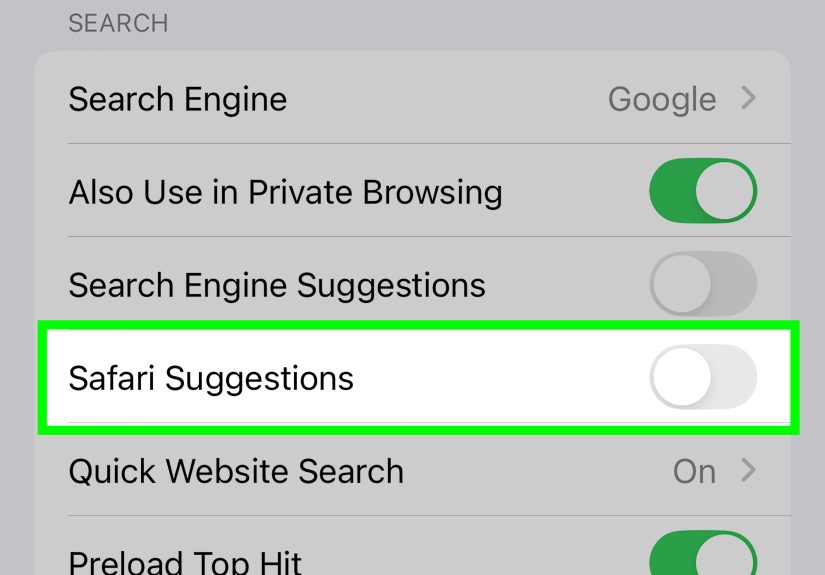
Step 7: Turn Off Safari Search Suggestions
Safari may also show search engine suggestions as you type. These suggestions come from your selected search engine, such as Google, Bing, Yahoo, or DuckDuckGo, depending on your default settings.
To reduce Safari suggestions:
- Open Settings.
- Tap Apps.
- Tap Safari.
- Turn off Search Engine Suggestions.
- Turn off Safari Suggestions if you do not want Safari to suggest websites, apps, or related content.
- Consider turning off Preload Top Hit if you do not want Safari loading likely results in the background.
This will not erase all past browsing data by itself, but it helps stop Safari from offering new predictive suggestions while you type.
Step 8: Turn Off Location-Based Suggestions
Some Search and Siri Suggestions are based on location. For example, your iPhone might suggest Maps, nearby businesses, calendar travel time, or location-relevant search results. If you want fewer location-based recommendations, turn off Suggestions & Search in Location Services.
To disable location-based suggestions:
- Open Settings.
- Tap Privacy & Security.
- Tap Location Services.
- Scroll down and tap System Services.
- Turn off Suggestions & Search.
This prevents your device from using precise location for Search suggestions. You can also turn off Location Services entirely, but that may affect Maps, Find My, weather, rideshare apps, delivery apps, camera location tags, and other features you may actually want.
Step 9: Remove Siri Suggestions From Notifications
If Siri is sending suggestion notifications, such as recommending actions based on your habits, you can disable those alerts without turning off all notifications from every app.
Try this:
- Open Settings.
- Tap Notifications.
- Tap Siri Suggestions if available.
- Turn off suggestions for all apps or selected apps.
This is helpful when the issue is not Search results, but Siri popping up with “helpful” notifications at awkward times. Siri means well, but sometimes the most helpful suggestion is silence.
Step 10: Restart Your iPhone or iPad
After changing Search, Siri, Safari, and Location settings, restart your device. This is not magic, but it can help refresh visible suggestions and clear cached behavior faster.
To restart most Face ID iPhones and newer iPads, hold the side button and a volume button until the power slider appears. Slide to power off, wait a few seconds, then turn the device back on. On older models with a Home button, hold the top or side button until the slider appears.
After restarting, open Search again and check whether the unwanted suggestions are gone. If some remain, revisit the app-specific settings. The stubborn suggestion is usually coming from one app that still has permission to appear in Search or Siri.
Why Do Siri Suggestions Keep Coming Back?
If Search or Siri Suggestions keep returning, one of these causes is usually responsible:
- App learning is still enabled: An individual app may still be allowed to appear in Search or feed Siri Suggestions.
- Safari history was not cleared: Web suggestions often come from Safari, not Siri.
- Another browser is involved: Chrome, Firefox, Edge, and other browsers have their own history settings.
- iCloud sync is updating personalization: Siri personalization can sync across Apple devices when enabled.
- Location Services are still active for Search: Nearby and location-based recommendations may continue until Suggestions & Search is disabled.
- The device needs time to refresh: Some visible suggestions may not disappear instantly.
Privacy Tips for Cleaner Search and Siri Results
Deleting Search and Siri Suggestions once is useful. Keeping them under control is better. Here are practical settings to consider if privacy is your main goal:
Limit sensitive apps in Search
Disable Search visibility for Messages, Mail, Notes, Photos, Files, Health, financial apps, and private work apps. These apps often contain personal content that can surface unexpectedly.
Use Private Browsing when needed
Safari Private Browsing prevents Safari from saving your browsing history for those private tabs. It is not a cloak of invisibility for the entire internet, but it does reduce local history buildup.
Clear browser data regularly
If you frequently research sensitive topics, clear Safari and third-party browser history on a schedule. Weekly or monthly cleanup is enough for most users.
Check iPad settings separately
If you use both iPhone and iPad, review settings on both devices. Your iPad may still show suggestions even if your iPhone looks clean.
Be careful with shared devices
If children, coworkers, classmates, or family members use your device, disable Search access for private apps. A shared iPad can reveal more than you expect through Spotlight Search.
Common Mistakes to Avoid
Mistake one: Clearing Safari but ignoring Search. Safari history cleanup removes web traces, but it does not automatically disable app suggestions in Spotlight.
Mistake two: Turning off Siri voice activation only. Disabling “Hey Siri” or “Siri” does not necessarily turn off Siri Suggestions. Search and suggestion settings are separate.
Mistake three: Forgetting app-by-app controls. Many unwanted results come from specific apps. Global settings help, but app settings finish the job.
Mistake four: Expecting one button to erase everything. Apple separates Safari history, Siri history, Search suggestions, Location Services, and app content. You need to clean each area.
Mistake five: Not checking other browsers. If you use Chrome or Firefox, clearing Safari will not touch those histories. Each browser has its own cleanup tools.
Final Thoughts
Learning how to delete Search and Siri Suggestions on iPhone and iPad is really about understanding where Apple stores different types of convenience. Search suggestions, Safari history, Siri recommendations, app shortcuts, and location-based results all feel connected because they appear in similar places. Behind the scenes, however, they are controlled by different settings.
For the cleanest result, use a complete approach: turn off unwanted Search features, disable Siri Suggestions globally or app by app, delete Siri and Dictation History, clear Safari history and website data, disable location-based suggestions, and restart your device. It takes a few minutes, but it gives you a much quieter and more private iPhone or iPad.
The best part is that you do not have to choose between full convenience and total silence. You can keep useful suggestions for Calendar, Maps, Reminders, and Weather while removing private apps from Search. That balance is the sweet spot: your device remains helpful, but it stops acting like a tiny gossip columnist with a battery percentage.
Personal Experience: What It Feels Like to Clean Up Search & Siri Suggestions
The first time you seriously clean up Search and Siri Suggestions, the experience can feel oddly refreshing. Many iPhone and iPad users do not realize how much their devices quietly predict until they start turning things off. Search suddenly becomes less crowded. The Lock Screen stops offering random shortcuts. Safari stops throwing old searches into view. The Home Screen feels calmer, almost like your phone took a deep breath and decided to stop commenting on your life choices.
In real-world use, the biggest improvement usually comes from app-by-app cleanup. Turning off every Siri feature at once can make the device feel less smart, but controlling specific apps gives you privacy without sacrificing convenience. For example, keeping Siri suggestions for Calendar and Maps is genuinely useful. If you have a meeting across town, travel-time suggestions can save you from being late. If you use Reminders for groceries, suggested actions can help. But there is rarely a good reason for private messages, old notes, sensitive photos, or financial apps to appear in Search results when you are simply trying to open Calculator.
Another common experience is discovering that Safari, not Siri, is responsible for many embarrassing suggestions. People often blame Siri because the word “suggestions” appears everywhere, but Safari history and search engine suggestions are frequent offenders. Clearing Safari history and turning off Search Engine Suggestions can make a dramatic difference. It is especially noticeable when you hand your phone to someone else to look up a restaurant, check directions, or search for a product. Instead of showing a parade of previous searches, Safari simply behaves like a browser. Revolutionary? Not exactly. Peaceful? Absolutely.
On iPad, the cleanup can matter even more. Many people use iPads in shared spaces: classrooms, offices, living rooms, studios, shops, and family homes. Spotlight Search on iPad can pull up documents, messages, apps, and web content in a very visible way. If you use your iPad for work presentations, teaching, client demos, or screen sharing, disabling Search access for private apps is a smart move. Nobody wants a random personal note or message thread appearing while trying to explain quarterly numbers or show a design mockup.
One practical habit is to review these settings after major iOS or iPadOS updates. Apple sometimes reorganizes Settings, changes labels, or adds new intelligence features. After an update, open Search, Siri, Safari, and Privacy settings for a quick audit. You do not need to become a full-time privacy wizard with a cape and a spreadsheet. Just check the main toggles: recent searches, app visibility, Siri Suggestions, Safari history, location-based suggestions, and Siri history.
The most realistic expectation is control, not perfection. Your iPhone and iPad are designed to be helpful, so suggestions are deeply woven into the system. But with the right settings, you can decide which parts stay helpful and which parts need to mind their own business. That is the real win: a device that still works smartly, but no longer surprises you with old searches at the worst possible time.